
The article provides a step-by-step guide on how to install SAP Business One on a Microsoft SQL Server. It covers the preparation for the installation, installation of the server tools, and the installation of the SAP Business One server itself. It also explains the benefits of using Microsoft SQL Server with SAP Business One.
Introduction
SAP Business One is a powerful, integrated enterprise resource planning (ERP) software solution designed to help small to mid-sized businesses manage their operations more efficiently. It offers a comprehensive range of functions, including financial management, sales and customer management, purchasing and procurement, inventory and distribution management, and reporting and analytics.
To run SAP Business One, your system needs to meet certain hardware and software requirements. The specific system requirements may vary depending on the version of SAP Business One you’re installing, as well as the database management system you’re using. Here are some general system requirements for SAP Business One:
- Operating System: Windows Server 2016, 2019 or Windows 10 Pro/Enterprise (64-bit)
- CPU: 64-bit processor, quad-core, 2 GHz or higher
- RAM: Minimum of 8 GB, but 16 GB or more is recommended
- Hard Disk Space: At least 20 GB of free space on the system drive, and additional space for company databases and log files
- Database Management System: SAP HANA, Microsoft SQL Server, Oracle Database, or SAP ASE (formerly Sybase ASE)
- .NET Framework: Version 4.8 or higher
It’s important to note that these are just general requirements, and the specific requirements may vary depending on your particular installation. For example, if you have multiple users accessing SAP Business One concurrently or have large amounts of data, you may need more RAM, a faster CPU, or a larger database management system.
Before installing SAP Business One, it’s recommended to consult the official documentation to ensure that your system meets all the necessary requirements for a successful installation and optimal performance.
The benefits of installing SAP Business One on Microsoft SQL Server
Microsoft SQL Server is one of the most widely used database management systems in the world, and for good reason. It offers excellent performance, scalability, and security features, making it an ideal choice for running SAP Business One. Here are some benefits of installing SAP Business One on Microsoft SQL Server:
- Improved performance: Microsoft SQL Server is optimized for handling large amounts of data and high transaction volumes. By running SAP Business One on Microsoft SQL Server, you can benefit from improved system performance, faster data retrieval, and quicker response times.
- Enhanced scalability: Microsoft SQL Server is highly scalable, meaning it can handle increasing volumes of data as your business grows. This means that SAP Business One can grow with your business, without compromising system performance or stability.
- Robust security features: Microsoft SQL Server offers a wide range of security features, such as role-based security, data encryption, and auditing capabilities, which can help protect your data from unauthorized access or data breaches.
- Better integration: Microsoft SQL Server is a popular choice among many other enterprise software applications, such as Microsoft Dynamics and SharePoint. By running SAP Business One on Microsoft SQL Server, you can benefit from better integration and compatibility with other enterprise applications, helping to streamline business processes and improve overall efficiency.
- Lower total cost of ownership: Microsoft SQL Server offers competitive pricing, flexible licensing options, and low maintenance costs. By running SAP Business One on Microsoft SQL Server, you can benefit from a lower total cost of ownership, helping you save money and allocate resources more effectively.
Overall, running SAP Business One on Microsoft SQL Server can help improve system performance, scalability, security, integration, and cost-effectiveness. It’s important to ensure that your system meets the necessary requirements for a successful installation and optimal performance, and to work with an experienced SAP partner or consultant to ensure a smooth installation process.
Preparing for the installation
Follow the guide to preparing Microsoft SQL Server for the installation of SAP Business One:
- Check system requirements: Before installing SAP Business One on Microsoft SQL Server, ensure that your system meets the necessary hardware and software requirements. This includes the operating system, server hardware, and SQL Server version. Refer to the official documentation for the specific system requirements for your version of SAP Business One and your chosen version of Microsoft SQL Server.
- Install Microsoft SQL Server: If you haven’t already installed Microsoft SQL Server, follow the official Microsoft installation guide to install the appropriate version of SQL Server for your system.
- Configure Microsoft SQL Server: Before installing SAP Business One, you need to configure Microsoft SQL Server to support the requirements of SAP Business One. This includes creating a new SQL Server instance, enabling SQL Server authentication mode, setting the maximum degree of parallelism, and configuring the TCP/IP protocol for SQL Server. Refer to the official SAP installation guide for more information on the specific configuration requirements for your version of SAP Business One.
- Create a new database: Once Microsoft SQL Server is installed and configured, you need to create a new database for SAP Business One. Use the Microsoft SQL Server Management Studio to create a new database with the appropriate settings, such as collation, recovery model, and initial size. It’s recommended to name the database according to the SAP Business One company database name.
- Assign database permissions: To ensure that SAP Business One can access and modify the database, you need to assign the appropriate database permissions to the SAP Business One user account. This includes creating a new SQL Server login for SAP Business One, assigning it to the appropriate database, and granting the necessary database roles and permissions. Refer to the official SAP installation guide for more information on the specific database permissions required for your version of SAP Business One.
By following these steps, you can prepare Microsoft SQL Server for the installation of SAP Business One. It’s important to thoroughly read and follow the official installation guide for your version of SAP Business One and your chosen database management system, and to work with an experienced SAP partner or consultant if you encounter any issues or challenges during the installation process.
Database
SAP Business One can be installed on Microsoft SQL Server database. In fact, Microsoft SQL Server is one of the supported database management systems for SAP Business One, along with SAP HANA, Oracle Database, and SAP ASE (formerly known as Sybase ASE).
When installing SAP Business One on Microsoft SQL Server, it is important to ensure that the Microsoft SQL Server meets the system requirements for SAP Business One. This includes checking the compatibility between the version of Microsoft SQL Server and the version of SAP Business One you plan to install.
It is recommended to work with an SAP partner or consultant who has experience in installing SAP Business One on Microsoft SQL Server to ensure a successful installation and optimal performance of the system.
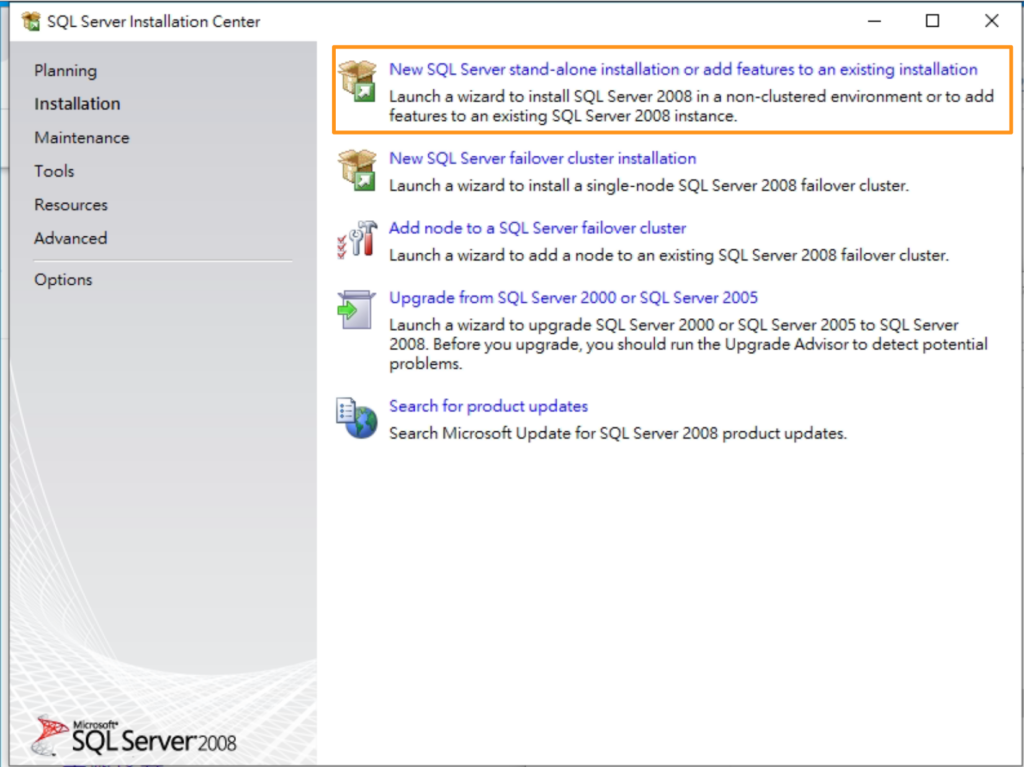
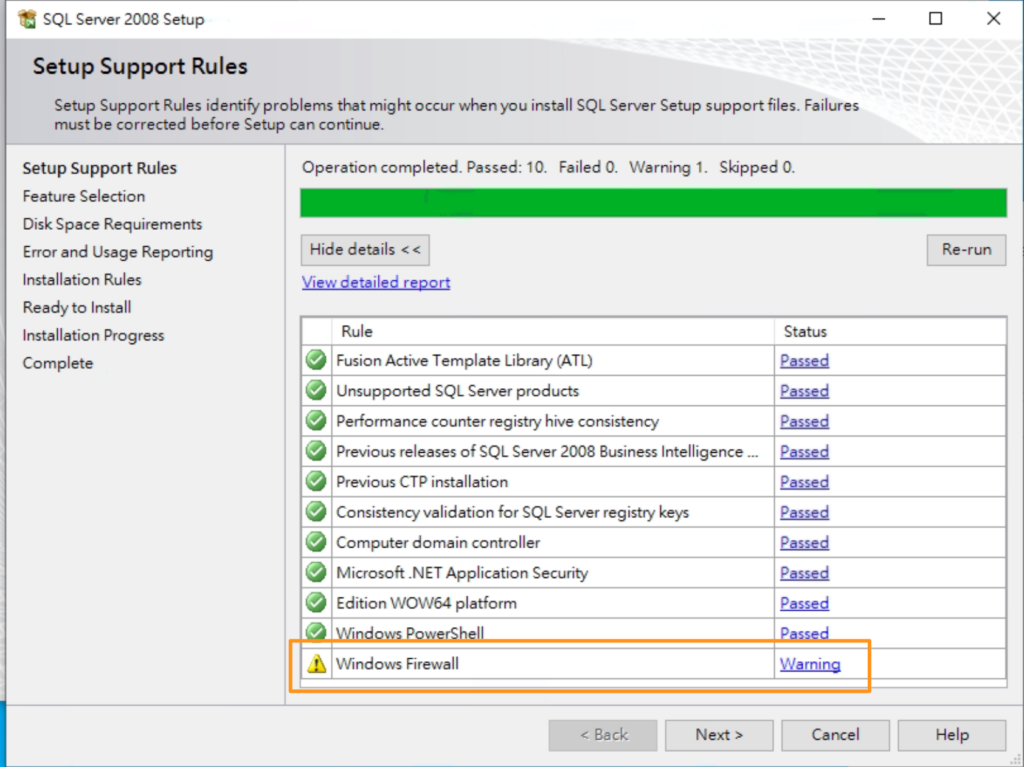
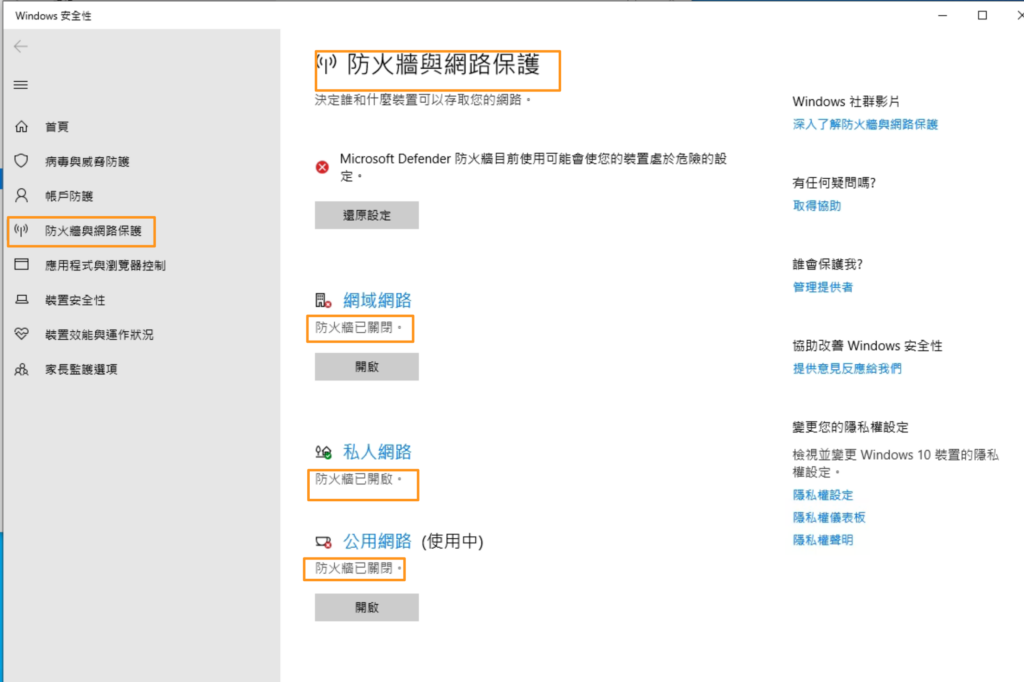
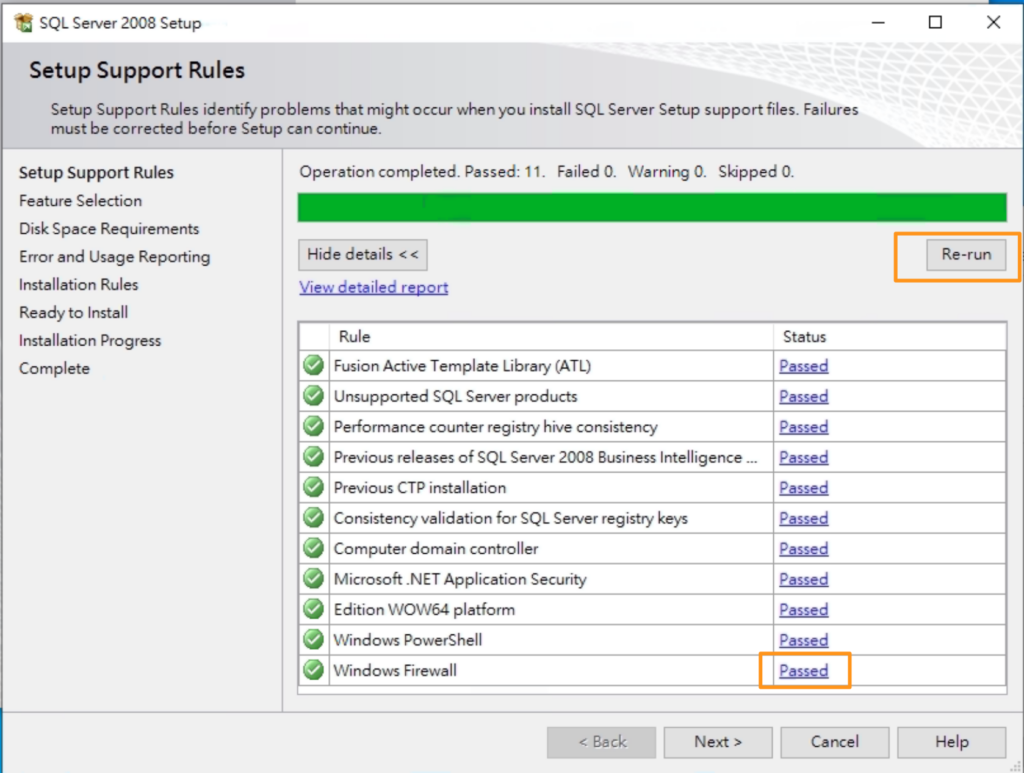
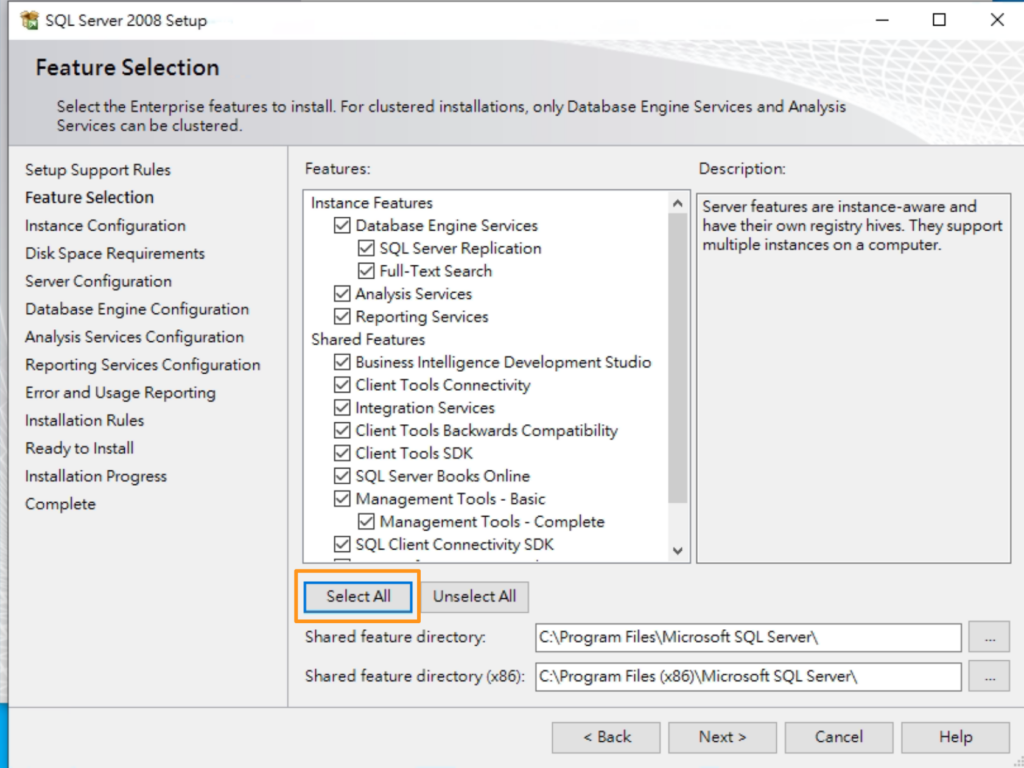
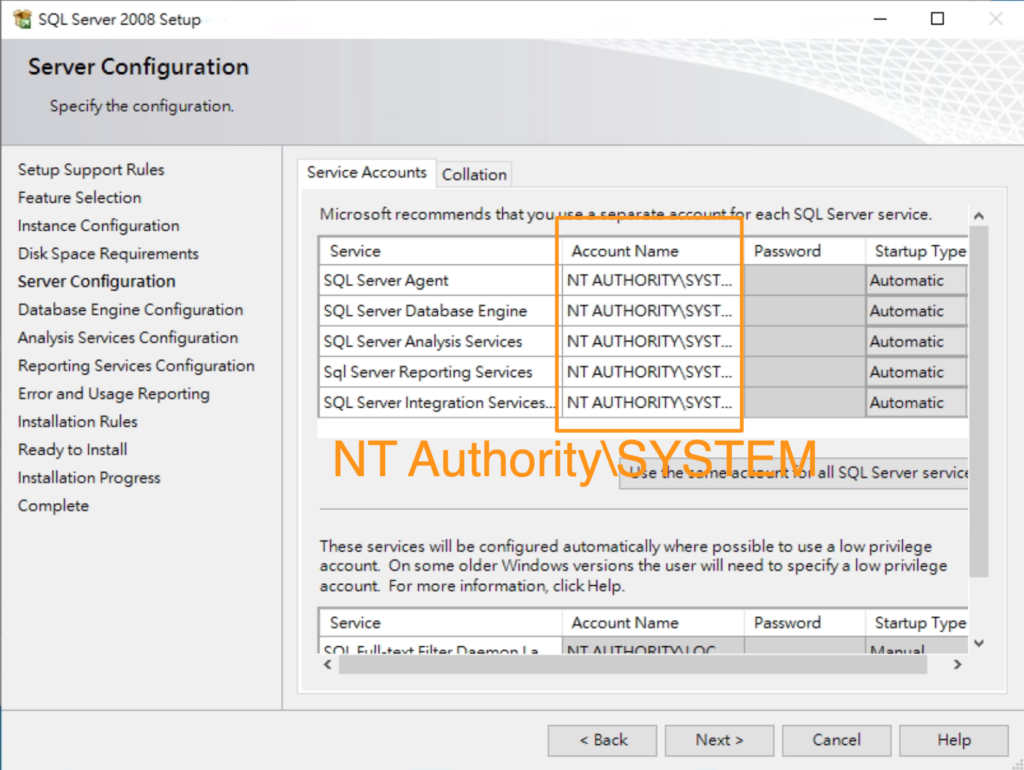
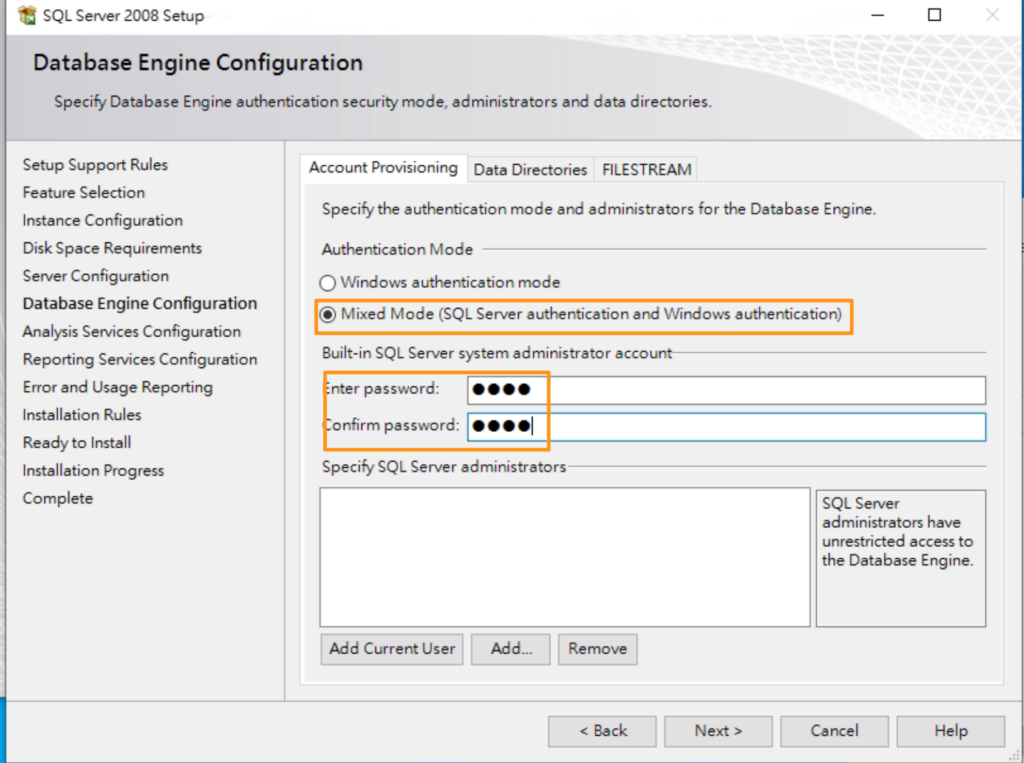
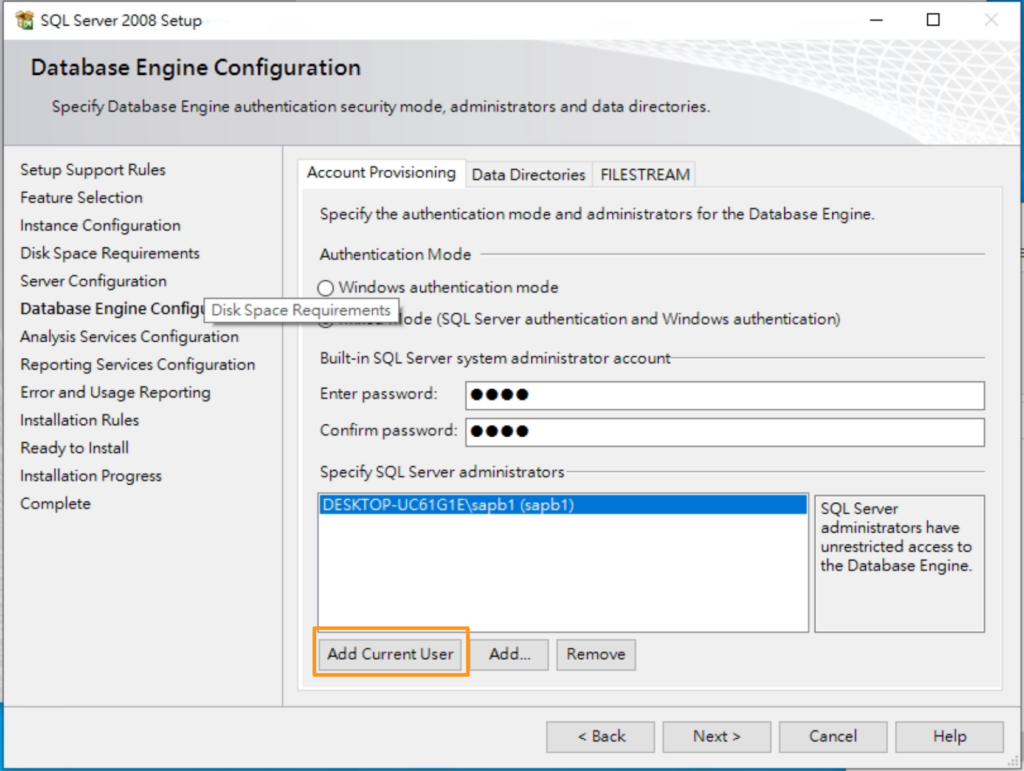
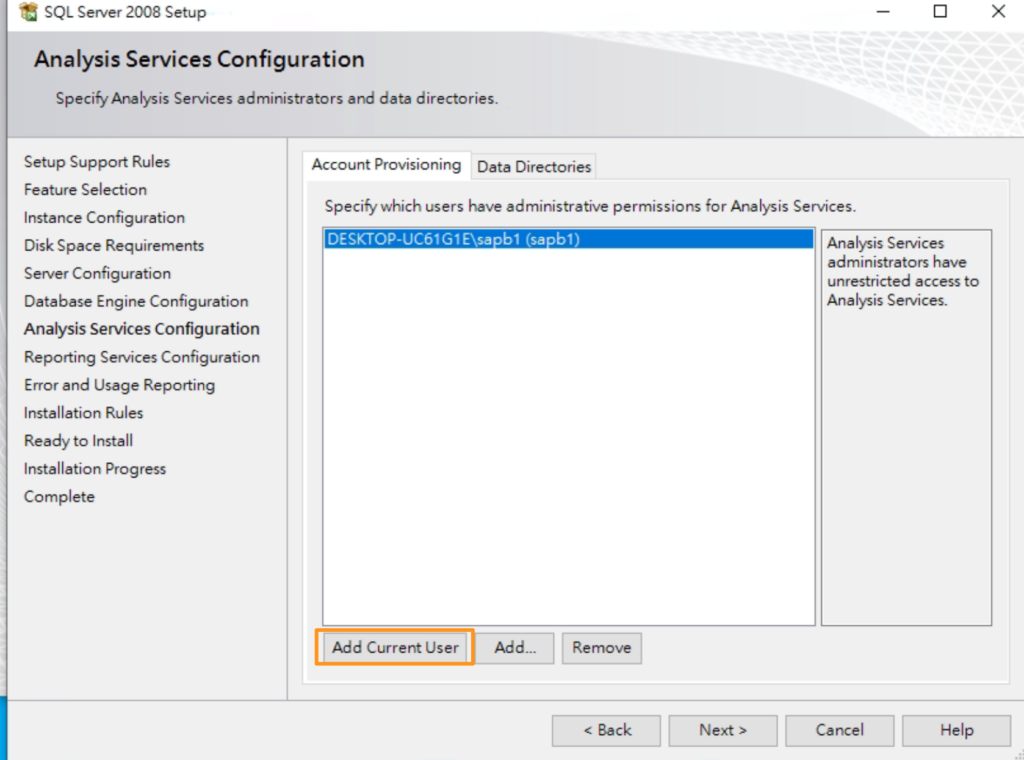
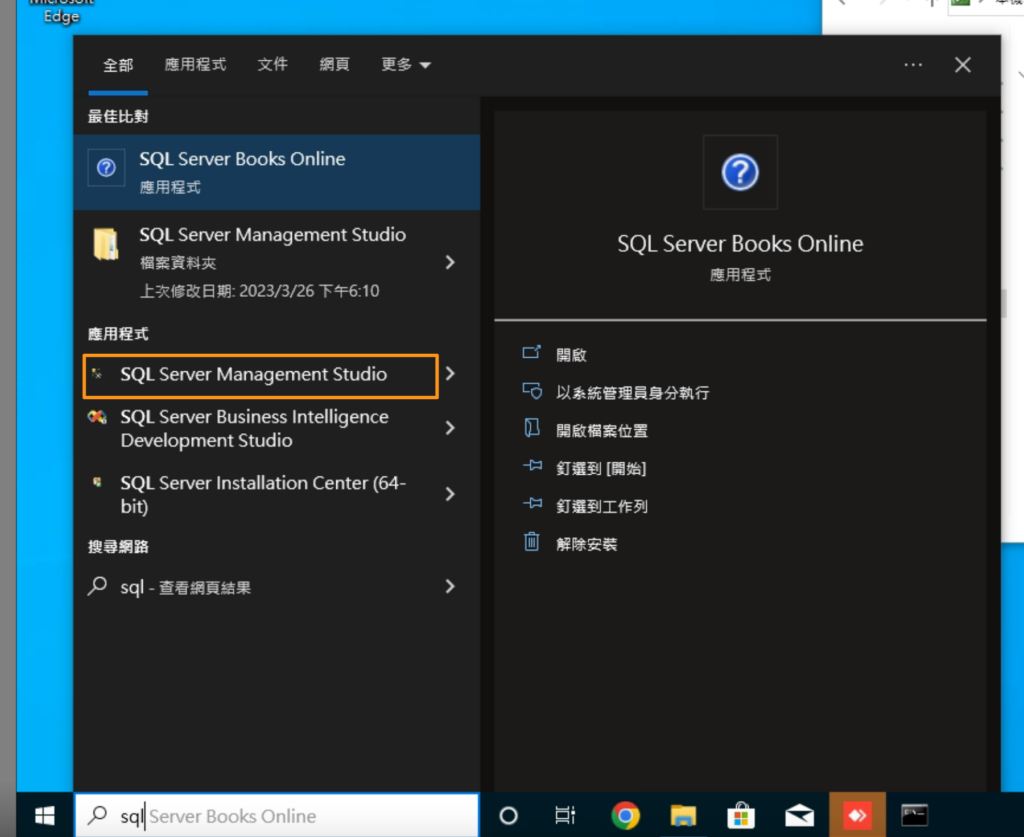
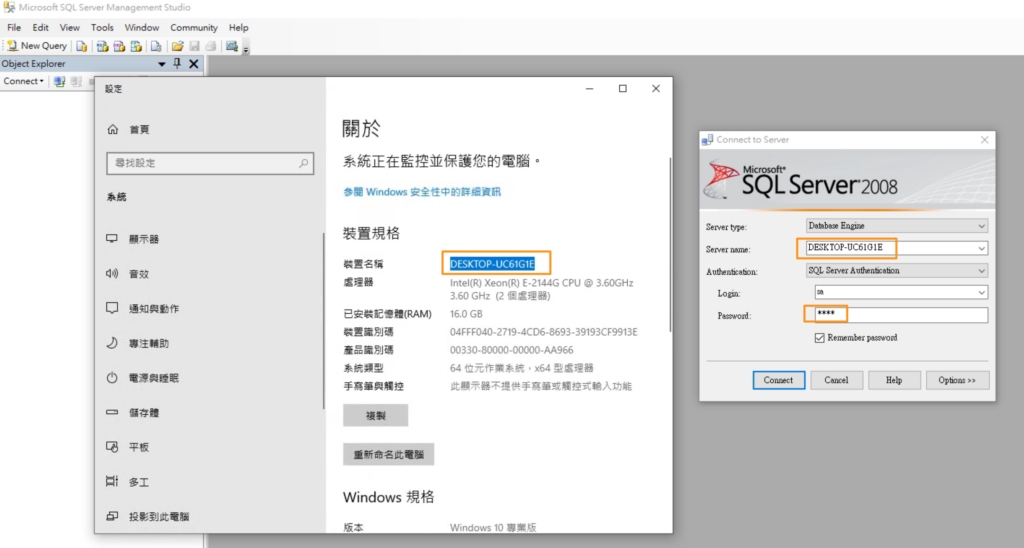
Installing SAP Business One on Microsoft SQL Server
Obtain the installation files: You can obtain the SAP Business One installation files from the SAP website or through your SAP partner.
Here is a trial version installation ISO file provided by a SAP consultant.
https://drive.google.com/file/d/1isvABAQ38eEVtITulB9AtxLlnL3da_Zm/view?usp=share_link
SAP Business One Server tools
I mounted the ISO image file in drive D:
This is the path for the Server Tools.
D:\Packages\Server Tools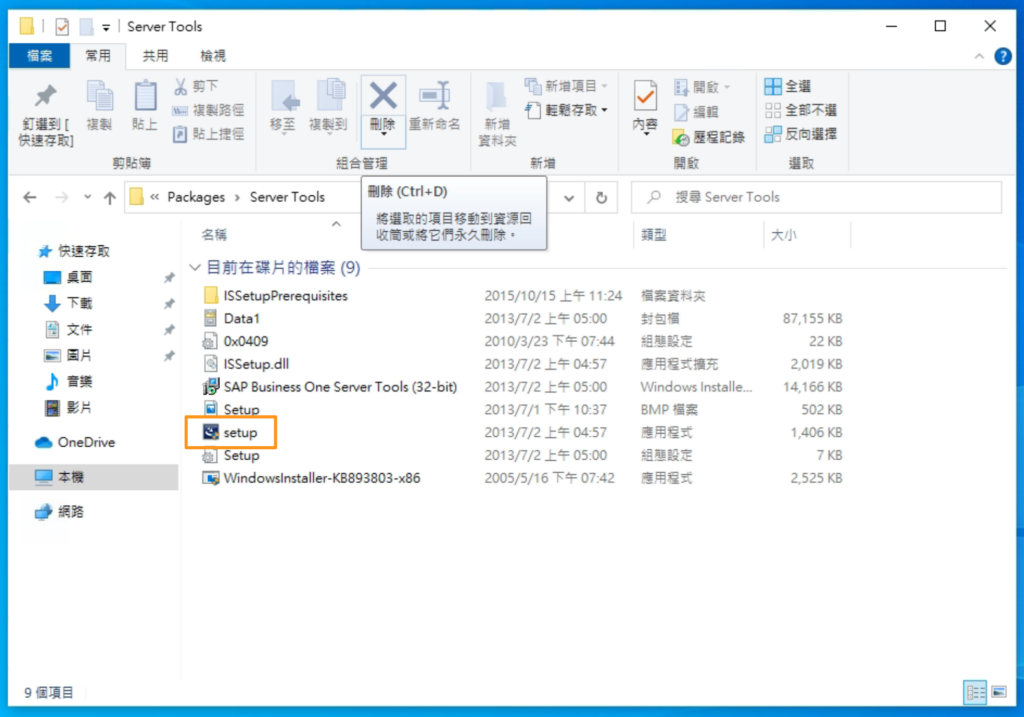
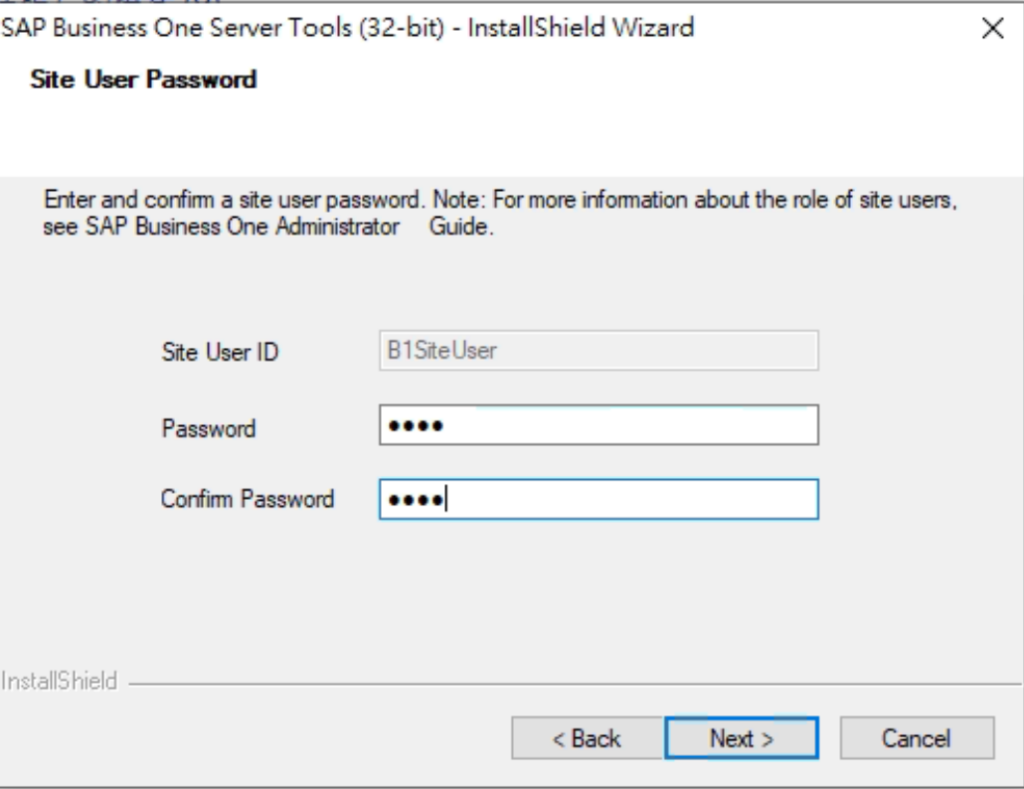
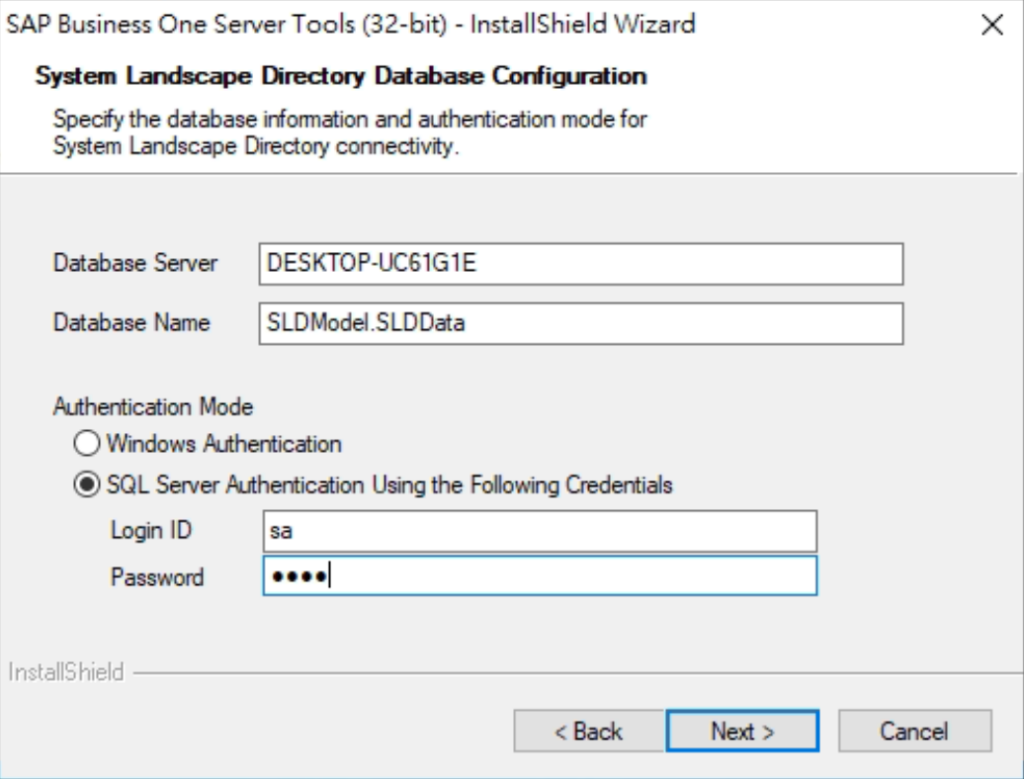
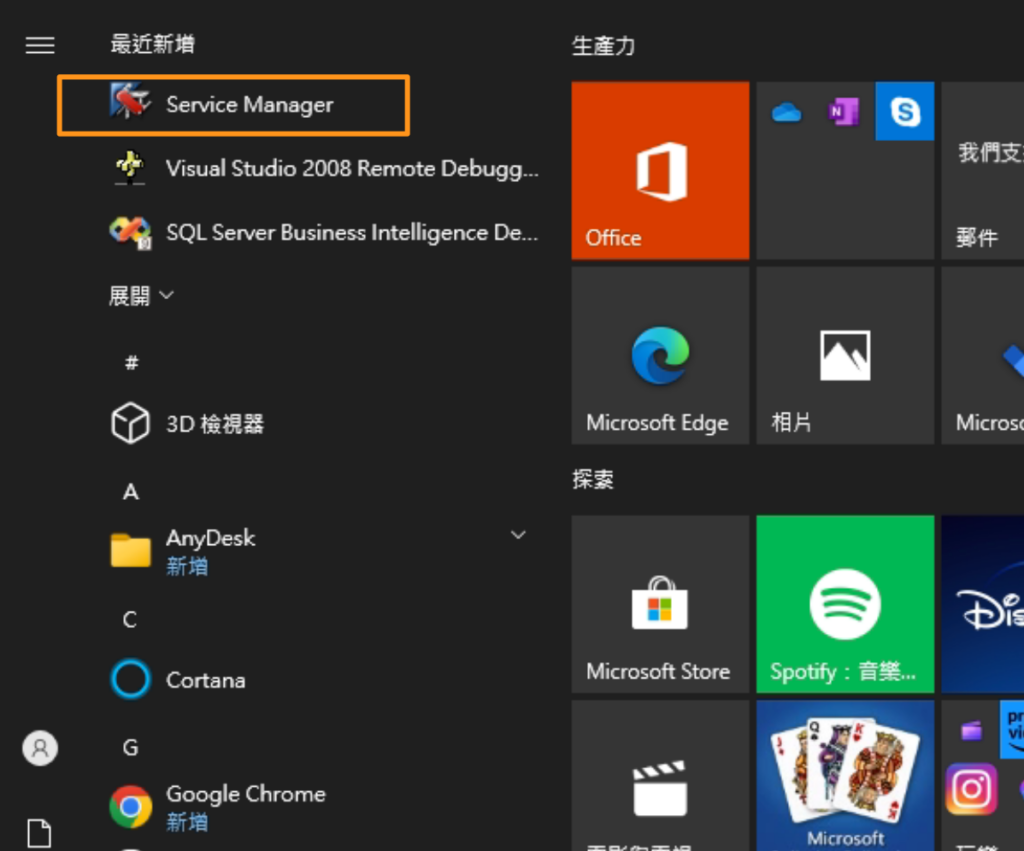
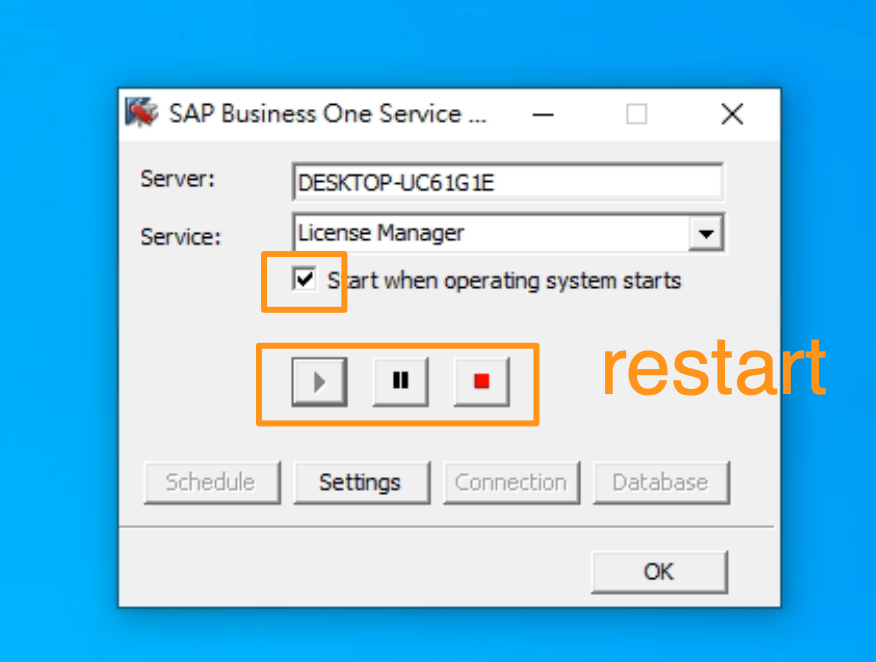
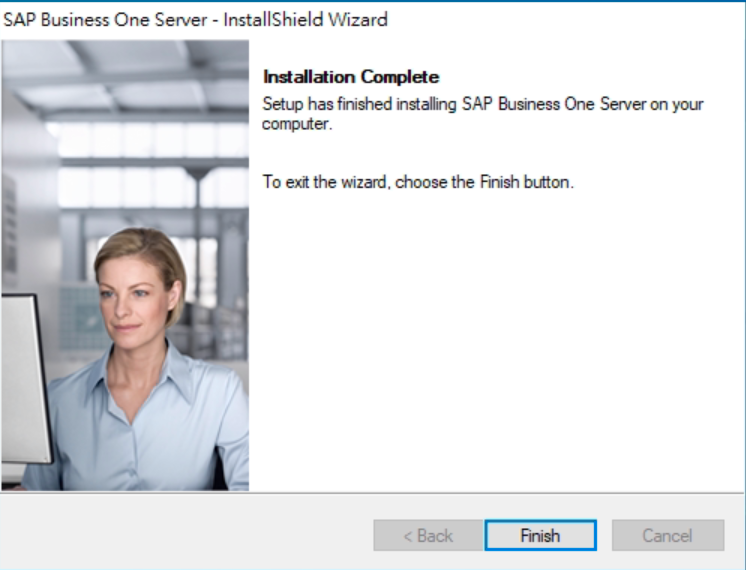
SAP Business One Server
This is the path for the Server.
D:\Packages\Server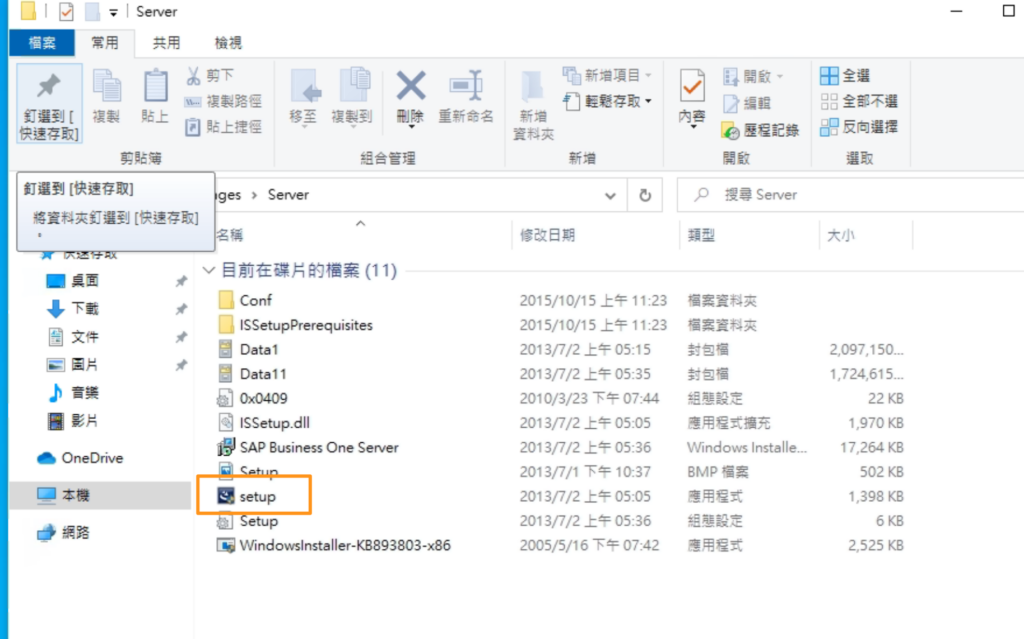
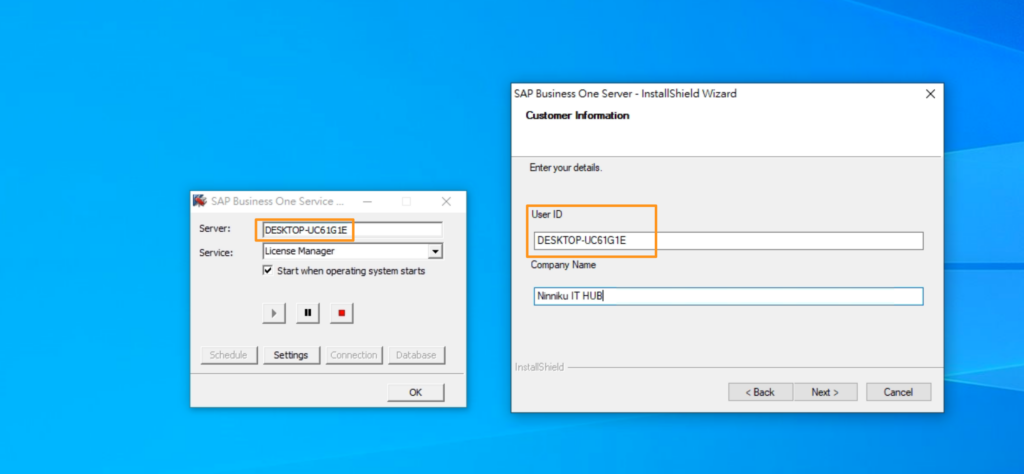
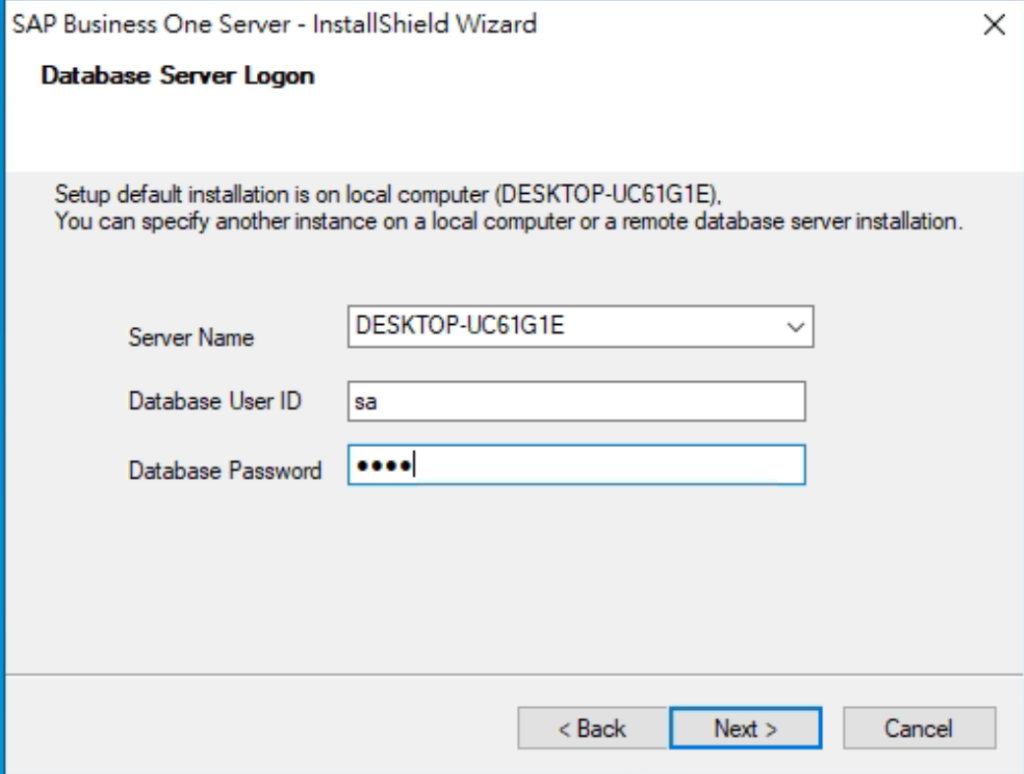
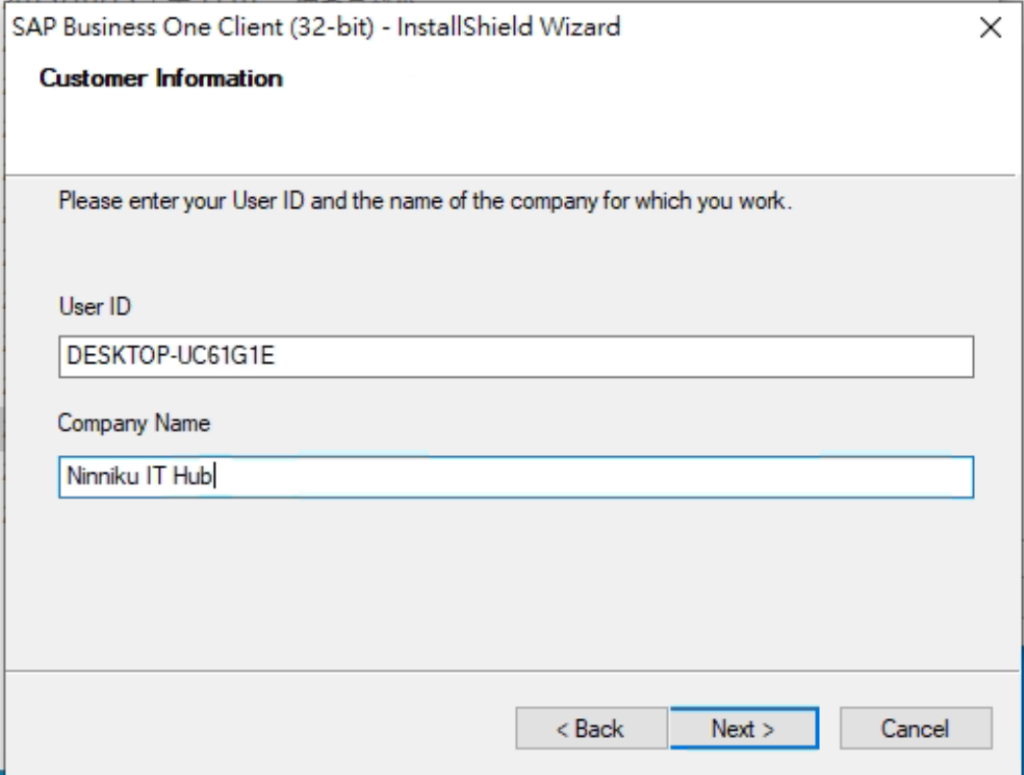
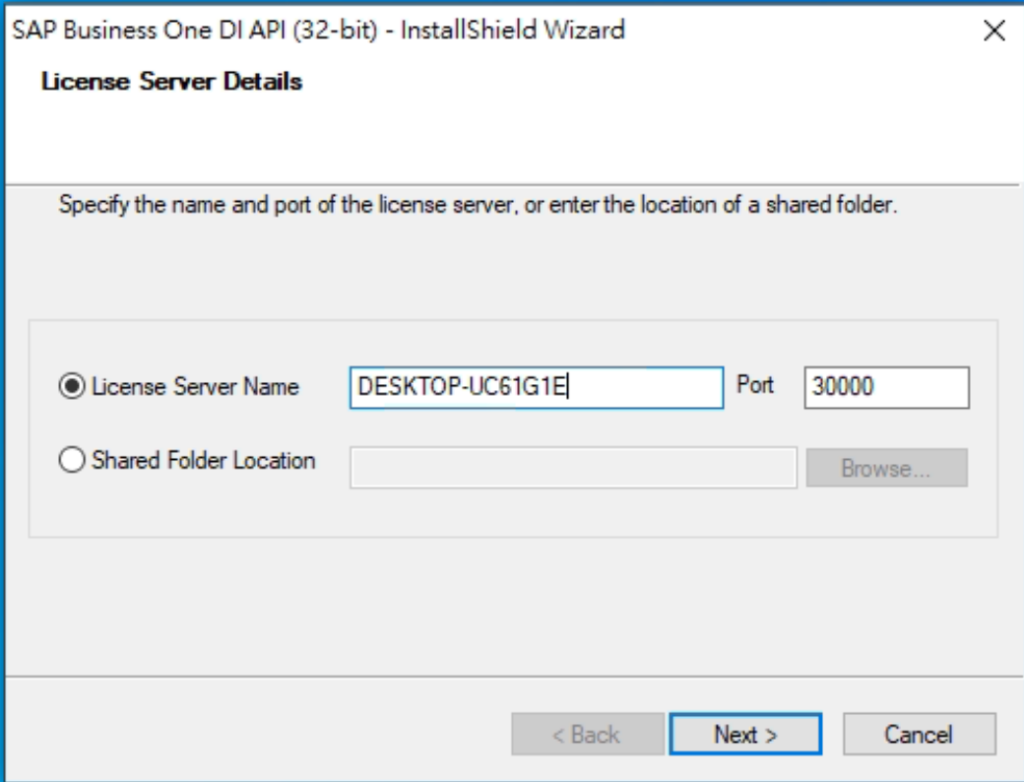
The user ID is the same as the computer name.
SAP Business One Client Installation.
D:\Packages\Client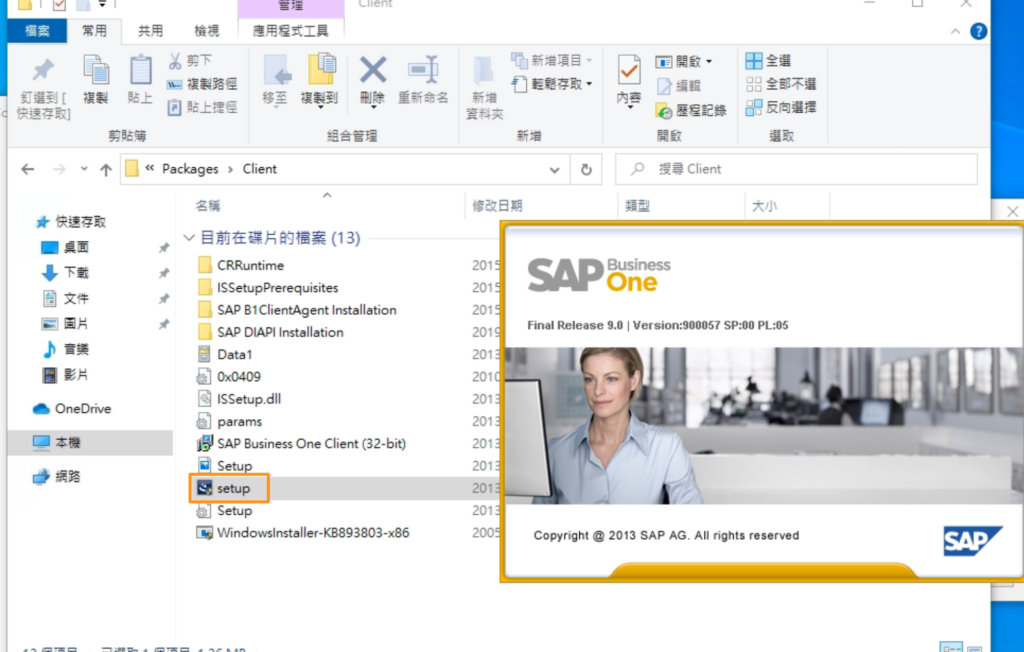
English Version
The article provides a step-by-step guide on how to install SAP Business One on a Microsoft SQL Server. It covers the preparation for the installation, installation of the server tools, and the installation of the SAP Business One server itself. It also explains the benefits of using Microsoft SQL Server with SAP Business One.
Introduction
SAP Business One is a powerful, integrated enterprise resource planning (ERP) software solution designed to help small to mid-sized businesses manage their operations more efficiently. It offers a comprehensive range of functions, including financial management, sales and customer management, purchasing and procurement, inventory and distribution management, and reporting and analytics.
To run SAP Business One, your system needs to meet certain hardware and software requirements. The specific system requirements may vary depending on the version of SAP Business One you’re installing, as well as the database management system you’re using. Here are some general system requirements for SAP Business One:
- Operating System: Windows Server 2016, 2019 or Windows 10 Pro/Enterprise (64-bit)
- CPU: 64-bit processor, quad-core, 2 GHz or higher
- RAM: Minimum of 8 GB, but 16 GB or more is recommended
- Hard Disk Space: At least 20 GB of free space on the system drive, and additional space for company databases and log files
- Database Management System: SAP HANA, Microsoft SQL Server, Oracle Database, or SAP ASE (formerly Sybase ASE)
- .NET Framework: Version 4.8 or higher
It’s important to note that these are just general requirements, and the specific requirements may vary depending on your particular installation. For example, if you have multiple users accessing SAP Business One concurrently or have large amounts of data, you may need more RAM, a faster CPU, or a larger database management system.
Before installing SAP Business One, it’s recommended to consult the official documentation to ensure that your system meets all the necessary requirements for a successful installation and optimal performance.
The benefits of installing SAP Business One on Microsoft SQL Server
Microsoft SQL Server is one of the most widely used database management systems in the world, and for good reason. It offers excellent performance, scalability, and security features, making it an ideal choice for running SAP Business One. Here are some benefits of installing SAP Business One on Microsoft SQL Server:
- Improved performance: Microsoft SQL Server is optimized for handling large amounts of data and high transaction volumes. By running SAP Business One on Microsoft SQL Server, you can benefit from improved system performance, faster data retrieval, and quicker response times.
- Enhanced scalability: Microsoft SQL Server is highly scalable, meaning it can handle increasing volumes of data as your business grows. This means that SAP Business One can grow with your business, without compromising system performance or stability.
- Robust security features: Microsoft SQL Server offers a wide range of security features, such as role-based security, data encryption, and auditing capabilities, which can help protect your data from unauthorized access or data breaches.
- Better integration: Microsoft SQL Server is a popular choice among many other enterprise software applications, such as Microsoft Dynamics and SharePoint. By running SAP Business One on Microsoft SQL Server, you can benefit from better integration and compatibility with other enterprise applications, helping to streamline business processes and improve overall efficiency.
- Lower total cost of ownership: Microsoft SQL Server offers competitive pricing, flexible licensing options, and low maintenance costs. By running SAP Business One on Microsoft SQL Server, you can benefit from a lower total cost of ownership, helping you save money and allocate resources more effectively.
Overall, running SAP Business One on Microsoft SQL Server can help improve system performance, scalability, security, integration, and cost-effectiveness. It’s important to ensure that your system meets the necessary requirements for a successful installation and optimal performance, and to work with an experienced SAP partner or consultant to ensure a smooth installation process.
Preparing for the installation
Follow the guide to preparing Microsoft SQL Server for the installation of SAP Business One:
- Check system requirements: Before installing SAP Business One on Microsoft SQL Server, ensure that your system meets the necessary hardware and software requirements. This includes the operating system, server hardware, and SQL Server version. Refer to the official documentation for the specific system requirements for your version of SAP Business One and your chosen version of Microsoft SQL Server.
- Install Microsoft SQL Server: If you haven’t already installed Microsoft SQL Server, follow the official Microsoft installation guide to install the appropriate version of SQL Server for your system.
- Configure Microsoft SQL Server: Before installing SAP Business One, you need to configure Microsoft SQL Server to support the requirements of SAP Business One. This includes creating a new SQL Server instance, enabling SQL Server authentication mode, setting the maximum degree of parallelism, and configuring the TCP/IP protocol for SQL Server. Refer to the official SAP installation guide for more information on the specific configuration requirements for your version of SAP Business One.
- Create a new database: Once Microsoft SQL Server is installed and configured, you need to create a new database for SAP Business One. Use the Microsoft SQL Server Management Studio to create a new database with the appropriate settings, such as collation, recovery model, and initial size. It’s recommended to name the database according to the SAP Business One company database name.
- Assign database permissions: To ensure that SAP Business One can access and modify the database, you need to assign the appropriate database permissions to the SAP Business One user account. This includes creating a new SQL Server login for SAP Business One, assigning it to the appropriate database, and granting the necessary database roles and permissions. Refer to the official SAP installation guide for more information on the specific database permissions required for your version of SAP Business One.
By following these steps, you can prepare Microsoft SQL Server for the installation of SAP Business One. It’s important to thoroughly read and follow the official installation guide for your version of SAP Business One and your chosen database management system, and to work with an experienced SAP partner or consultant if you encounter any issues or challenges during the installation process.
Database
SAP Business One can be installed on Microsoft SQL Server database. In fact, Microsoft SQL Server is one of the supported database management systems for SAP Business One, along with SAP HANA, Oracle Database, and SAP ASE (formerly known as Sybase ASE).
When installing SAP Business One on Microsoft SQL Server, it is important to ensure that the Microsoft SQL Server meets the system requirements for SAP Business One. This includes checking the compatibility between the version of Microsoft SQL Server and the version of SAP Business One you plan to install.
It is recommended to work with an SAP partner or consultant who has experience in installing SAP Business One on Microsoft SQL Server to ensure a successful installation and optimal performance of the system.
Installing SAP Business One on Microsoft SQL Server
Obtain the installation files: You can obtain the SAP Business One installation files from the SAP website or through your SAP partner.
Here is a trial version installation ISO file provided by a SAP consultant.
https://drive.google.com/file/d/1isvABAQ38eEVtITulB9AtxLlnL3da_Zm/view?usp=share_link
SAP Business One Server tools
I mounted the ISO image file in drive D:
This is the path for the Server Tools.
D:\Packages\Server ToolsSAP Business One Server
This is the path for the Server.
D:\Packages\ServerThe user ID is the same as the computer name.
SAP Business One Client Installation.
D:\Packages\Client日本語版
The article provides a step-by-step guide on how to install SAP Business One on a Microsoft SQL Server. It covers the preparation for the installation, installation of the server tools, and the installation of the SAP Business One server itself. It also explains the benefits of using Microsoft SQL Server with SAP Business One.
はじめに
SAP Business Oneは、中小企業がより効率的に業務を管理できるよう設計された、強力で統合された統合業務計画(ERP)ソフトウェアソリューションです。財務管理、販売・顧客管理、購買・調達、在庫・流通管理、レポート・分析など、包括的な機能を提供します。
SAP Business Oneを実行するには、システムが特定のハードウェアおよびソフトウェア要件を満たす必要があります。具体的なシステム要件は、インストールするSAP Business Oneのバージョンや使用するデータベース管理システムによって異なる場合があります。SAP Business Oneの一般的なシステム要件は以下の通りです:
- オペレーティングシステム:Windows Server 2016、2019またはWindows 10 Pro/Enterprise(64ビット)
- CPU:64ビットプロセッサ、クアッドコア、2 GHz以上
- RAM:最低8 GB、16 GB以上を推奨
- ハードディスク容量:システムドライブに最低20 GBの空き容量、および会社データベースとログファイル用の追加容量
- データベース管理システム:SAP HANA、Microsoft SQL Server、Oracle Database、またはSAP ASE(旧Sybase ASE)
- .NET Framework:バージョン4.8以上
これらは一般的な要件であり、具体的な要件はインストール環境によって異なる場合があることに注意してください。例えば、複数のユーザーが同時にSAP Business Oneにアクセスする場合や、大量のデータを扱う場合は、より多くのRAM、より高速なCPU、またはより大規模なデータベース管理システムが必要になる場合があります。
SAP Business Oneをインストールする前に、公式ドキュメントを参照して、システムがインストールの成功と最適なパフォーマンスに必要なすべての要件を満たしていることを確認することをお勧めします。
Microsoft SQL ServerへのSAP Business Oneインストールの利点
Microsoft SQL Serverは世界で最も広く使用されているデータベース管理システムの一つであり、それには理由があります。優れたパフォーマンス、スケーラビリティ、セキュリティ機能を提供し、SAP Business Oneの実行に最適な選択肢となっています。Microsoft SQL ServerにSAP Business Oneをインストールする利点は以下の通りです:
- パフォーマンスの向上:Microsoft SQL Serverは、大量のデータと高いトランザクション量の処理に最適化されています。Microsoft SQL ServerでSAP Business Oneを実行することで、システムパフォーマンスの向上、データ取得の高速化、応答時間の短縮のメリットを享受できます。
- スケーラビリティの強化:Microsoft SQL Serverは高いスケーラビリティを持ち、ビジネスの成長に伴い増加するデータ量に対応できます。これにより、SAP Business Oneはシステムパフォーマンスや安定性を損なうことなく、ビジネスとともに成長できます。
- 堅牢なセキュリティ機能:Microsoft SQL Serverは、ロールベースのセキュリティ、データ暗号化、監査機能など、幅広いセキュリティ機能を提供し、不正アクセスやデータ侵害からデータを保護します。
- より良い統合:Microsoft SQL Serverは、Microsoft DynamicsやSharePointなど、多くの他のエンタープライズソフトウェアアプリケーションで人気のある選択肢です。Microsoft SQL ServerでSAP Business Oneを実行することで、他のエンタープライズアプリケーションとのより良い統合と互換性のメリットを享受でき、ビジネスプロセスの合理化と全体的な効率の向上に役立ちます。
- 総所有コストの削減:Microsoft SQL Serverは競争力のある価格設定、柔軟なライセンスオプション、低メンテナンスコストを提供します。Microsoft SQL ServerでSAP Business Oneを実行することで、総所有コストの削減メリットを享受でき、コスト削減とリソースのより効果的な配分に役立ちます。
全体として、Microsoft SQL ServerでSAP Business Oneを実行することで、システムパフォーマンス、スケーラビリティ、セキュリティ、統合、コスト効率の向上に役立ちます。インストールの成功と最適なパフォーマンスに必要な要件をシステムが満たしていることを確認し、スムーズなインストールプロセスのために経験豊富なSAPパートナーまたはコンサルタントと連携することが重要です。
インストールの準備
SAP Business Oneのインストールに向けたMicrosoft SQL Serverの準備ガイドに従ってください:
- システム要件の確認:Microsoft SQL ServerにSAP Business Oneをインストールする前に、システムが必要なハードウェアおよびソフトウェア要件を満たしていることを確認してください。これには、オペレーティングシステム、サーバーハードウェア、SQL Serverのバージョンが含まれます。お使いのSAP Business OneのバージョンとMicrosoft SQL Serverのバージョンの具体的なシステム要件については、公式ドキュメントを参照してください。
- Microsoft SQL Serverのインストール:Microsoft SQL Serverをまだインストールしていない場合は、Microsoftの公式インストールガイドに従って、システムに適切なバージョンのSQL Serverをインストールしてください。
- Microsoft SQL Serverの構成:SAP Business Oneをインストールする前に、SAP Business Oneの要件をサポートするようにMicrosoft SQL Serverを構成する必要があります。これには、新しいSQL Serverインスタンスの作成、SQL Server認証モードの有効化、最大並列度の設定、SQL Server用のTCP/IPプロトコルの構成が含まれます。お使いのSAP Business Oneバージョンの具体的な構成要件の詳細については、SAPの公式インストールガイドを参照してください。
- 新しいデータベースの作成:Microsoft SQL Serverがインストールおよび構成されたら、SAP Business One用の新しいデータベースを作成する必要があります。Microsoft SQL Server Management Studioを使用して、照合順序、復旧モデル、初期サイズなどの適切な設定で新しいデータベースを作成してください。データベース名はSAP Business Oneの会社データベース名に従って命名することをお勧めします。
- データベース権限の割り当て:SAP Business Oneがデータベースにアクセスして変更できるようにするには、SAP Business Oneユーザーアカウントに適切なデータベース権限を割り当てる必要があります。これには、SAP Business One用の新しいSQL Serverログインの作成、適切なデータベースへの割り当て、必要なデータベースロールと権限の付与が含まれます。お使いのSAP Business Oneバージョンに必要な具体的なデータベース権限の詳細については、SAPの公式インストールガイドを参照してください。
これらの手順に従うことで、SAP Business Oneのインストールに向けてMicrosoft SQL Serverを準備できます。お使いのSAP Business Oneのバージョンと選択したデータベース管理システムの公式インストールガイドを十分に読んで従うこと、またインストールプロセス中に問題や課題が発生した場合は経験豊富なSAPパートナーまたはコンサルタントと連携することが重要です。
データベース
SAP Business OneはMicrosoft SQL Serverデータベースにインストールできます。実際、Microsoft SQL Serverは、SAP HANA、Oracle Database、SAP ASE(旧Sybase ASE)とともに、SAP Business Oneでサポートされているデータベース管理システムの一つです。
Microsoft SQL ServerにSAP Business Oneをインストールする際は、Microsoft SQL ServerがSAP Business Oneのシステム要件を満たしていることを確認することが重要です。これには、Microsoft SQL ServerのバージョンとインストールするSAP Business Oneのバージョンとの互換性の確認が含まれます。
インストールの成功とシステムの最適なパフォーマンスを確保するために、Microsoft SQL ServerへのSAP Business Oneのインストール経験のあるSAPパートナーまたはコンサルタントと連携することをお勧めします。
Microsoft SQL ServerへのSAP Business Oneのインストール
インストールファイルの入手:SAP Business Oneのインストールファイルは、SAPのWebサイトまたはSAPパートナーから入手できます。
以下は、SAPコンサルタントが提供するトライアル版インストールISOファイルです。
https://drive.google.com/file/d/1isvABAQ38eEVtITulB9AtxLlnL3da_Zm/view?usp=share_link
SAP Business One Server tools
ISOイメージファイルをDドライブにマウントしました:
Server Toolsのパスは以下の通りです。
D:\Packages\Server ToolsSAP Business One Server
Serverのパスは以下の通りです。
D:\Packages\ServerユーザーIDはコンピュータ名と同じです。
SAP Business Oneクライアントのインストール
D:\Packages\Client