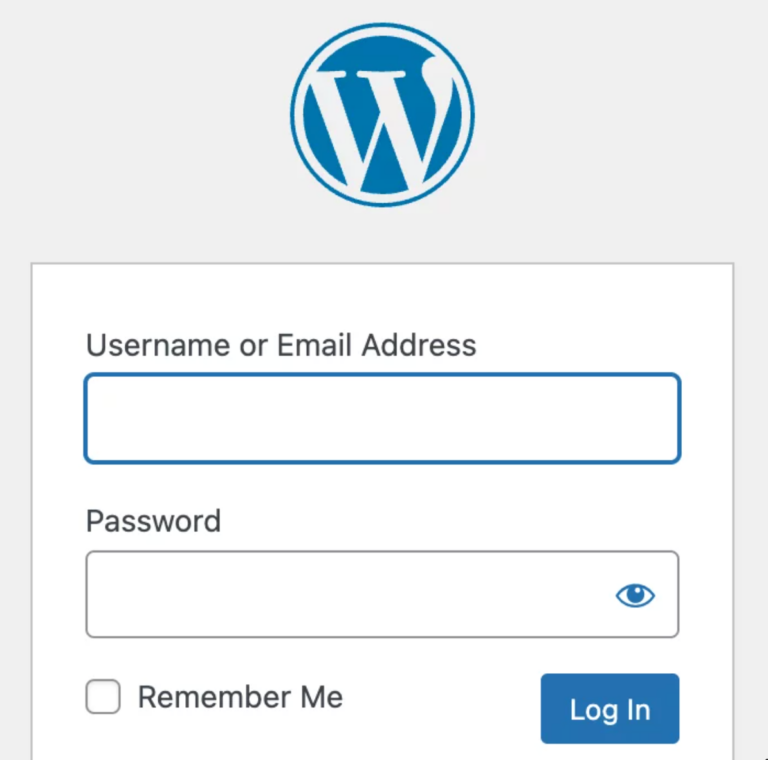
Here are the general steps to install WordPress on Ubuntu:
- Install LAMP stack: LAMP stands for Linux, Apache, MySQL, and PHP. These are the core components needed to run WordPress. You can install them by running the following command:
sudo apt-get update
sudo apt-get install lamp-server^
2. Configure MySQL: After installing LAMP, you need to configure MySQL to work with WordPress. You can do this by running the following command:
sudo mysql_secure_installation3. Create a database for WordPress: You will need to create a database for WordPress to store its data. You can do this by running the following command:
sudo mysql -u root -p
CREATE DATABASE wpdb;
CREATE USER 'wpuser'@'localhost' IDENTIFIED BY 'password';
GRANT ALL ON wpdb.* TO 'wpuser'@'localhost';
FLUSH PRIVILEGES;
exit;
- Download and extract WordPress: You can download the latest version of WordPress from their official website. After downloading it, extract the files to the Apache web root directory /var/www/html.
- Configure WordPress: You will need to configure WordPress to use the database you created earlier. Rename the wp-config-sample.php file to wp-config.php and update the database name, username, and password.
- Set permissions: To allow WordPress to create files and directories, you need to set the correct permissions on the Apache web root directory. You can do this by running the following command:
wget https://tw.wordpress.org/latest-zh_TW.tar.gz
sudo tar -xzvf latest-zh_TW.tar.gz
sudo rm -rf html
sudo mv wordpress html
sudo chown -R www-data:www-data /var/www/html/
sudo chmod -R 755 /var/www/html/
7. Install additional PHP modules: WordPress requires some additional PHP modules to function properly. You can install them by running the following command:
sudo apt-get install php-curl php-gd php-mbstring php-xml php-xmlrpc
- Restart Apache: After making changes to Apache or PHP, you need to restart the Apache web server to apply the changes. You can do this by running the following command:
sudo systemctl restart apache2
After following these steps, you should be able to access your WordPress site by going to your server’s IP address or domain name in a web browser.
To install the Apache SSL mod in Ubuntu, you can follow these steps:
Update your Ubuntu package list:
sudo apt updateInstall the Apache SSL mod:
sudo apt install apache2 openssl
sudo a2enmod ssl
sudo systemctl restart apache2- Generate a self-signed SSL certificate:
sudo openssl req -x509 -nodes -days 365 -newkey rsa:2048 -keyout /etc/ssl/private/apache-selfsigned.key -out /etc/ssl/certs/apache-selfsigned.crt- Configure Apache to use the SSL certificate: Create a new configuration file for the SSL virtual host:
sudo nano /etc/apache2/sites-available/default-ssl.conf
And add the following lines to the file:
<IfModule mod_ssl.c>
        <VirtualHost _default_:443>
                ServerAdmin webmaster@localhost
                ServerName example.com
                DocumentRoot /var/www/html

                SSLEngine on
                SSLCertificateFile /etc/ssl/certs/apache-selfsigned.crt
                SSLCertificateKeyFile /etc/ssl/private/apache-selfsigned.key

                <FilesMatch "\.(cgi|shtml|phtml|php)$">
                                SSLOptions +StdEnvVars
                </FilesMatch>
                <Directory /usr/lib/cgi-bin>
                                SSLOptions +StdEnvVars
                </Directory>
                ErrorLog ${APACHE_LOG_DIR}/error.log
                CustomLog ${APACHE_LOG_DIR}/access.log combined
        </VirtualHost>
</IfModule>
- Enable the SSL virtual host:
sudo a2ensite default-ssl.conf
sudo systemctl restart apache2
Now you should be able to access your Apache server using HTTPS protocol.
English Version
Here are the general steps to install WordPress on Ubuntu:
- Install LAMP stack: LAMP stands for Linux, Apache, MySQL, and PHP. These are the core components needed to run WordPress. You can install them by running the following command:
sudo apt-get update
sudo apt-get install lamp-server^
2. Configure MySQL: After installing LAMP, you need to configure MySQL to work with WordPress. You can do this by running the following command:
sudo mysql_secure_installation3. Create a database for WordPress: You will need to create a database for WordPress to store its data. You can do this by running the following command:
sudo mysql -u root -p
CREATE DATABASE wpdb;
CREATE USER 'wpuser'@'localhost' IDENTIFIED BY 'password';
GRANT ALL ON wpdb.* TO 'wpuser'@'localhost';
FLUSH PRIVILEGES;
exit;
- Download and extract WordPress: You can download the latest version of WordPress from their official website. After downloading it, extract the files to the Apache web root directory /var/www/html.
- Configure WordPress: You will need to configure WordPress to use the database you created earlier. Rename the wp-config-sample.php file to wp-config.php and update the database name, username, and password.
- Set permissions: To allow WordPress to create files and directories, you need to set the correct permissions on the Apache web root directory. You can do this by running the following command:
wget https://tw.wordpress.org/latest-zh_TW.tar.gz
sudo tar -xzvf latest-zh_TW.tar.gz
sudo rm -rf html
sudo mv wordpress html
sudo chown -R www-data:www-data /var/www/html/
sudo chmod -R 755 /var/www/html/
7. Install additional PHP modules: WordPress requires some additional PHP modules to function properly. You can install them by running the following command:
sudo apt-get install php-curl php-gd php-mbstring php-xml php-xmlrpc
- Restart Apache: After making changes to Apache or PHP, you need to restart the Apache web server to apply the changes. You can do this by running the following command:
sudo systemctl restart apache2
After following these steps, you should be able to access your WordPress site by going to your server’s IP address or domain name in a web browser.
To install the Apache SSL mod in Ubuntu, you can follow these steps:
Update your Ubuntu package list:
sudo apt updateInstall the Apache SSL mod:
sudo apt install apache2 openssl
sudo a2enmod ssl
sudo systemctl restart apache2- Generate a self-signed SSL certificate:
sudo openssl req -x509 -nodes -days 365 -newkey rsa:2048 -keyout /etc/ssl/private/apache-selfsigned.key -out /etc/ssl/certs/apache-selfsigned.crt- Configure Apache to use the SSL certificate: Create a new configuration file for the SSL virtual host:
sudo nano /etc/apache2/sites-available/default-ssl.conf
And add the following lines to the file:
<IfModule mod_ssl.c>
        <VirtualHost _default_:443>
                ServerAdmin webmaster@localhost
                ServerName example.com
                DocumentRoot /var/www/html

                SSLEngine on
                SSLCertificateFile /etc/ssl/certs/apache-selfsigned.crt
                SSLCertificateKeyFile /etc/ssl/private/apache-selfsigned.key

                <FilesMatch "\.(cgi|shtml|phtml|php)$">
                                SSLOptions +StdEnvVars
                </FilesMatch>
                <Directory /usr/lib/cgi-bin>
                                SSLOptions +StdEnvVars
                </Directory>
                ErrorLog ${APACHE_LOG_DIR}/error.log
                CustomLog ${APACHE_LOG_DIR}/access.log combined
        </VirtualHost>
</IfModule>
- Enable the SSL virtual host:
sudo a2ensite default-ssl.conf
sudo systemctl restart apache2
Now you should be able to access your Apache server using HTTPS protocol.
日本語版
UbuntuにWordPressをインストールする一般的な手順は以下の通りです:
- LAMPスタックのインストール:LAMPとはLinux、Apache、MySQL、PHPの略です。これらはWordPressを実行するために必要なコアコンポーネントです。以下のコマンドを実行してインストールできます:
sudo apt-get update
sudo apt-get install lamp-server^
2. MySQLの設定:LAMPをインストールした後、WordPressと連携するようにMySQLを設定する必要があります。以下のコマンドを実行して設定できます:
sudo mysql_secure_installation3. WordPress用データベースの作成:WordPressがデータを保存するためのデータベースを作成する必要があります。以下のコマンドを実行して作成できます:
sudo mysql -u root -p
CREATE DATABASE wpdb;
CREATE USER 'wpuser'@'localhost' IDENTIFIED BY 'password';
GRANT ALL ON wpdb.* TO 'wpuser'@'localhost';
FLUSH PRIVILEGES;
exit;
- WordPressのダウンロードと展開:WordPress公式サイトから最新バージョンをダウンロードできます。ダウンロード後、Apacheのウェブルートディレクトリ /var/www/html にファイルを展開します。
- WordPressの設定:先ほど作成したデータベースを使用するようにWordPressを設定する必要があります。wp-config-sample.phpファイルをwp-config.phpにリネームし、データベース名、ユーザー名、パスワードを更新します。
- パーミッションの設定:WordPressがファイルやディレクトリを作成できるようにするため、Apacheのウェブルートディレクトリに正しいパーミッションを設定する必要があります。以下のコマンドを実行して設定できます:
wget https://tw.wordpress.org/latest-zh_TW.tar.gz
sudo tar -xzvf latest-zh_TW.tar.gz
sudo rm -rf html
sudo mv wordpress html
sudo chown -R www-data:www-data /var/www/html/
sudo chmod -R 755 /var/www/html/
7. 追加PHPモジュールのインストール:WordPressが正常に動作するためには、いくつかの追加PHPモジュールが必要です。以下のコマンドを実行してインストールできます:
sudo apt-get install php-curl php-gd php-mbstring php-xml php-xmlrpc
- Apacheの再起動:ApacheまたはPHPに変更を加えた後、変更を適用するためにApacheウェブサーバーを再起動する必要があります。以下のコマンドを実行して再起動できます:
sudo systemctl restart apache2
これらの手順に従った後、ウェブブラウザでサーバーのIPアドレスまたはドメイン名にアクセスすることで、WordPressサイトにアクセスできるようになります。
UbuntuにApache SSLモジュールをインストールするには、以下の手順に従ってください:
Ubuntuのパッケージリストを更新します:
sudo apt updateApache SSLモジュールをインストールします:
sudo apt install apache2 openssl
sudo a2enmod ssl
sudo systemctl restart apache2- 自己署名SSL証明書を生成します:
sudo openssl req -x509 -nodes -days 365 -newkey rsa:2048 -keyout /etc/ssl/private/apache-selfsigned.key -out /etc/ssl/certs/apache-selfsigned.crt- SSL証明書を使用するようにApacheを設定します:SSLバーチャルホスト用の新しい設定ファイルを作成します:
sudo nano /etc/apache2/sites-available/default-ssl.conf
以下の内容をファイルに追加します:
<IfModule mod_ssl.c>
        <VirtualHost _default_:443>
                ServerAdmin webmaster@localhost
                ServerName example.com
                DocumentRoot /var/www/html

                SSLEngine on
                SSLCertificateFile /etc/ssl/certs/apache-selfsigned.crt
                SSLCertificateKeyFile /etc/ssl/private/apache-selfsigned.key

                <FilesMatch "\.(cgi|shtml|phtml|php)$">
                                SSLOptions +StdEnvVars
                </FilesMatch>
                <Directory /usr/lib/cgi-bin>
                                SSLOptions +StdEnvVars
                </Directory>
                ErrorLog ${APACHE_LOG_DIR}/error.log
                CustomLog ${APACHE_LOG_DIR}/access.log combined
        </VirtualHost>
</IfModule>
- SSLバーチャルホストを有効にします:
sudo a2ensite default-ssl.conf
sudo systemctl restart apache2
これで、HTTPSプロトコルを使用してApacheサーバーにアクセスできるようになります。