This article explains how to switch the user interface language in SAP Business One, with step-by-step instructions on changing the display language in the system initialization settings.
If you want to switch SAP Business One from the English interface to another language interface, follow these steps:
- Open SAP Business One.
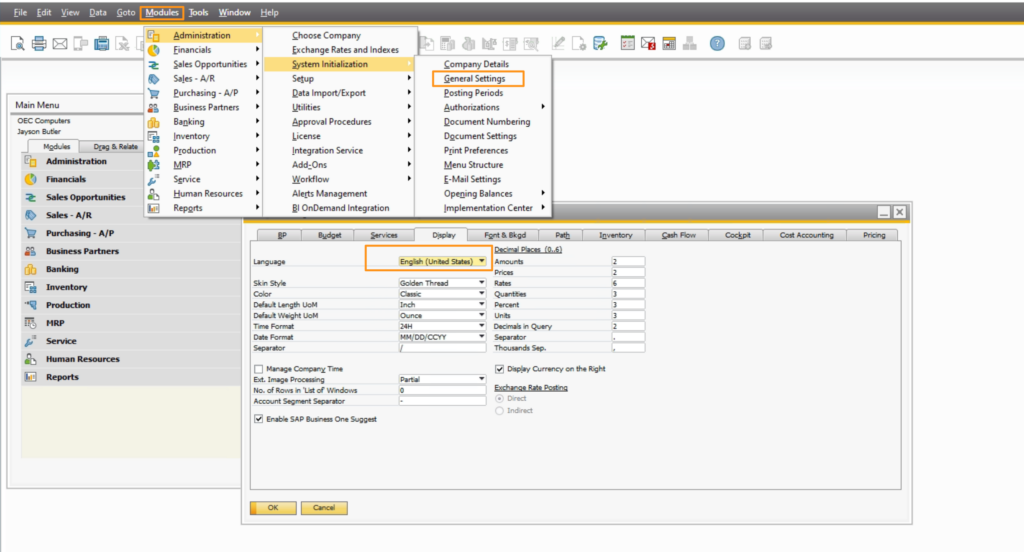
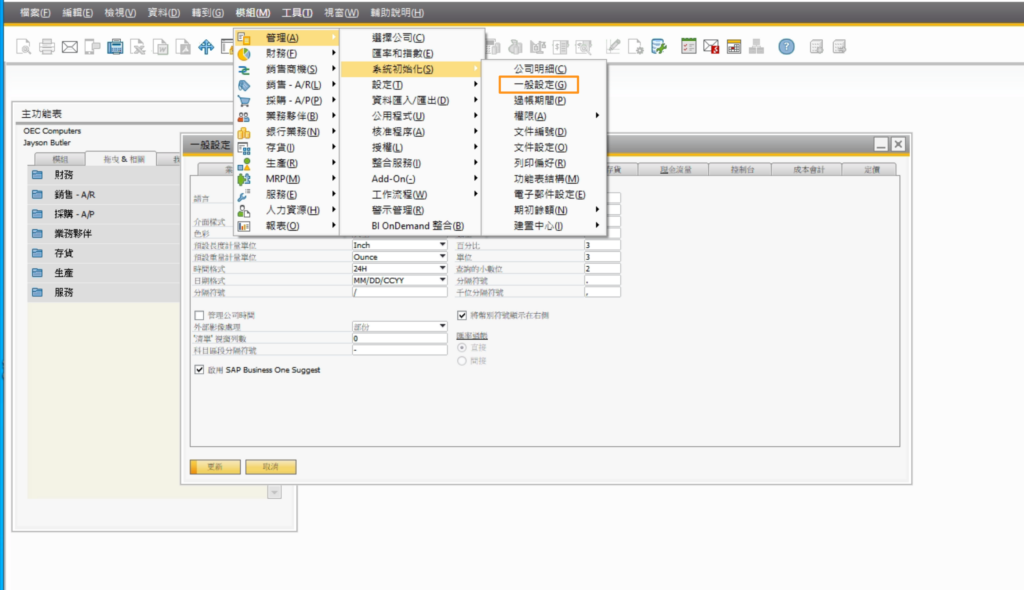
- Select “Administration” from the module menu, and then choose “System Initialization”.
- In the “System Initialization” menu, click on the “General Settings” submenu, and select the “Display” tab.
- In the “Display” tab, choose the “Language” dropdown menu.
- In the language menu, select your target language (e.g. “English”).
- Click the “OK” button to save the setting.
- Restart SAP Business One, and the interface will display in your chosen target language.
Note: When switching languages, SAP Business One needs to be restarted to take effect.
English Version
This article explains how to switch the user interface language in SAP Business One, with step-by-step instructions on changing the display language in the system initialization settings.
If you want to switch SAP Business One from the English interface to another language interface, follow these steps:
- Open SAP Business One.
- Select “Administration” from the module menu, and then choose “System Initialization”.
- In the “System Initialization” menu, click on the “General Settings” submenu, and select the “Display” tab.
- In the “Display” tab, choose the “Language” dropdown menu.
- In the language menu, select your target language (e.g. “English”).
- Click the “OK” button to save the setting.
- Restart SAP Business One, and the interface will display in your chosen target language.
Note: When switching languages, SAP Business One needs to be restarted to take effect.
日本語版
This article explains how to switch the user interface language in SAP Business One, with step-by-step instructions on changing the display language in the system initialization settings.
SAP Business Oneの英語インターフェースから別の言語インターフェースに切り替えたい場合は、以下の手順に従ってください:
- SAP Business Oneを開きます。
- モジュールメニューから「管理(Administration)」を選択し、「システム初期化(System Initialization)」を選びます。
- 「システム初期化」メニューで、「一般設定(General Settings)」サブメニューをクリックし、「表示(Display)」タブを選択します。
- 「表示」タブで、「言語(Language)」ドロップダウンメニューを選択します。
- 言語メニューで、ターゲット言語を選択します(例:「English」)。
- 「OK」ボタンをクリックして設定を保存します。
- SAP Business Oneを再起動すると、インターフェースが選択したターゲット言語で表示されます。
注意:言語を切り替える際、SAP Business Oneを再起動しないと変更が反映されません。