Forgetting your Ubuntu Linux password can be frustrating, but don’t panic! There are a few ways to regain access to your system. This guide will walk you through some common solutions.
Reset Password via Recovery Mode
- Boot into Recovery Mode:
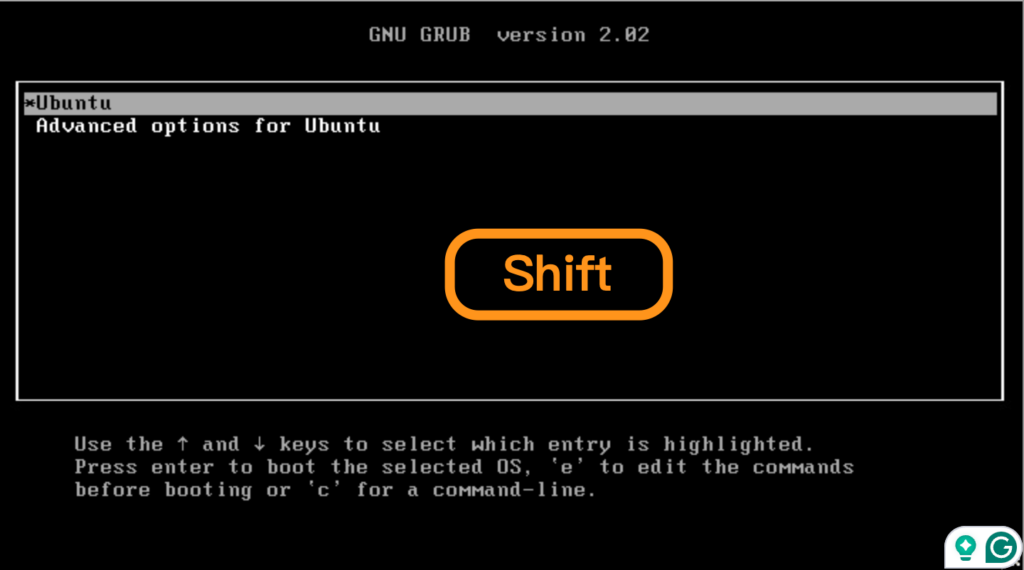
- During system startup, press and hold the Shift key to enter the GRUB boot menu.
- Select your Ubuntu system and press ‘e’ to enter edit mode.
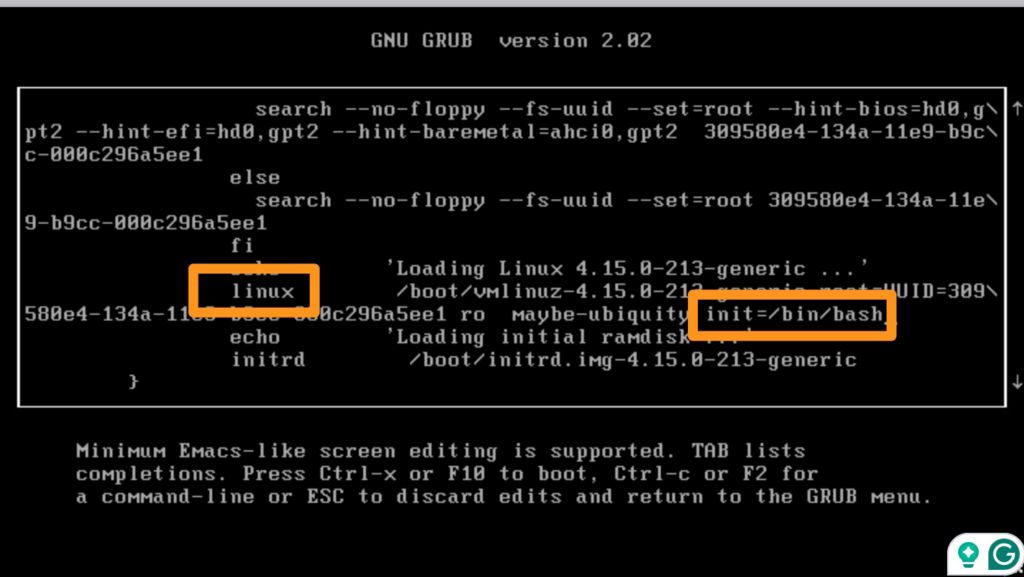
- Locate the line starting with “linux” and append “init=/bin/bash” at the end.
- Press Ctrl+x or F10 to save and boot.
- Mount File System and Change Password:
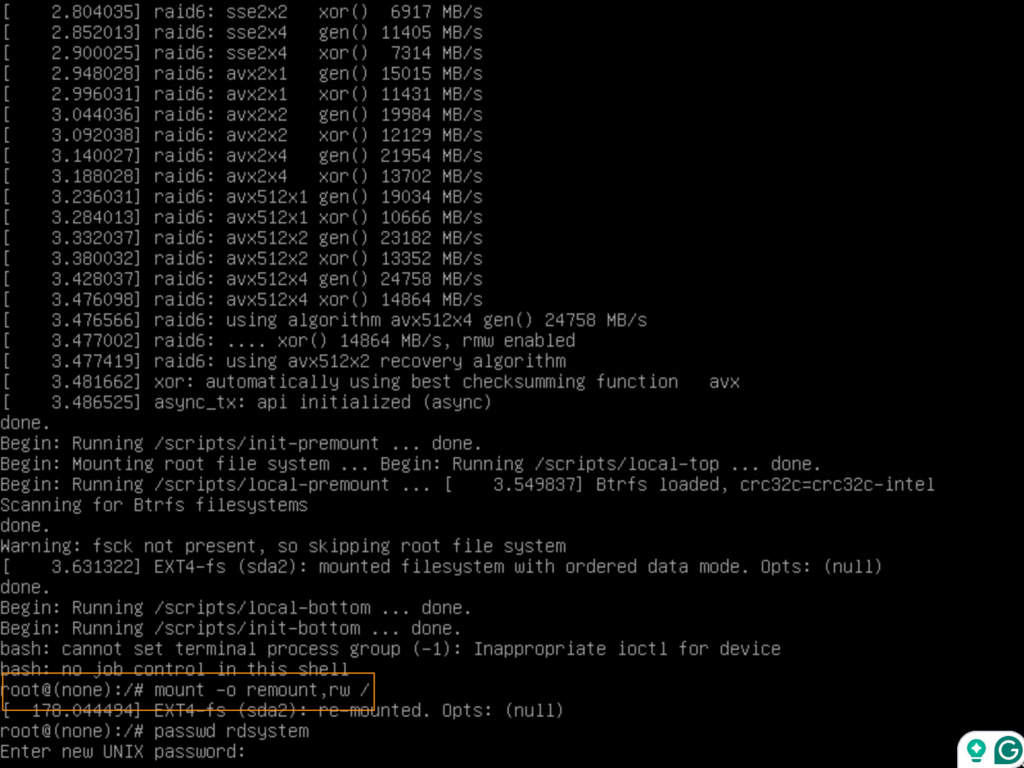
- In the bash prompt, type the following commands:
mount -o remount,rw /passwdUserName- Enter the username for which you want to change the password and follow the prompts to set a new one.
- Reboot:
- Type
rebootto restart your system and log in with the new password.
- Type
English Version
Forgetting your Ubuntu Linux password can be frustrating, but don’t panic! There are a few ways to regain access to your system. This guide will walk you through some common solutions.
Reset Password via Recovery Mode
- Boot into Recovery Mode:
- During system startup, press and hold the Shift key to enter the GRUB boot menu.
- Select your Ubuntu system and press ‘e’ to enter edit mode.
- Locate the line starting with “linux” and append “init=/bin/bash” at the end.
- Press Ctrl+x or F10 to save and boot.
- Mount File System and Change Password:
- In the bash prompt, type the following commands:
mount -o remount,rw /passwdUserName- Enter the username for which you want to change the password and follow the prompts to set a new one.
- Reboot:
- Type
rebootto restart your system and log in with the new password.
- Type
日本語版
Ubuntu Linuxのパスワードを忘れてしまうとイライラしますが、慌てないでください!システムへのアクセスを回復する方法はいくつかあります。このガイドでは、一般的な解決方法を紹介します。
リカバリーモードでパスワードをリセット
- リカバリーモードで起動:
- システム起動時にShiftキーを長押しして、GRUBブートメニューに入ります。
- Ubuntuシステムを選択し、’e’キーを押して編集モードに入ります。
- “linux”で始まる行を見つけ、末尾に”init=/bin/bash”を追加します。
- Ctrl+xまたはF10を押して保存し、起動します。
- ファイルシステムのマウントとパスワード変更:
- bashプロンプトで、以下のコマンドを入力します:
mount -o remount,rw /passwdUserName- パスワードを変更したいユーザー名を入力し、プロンプトに従って新しいパスワードを設定します。
- 再起動:
rebootと入力してシステムを再起動し、新しいパスワードでログインします。