SAP Business One 是一套功能強大的企業資源規劃(ERP)系統,可協助企業管理各種營運作業,從銷售、採購到庫存和會計。SAP Business One 的核心功能之一是其儲存和管理大量資料的能力,使其成為資料驅動決策的重要工具。然而,為特定文件找到相關資料可能是一項具有挑戰性的任務。在本文中,我們將探討如何在 SAP Business One 中定位文件的相關資料表和欄位。
步驟 1:啟用系統資訊
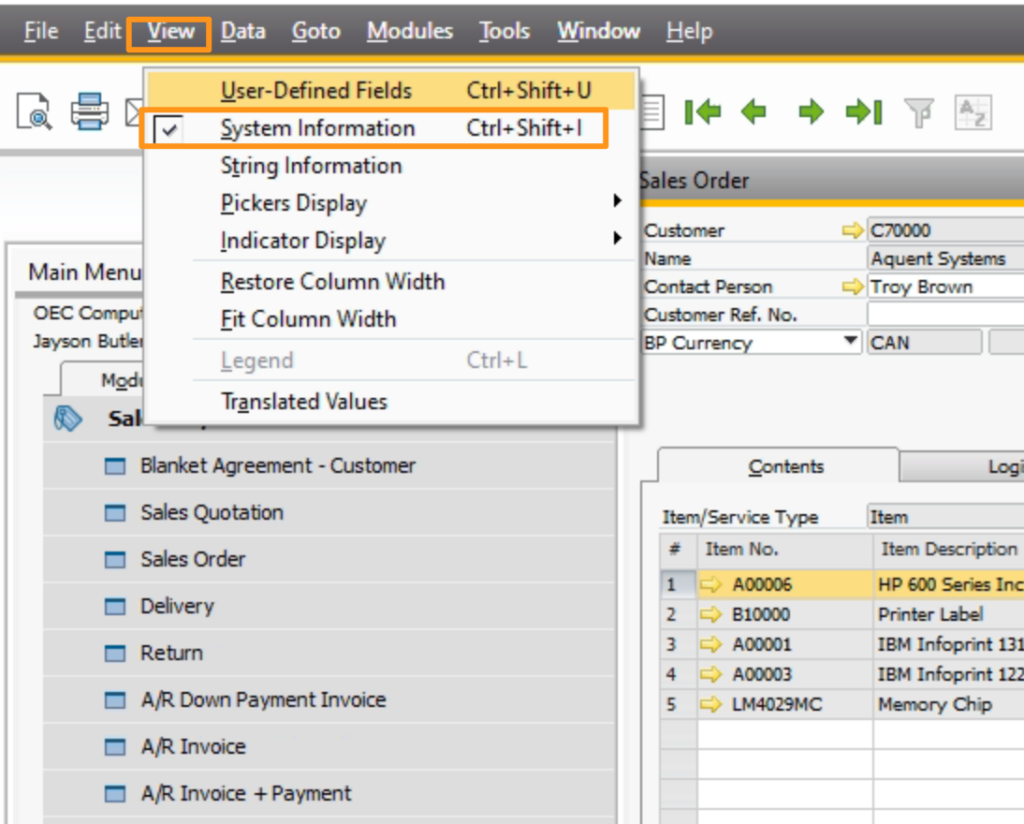
在 SAP Business One 中查找資料的第一步是啟用系統資訊。只需導覽至您要查找的文件,然後點擊選單中的「檢視」按鈕。從那裡選擇「系統資訊」或按 Ctrl + Shift + I 來啟用系統資訊。它將在狀態列上顯示文件的欄位和資料表資訊。
步驟 2:將滑鼠移至欄位上以查看資料表和欄位資訊
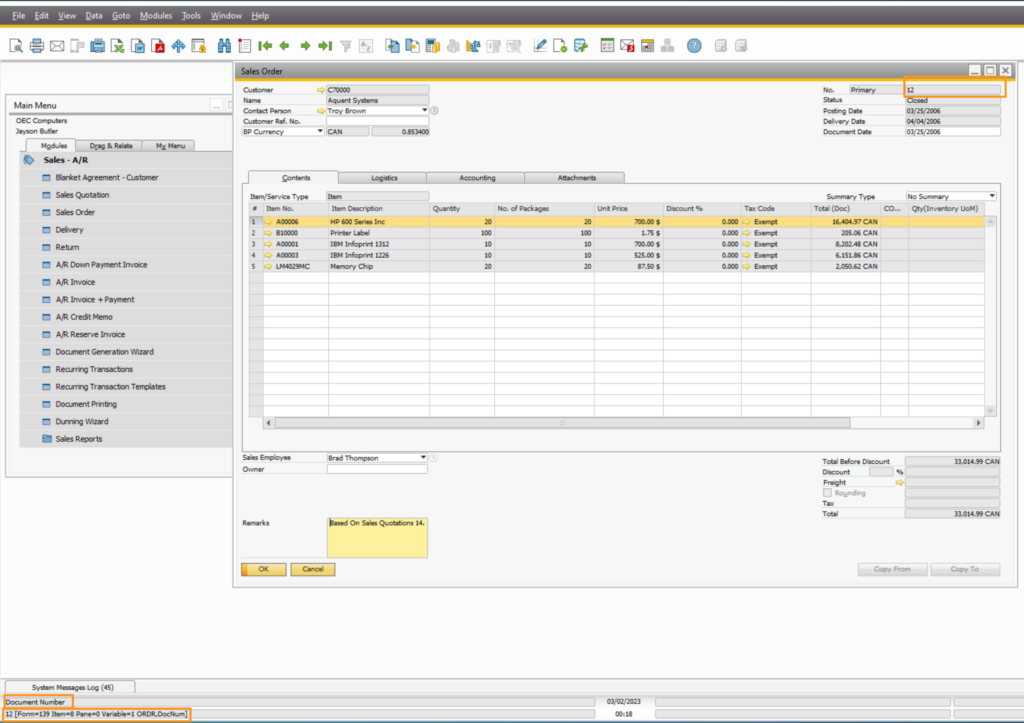
啟用系統資訊後,您可以定位文件的相關資料表和欄位。只需將滑鼠移到您要查詢的欄位上,資料表和欄位資訊就會顯示在視窗底部的狀態列中。此資訊包括資料表名稱和相關欄位的名稱。
步驟 3:在 SQL Management Studio 中查詢所需資訊
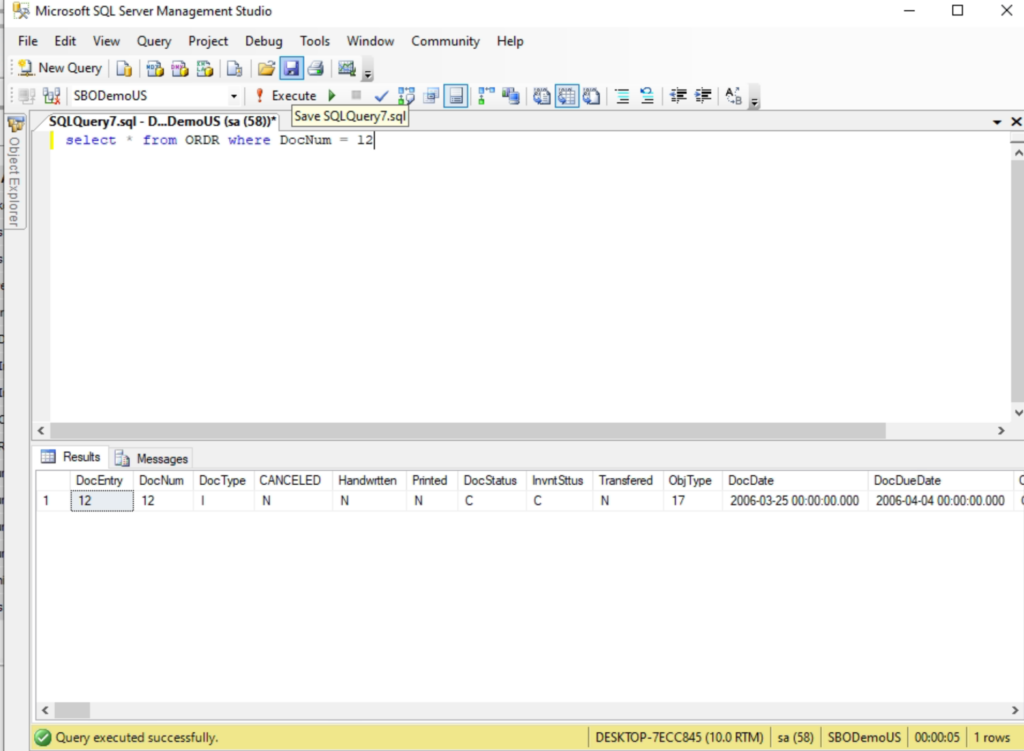
取得資料表和欄位資訊後,您可以在 SQL Management Studio 中查詢所需的資訊。這個強大的工具讓您能夠擷取、編輯和分析 SAP Business One 資料庫中的資料。要查詢所需的資訊,只需開啟 SQL Management Studio 並連線到 SAP Business One 資料庫。然後,您可以使用在步驟 2 中取得的資料表和欄位資訊,輸入 SQL 查詢來擷取您需要的資料。
結論
在 SAP Business One 中為特定文件查找相關資料可能是一項艱鉅的任務,但透過正確的工具和技巧,可以輕鬆完成。按照本文中概述的步驟,您可以定位文件的相關資料表和欄位,並在 SQL Management Studio 中查詢所需的資訊。這將使您能夠根據準確且最新的資料做出明智的決策,幫助您的企業在當今競爭激烈的市場中蓬勃發展。
English Version
SAP Business One is a powerful enterprise resource planning (ERP) system that helps businesses manage various operations, from sales and procurement to inventory and accounting. One of the key features of SAP Business One is its ability to store and manage vast amounts of data, making it an essential tool for data-driven decision-making. However, finding the relevant data for a specific document can be a challenging task. In this article, we will explore how to locate relevant tables and fields for documents in SAP Business One.
Step 1: Enable System Information
The first step in finding data in SAP Business One is to enable system information. To do this, simply navigate to the document you want to find and click on the “View” button in the menu. From there, select “System Information” or press Ctrl + Shift + I to enable system information. It will display the fields and table information of the document on the status bar.
Step 2: Hover over the Field for Table and Field Information
Once you have enabled system information, you can locate the relevant tables and fields for the document. Simply hover your mouse over the field you want to query, and the table and field information will appear in the status bar at the bottom of the window. This information includes the table name and the name of the relevant field.
Step 3: Query the Required Information in SQL Management Studio
After obtaining the table and field information, you can query the required information in SQL Management Studio. This powerful tool allows you to retrieve, edit, and analyze data in the SAP Business One database. To query the required information, simply open SQL Management Studio and connect to the SAP Business One database. From there, you can enter a SQL query that retrieves the data you need, using the table and field information obtained in Step 2.
Conclusion
Finding the relevant data for a specific document can be a daunting task in SAP Business One, but with the right tools and techniques, it can be done easily. By following the steps outlined in this article, you can locate the relevant tables and fields for documents and query the required information in SQL Management Studio. This will enable you to make informed decisions based on accurate and up-to-date data, helping your business thrive in today’s competitive marketplace.
日本語版
SAP Business One は、販売・調達から在庫・会計まで、様々な業務を管理する強力なエンタープライズリソースプランニング(ERP)システムです。SAP Business One の主要機能の一つは、膨大なデータを保存・管理する能力であり、データに基づく意思決定に不可欠なツールとなっています。しかし、特定のドキュメントに関連するデータを見つけることは困難な場合があります。この記事では、SAP Business One でドキュメントの関連テーブルとフィールドを特定する方法を解説します。
ステップ 1:システム情報を有効化する
SAP Business One でデータを見つける最初のステップは、システム情報を有効化することです。検索したいドキュメントに移動し、メニューの「表示」ボタンをクリックします。そこから「システム情報」を選択するか、Ctrl + Shift + I を押してシステム情報を有効化します。ステータスバーにドキュメントのフィールドとテーブル情報が表示されます。
ステップ 2:フィールドにマウスを合わせてテーブルとフィールド情報を確認する
システム情報を有効化したら、ドキュメントの関連テーブルとフィールドを特定できます。クエリしたいフィールドの上にマウスカーソルを合わせると、ウィンドウ下部のステータスバーにテーブルとフィールドの情報が表示されます。この情報には、テーブル名と関連フィールドの名前が含まれます。
ステップ 3:SQL Management Studio で必要な情報をクエリする
テーブルとフィールドの情報を取得したら、SQL Management Studio で必要な情報をクエリできます。この強力なツールを使用すると、SAP Business One データベースのデータを取得、編集、分析できます。必要な情報をクエリするには、SQL Management Studio を開いて SAP Business One データベースに接続します。その後、ステップ 2 で取得したテーブルとフィールドの情報を使用して、必要なデータを取得する SQL クエリを入力できます。
まとめ
SAP Business One で特定のドキュメントの関連データを見つけることは困難な作業になり得ますが、適切なツールとテクニックを使用すれば簡単に行えます。この記事で説明した手順に従うことで、ドキュメントの関連テーブルとフィールドを特定し、SQL Management Studio で必要な情報をクエリできます。これにより、正確で最新のデータに基づいた情報に基づく意思決定が可能になり、今日の競争の激しい市場でビジネスの成長を支援します。