Although there are numerous WordPress plugins that enable you to change your login logo (which defaults to the cute WordPress logo), you may prefer to customize it yourself, as I do. In this tutorial, we will walk through how to override the CSS to modify the login logo.
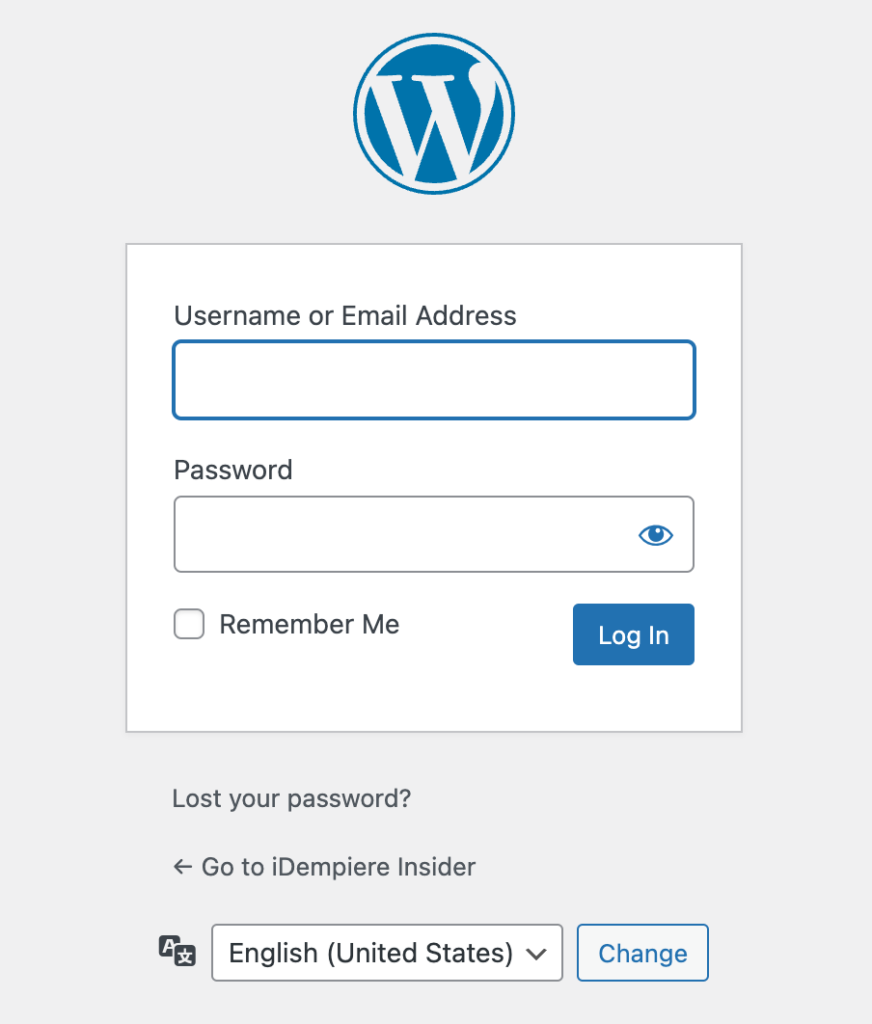
Default login page.
First of all, You need to prepare an image that size is bigger than 64 x 64. Then upload it into media.
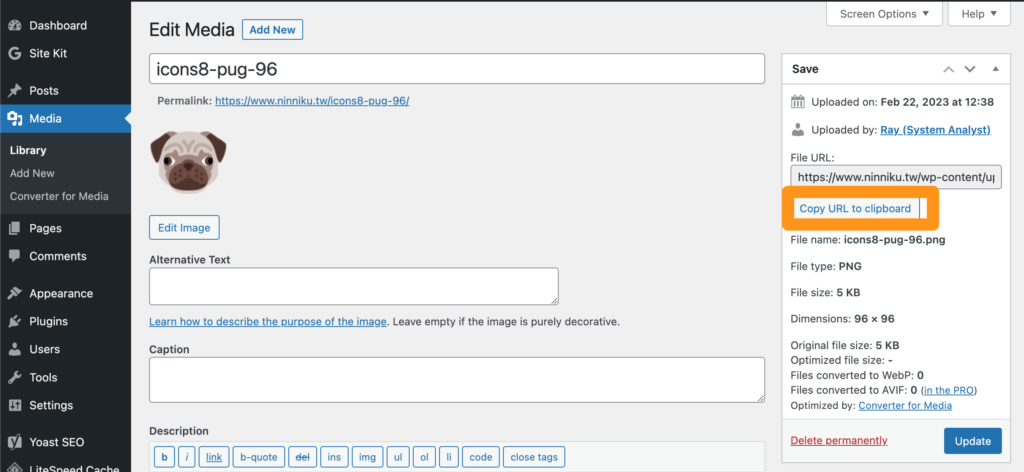
[Your WordPress Directory]/wp-includes/functions.php Open the function.php file and add the following code to the bottom line. Note that you need to replace the image URL with the URL of your logo.
function custom_login_logo() {
    echo '<style type="text/css">
        .login h1 a {
            background-image: url(https://www.ninniku.tw/wp-content/uploads/2023/02/icons8-pug-96.png) !important;
            background-size: contain !important;
            width: 300px !important;
        }
    </style>';
}
add_action('login_head', 'custom_login_logo');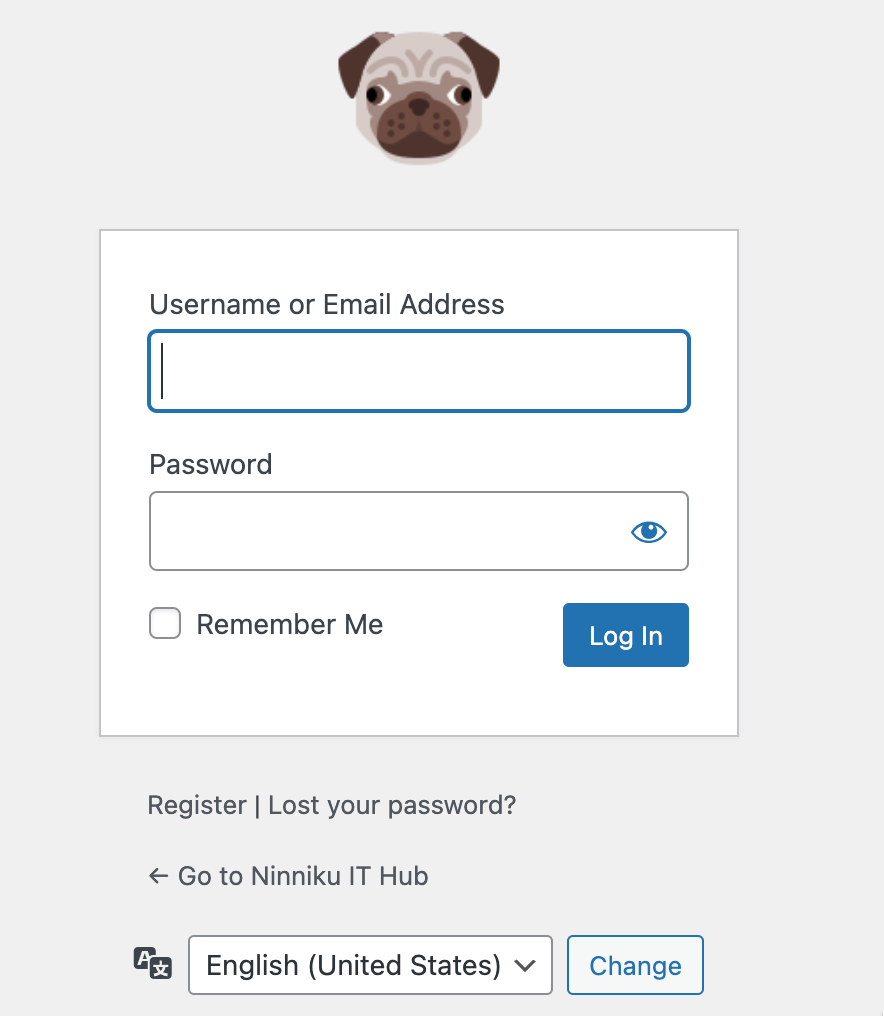
Success! We have done it.
English Version
Although there are numerous WordPress plugins that enable you to change your login logo (which defaults to the cute WordPress logo), you may prefer to customize it yourself, as I do. In this tutorial, we will walk through how to override the CSS to modify the login logo.
Default login page.
First of all, You need to prepare an image that size is bigger than 64 x 64. Then upload it into media.
[Your WordPress Directory]/wp-includes/functions.php Open the function.php file and add the following code to the bottom line. Note that you need to replace the image URL with the URL of your logo.
function custom_login_logo() {
    echo '<style type="text/css">
        .login h1 a {
            background-image: url(https://www.ninniku.tw/wp-content/uploads/2023/02/icons8-pug-96.png) !important;
            background-size: contain !important;
            width: 300px !important;
        }
    </style>';
}
add_action('login_head', 'custom_login_logo');
Success! We have done it.
日本語版
WordPressのログインロゴ(デフォルトではおなじみのWordPressロゴ)を変更できるプラグインは数多くありますが、私のように自分でカスタマイズしたい方もいるでしょう。このチュートリアルでは、CSSをオーバーライドしてログインロゴを変更する方法を解説します。
デフォルトのログインページ
まず、64 x 64ピクセルより大きいサイズの画像を準備します。その後、メディアライブラリにアップロードしてください。
[Your WordPress Directory]/wp-includes/functions.php function.phpファイルを開き、以下のコードを最終行に追加します。画像URLを自分のロゴのURLに置き換える必要がありますのでご注意ください。
function custom_login_logo() {
    echo '<style type="text/css">
        .login h1 a {
            background-image: url(https://www.ninniku.tw/wp-content/uploads/2023/02/icons8-pug-96.png) !important;
            background-size: contain !important;
            width: 300px !important;
        }
    </style>';
}
add_action('login_head', 'custom_login_logo');
成功です!完了しました。