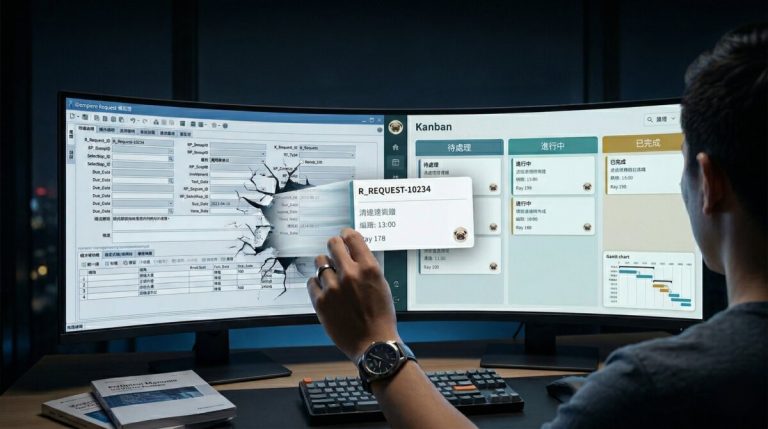
實戰案例:實作「列印傳票」按鈕。本指南將帶您了解如何使用 OSGi 在 iDempiere 視窗工具列中新增自訂按鈕。
架構概觀
iDempiere 中的自訂工具列按鈕採用 OSGi 宣告式服務(DS)機制。具體做法是將您插件中的 Java 類別註冊為 IAction 服務。當 ADWindowToolbar 載入時,它會讀取 AD_ToolBarButton 資料表中 IsCustomization=Y 的記錄,然後透過 OSGi 查找對應的 IAction 實作,並動態建立按鈕。
graph LR
    A["AD_ToolBarButton<br>(資料庫設定)"] --> B["ADWindowToolbar<br>(載入按鈕)"]
    B --> C["Actions.getAction()<br>(OSGi 查詢)"]
    C --> D["IAction 實作<br>(你的插件)"]
    B --> E["Actions.getActionImage()<br>(載入圖示)"]
    E --> F["action/images/<br>{actionId}24.png"]
    D --> G["ToolbarCustomButton<br>(事件綁定)"]
    G -->|"onClick"| D
核心元件
| 元件 | 位置 | 說明 |
| IAction 介面 | org.adempiere.webui.action.IAction | 自訂按鈕必須實作的介面。 |
| Actions 工具類別 | org.adempiere.webui.action.Actions | 透過 OSGi 查找 IAction 服務及載入圖示的輔助類別。 |
| ToolbarCustomButton | org.adempiere.webui.adwindow.ToolbarCustomButton | 負責綁定點擊事件並呼叫 IAction.execute() 的按鈕模型。 |
| ADWindowToolbar | org.adempiere.webui.adwindow.ADWindowToolbar | 載入 AD_ToolBarButton 資料並實例化按鈕。 |
| AD_ToolBarButton | 資料庫資料表 | 定義按鈕名稱、Action Class、顯示邏輯等。 |
開發步驟
步驟 1:實作 IAction 介面
建立一個實作 org.adempiere.webui.action.IAction 的 Java 類別。
檔案位置
src/tw/ninniku/accounting/btn/VoucherAction.javaIAction 介面定義
public interface IAction {
    /** Triggered when the button is clicked */
    void execute(Object target);

    /** (Optional) Customize button appearance */
    default void decorate(Toolbarbutton toolbarButton) {}

    /** (Optional) Use Font Icon, return CSS class */
    default String getIconSclass() { return ""; }

    /** (Optional) Dynamically enable/disable based on Tab state */
    default void updateToolbarCustomBtn(Toolbarbutton toolbarButton,
            IADTabpanel tabPanel, boolean changed, boolean readOnly) {}
}
完整範例:VoucherAction.java
package tw.ninniku.accounting.btn;

import org.adempiere.util.IProcessUI;
import org.adempiere.util.ProcessUtil;
import org.adempiere.webui.action.IAction;
import org.adempiere.webui.adwindow.ADWindow;
import org.adempiere.webui.adwindow.ADWindowContent;
import org.compiere.model.GridTab;
import org.compiere.model.MPInstance;
import org.compiere.model.MProcess;
import org.compiere.model.MTable;
import org.compiere.model.PO;
import org.compiere.process.ProcessInfo;
import org.compiere.process.ProcessInfoParameter;
import org.compiere.util.AdempiereUserError;
import org.compiere.util.CLogger;
import org.compiere.util.DB;
import org.compiere.util.Env;
import org.compiere.util.Msg;
import org.compiere.util.Trx;

import java.sql.CallableStatement;
import java.sql.Timestamp;
import java.util.ArrayList;
import java.util.List;
import java.util.logging.Level;

/**
 * Action to generate and print accounting voucher report.
 * Validates document posting status and launches the ACCOUNTING_FACT_JR
 * Jasper report.
 */
public class VoucherAction implements IAction {

    private static final CLogger log = CLogger.getCLogger(VoucherAction.class);

    /** Process value for the accounting fact Jasper report */
    private static final String PROCESS_VALUE = "ACCOUNTING_FACT_JR";

    private int adTableId;
    private int recordId;

    @Override
    public void execute(Object target) {
        // 1. Get current GridTab from ADWindow
        ADWindow window = (ADWindow) target;
        ADWindowContent content = window.getADWindowContent();
        GridTab tab = content.getActiveGridTab();

        adTableId = tab.getAD_Table_ID();
        recordId = tab.getRecord_ID();

        // 2. Validate if the document is posted
        validateDocument(adTableId, recordId);

        // 3. Print Report
        printReport();
    }

    /**
     * Validate document is posted (Posted=Y).
     * Throws user error if 'Posted' column is missing or false.
     */
    private void validateDocument(int adTableId, int recordId) {
        MTable mTable = MTable.get(Env.getCtx(), adTableId);
        PO po = mTable.getPO(recordId, null);

        if (po.get_ColumnIndex("Posted") < 0) {
            throw new AdempiereUserError(
                Msg.getMsg(Env.getCtx(), "VoucherNotSupported"));
        }
        if (!po.get_ValueAsBoolean("Posted")) {
            String docId = Msg.parseTranslation(
                Env.getCtx(), "@" + po.get_TableName() + "_ID@");
            throw new AdempiereUserError(
                Msg.getMsg(Env.getCtx(), "DocumentNotPosted",
                    new Object[]{docId}));
        }
    }

    /**
     * Create ProcessInfo and call Jasper Report.
     */
    private void printReport() {
        int adProcessId = MProcess.getProcess_ID(PROCESS_VALUE, null);
        MProcess process = MProcess.get(Env.getCtx(), adProcessId);

        MPInstance pInstance = new MPInstance(process, recordId);
        pInstance.createParameter(10, "AD_Table_ID", adTableId);
        pInstance.createParameter(20, "RECORD_ID", recordId);

        ProcessInfo pi = new ProcessInfo(
            PROCESS_VALUE, adProcessId, adTableId, recordId);
        pi.setAD_User_ID(Env.getAD_User_ID(Env.getCtx()));
        pi.setAD_Client_ID(Env.getAD_Client_ID(Env.getCtx()));
        pi.setAD_PInstance_ID(pInstance.getAD_PInstance_ID());
        pi.setRecord_ID(recordId);

        Trx trx = Trx.get(Trx.createTrxName(), true);
        trx.start();
        try {
            // Get Fact Number logic (Example SQL)
            String dateAcctSql =
                "SELECT DateAcct FROM Fact_Acct "
                + "WHERE AD_Table_ID=? AND Record_ID=?";
            Timestamp dateAcct = DB.getSQLValueTS(
                trx.getTrxName(), dateAcctSql, adTableId, recordId);

            String factNoSql =
                "SELECT fi_get_fact_documentno(?, ?, ?)";
            String factNo = DB.getSQLValueString(
                trx.getTrxName(), factNoSql,
                adTableId, recordId, dateAcct);

            pInstance.createParameter(30, "FactNo", factNo);

            // Assemble Process Parameters
            List<ProcessInfoParameter> params = new ArrayList<>();
            params.add(new ProcessInfoParameter(
                "AD_PInstance_ID",
                pInstance.getAD_PInstance_ID(), null, null, null));
            params.add(new ProcessInfoParameter(
                "AD_Table_ID", adTableId, null, null, null));
            params.add(new ProcessInfoParameter(
                "RECORD_ID", recordId, null, null, null));
            params.add(new ProcessInfoParameter(
                "CURRENT_LANG",
                Env.getCtx().getProperty("#Locale"),
                null, null, null));
            params.add(new ProcessInfoParameter(
                "FactNo", factNo, null, null, null));

            pi.setParameter(
                params.toArray(new ProcessInfoParameter[0]));
            pi.setPrintPreview(true);

            // Call Stored Procedure (If defined)
            String proc = process.getProcedureName();
            if (proc != null && !proc.isEmpty()) {
                CallableStatement cstmt = null;
                try {
                    cstmt = DB.prepareCall(
                        "{call " + proc + "(?)}",
                        1, trx.getTrxName());
                    cstmt.setInt(1, pi.getAD_PInstance_ID());
                    cstmt.executeUpdate();
                } catch (Exception e) {
                    log.log(Level.SEVERE, e.getLocalizedMessage(), e);
                } finally {
                    DB.close(cstmt);
                }
            }

            // Execute Jasper Report
            IProcessUI pm = Env.getProcessUI(Env.getCtx());
            ProcessUtil.startJavaProcess(
                Env.getCtx(), pi, trx, true, pm);

            trx.commit();
        } catch (Exception e) {
            trx.rollback();
            log.log(Level.SEVERE, "Error in VoucherAction", e);
            throw new AdempiereUserError(
                Msg.getMsg(Env.getCtx(), "VoucherGenerationError")
                + ": " + e.getMessage());
        } finally {
            trx.close();
        }
    }
}
提示:execute(Object target) 中的 target 參數就是 ADWindow 實例。您可以透過 ADWindow → ADWindowContent → GridTab 取得目前視窗的所有資訊(Table ID、Record ID、欄位值)。
步驟 2:建立按鈕圖示
圖示檔案的命名規則必須嚴格遵循以下格式:
{OSGi component name}24.png例如,如果您的元件名稱為 tw.ninniku.accounting.btn.VoucherAction,則圖示檔名必須為:
tw.ninniku.accounting.btn.VoucherAction24.png檔案放置位置
src/action/images/tw.ninniku.accounting.btn.VoucherAction24.png
重要:路徑必須以 action/images/ 開頭(相對於 classpath),因為 Actions.java 中已將路徑 /action/images/ 寫死。建議圖片尺寸為 24×24 像素的 PNG 格式。
圖示載入順序
Actions.getActionImage() 依照以下順序搜尋圖示:
- 目前佈景主題:/theme/{current-theme}/{actionId}24.png
- 插件佈景主題:/action/images/{current-theme}/{actionId}24.png
- 插件預設:/action/images/default/{actionId}24.png
- 插件根目錄:/action/images/{actionId}24.png(最常用)
步驟 3:建立 OSGi DS XML 設定
透過 Declarative Services XML 將您的 Java 類別註冊為 IAction OSGi 服務。
檔案位置
OSGI-INF/tw.ninniku.accounting.btn.VoucherAction.xmlXML
<?xml version="1.0" encoding="UTF-8"?>
<scr:component xmlns:scr="http://www.osgi.org/xmlns/scr/v1.1.0"
    name="tw.ninniku.accounting.btn.VoucherAction">
   <implementation class="tw.ninniku.accounting.btn.VoucherAction"/>
   <service>
      <provide interface="org.adempiere.webui.action.IAction"/>
   </service>
</scr:component>
重要:name 屬性就是 actionId。iDempiere 使用此值來:
呼叫 Actions.getAction(actionId) 查找 OSGi 服務。
將 actionId 與 “24.png” 組合以找到圖示。
比對資料庫中 AD_ToolBarButton.ActionClassName 欄位的值。
步驟 4:設定 MANIFEST.MF
在您的 OSGi Bundle Manifest 中加入必要的設定:
# 1. Register Service-Component (DS XML)
Service-Component: ...,
 OSGI-INF/tw.ninniku.accounting.btn.VoucherAction.xml

# 2. Import the IAction package
Import-Package: ...,
 org.adempiere.webui.action,
 org.adempiere.webui.adwindow

# 3. Export action/images package so iDempiere can load icons via classloader
Export-Package: action.images
步驟 5:設定 build.properties
確保 OSGI-INF XML 和 src/ 目錄包含在建置輸出中:
Properties
bin.includes = META-INF/,
               .,
               OSGI-INF/tw.ninniku.accounting.btn.VoucherAction.xml,
               src/
source.. = src/
src.includes = src/
output.. = bin/
步驟 6:新增 AD_ToolBarButton 資料庫記錄
在 iDempiere 資料庫中插入一筆記錄,以將自訂按鈕新增到工具列:
INSERT INTO AD_ToolBarButton (
    AD_ToolBarButton_ID,
    AD_Client_ID,
    AD_Org_ID,
    IsActive,
    Created, CreatedBy, Updated, UpdatedBy,
    Name,
    ComponentName,
    IsCustomization,
    ActionClassName,
    AD_ToolBarButton_UU,
    Action,
    SeqNo,
    IsShowMore,
    IsAddSeparator,
    KeyStroke_KeyCode,
    KeyStroke_Modifiers
) VALUES (
    (SELECT COALESCE(MAX(AD_ToolBarButton_ID),0)+1
       FROM AD_ToolBarButton),  -- Auto-generate ID
    0,                          -- AD_Client_ID (System)
    0,                          -- AD_Org_ID
    'Y',                        -- IsActive
    NOW(), 100, NOW(), 100,     -- Timestamps
    'Voucher',                  -- Button Name
    'Voucher',                  -- Component Name
    'Y',                        -- ★ Mark as Customization
    'tw.ninniku.accounting.btn.VoucherAction',  -- ★ Must match OSGi service name
    generate_uuid(),            -- UUID
    'W',                        -- Action type: W = Window
    999,                        -- Sequence (Low priority)
    'N',                        -- Show in "More" menu?
    'N',                        -- Add separator?
    0,                          -- Shortcut KeyCode (0=None)
    0                           -- Modifiers
);
注意:ActionClassName 的值必須與 OSGI-INF XML 中的 name 屬性完全一致,否則 iDempiere 將無法找到對應的 IAction 服務。
English Version
Case Study: Implementing a “Print Voucher” button. This guide walks you through adding a custom button to the iDempiere Window Toolbar using OSGi.
Architecture Overview
Custom Toolbar buttons in iDempiere leverage the OSGi Declarative Services (DS) mechanism. This involves registering a Java class from your plugin as an IAction service. When the ADWindowToolbar loads, it reads records from the AD_ToolBarButton table where IsCustomization=Y. It then uses OSGi to locate the corresponding IAction implementation and dynamically creates the button.
graph LR
    A["AD_ToolBarButton<br>(Database Config)"] --> B["ADWindowToolbar<br>(載入按鈕)"]
    B --> C["Actions.getAction()<br>(OSGi Lookup)"]
    C --> D["IAction Impl<br>(Your Plugin)"]
    B --> E["Actions.getActionImage()<br>(Load Icon)"]
    E --> F["action/images/<br>{actionId}24.png"]
    D --> G["ToolbarCustomButton<br>(Event Binding)"]
    G -->|"onClick"| D
Core Components
| Component | Location | Description |
| IAction Interface | org.adempiere.webui.action.IAction | The interface that must be implemented by custom buttons. |
| Actions Utility | org.adempiere.webui.action.Actions | Helper class to look up IAction services and load icons via OSGi. |
| ToolbarCustomButton | org.adempiere.webui.adwindow.ToolbarCustomButton | The button model responsible for binding click events and calling IAction.execute(). |
| ADWindowToolbar | org.adempiere.webui.adwindow.ADWindowToolbar | Loads AD_ToolBarButton data and instantiates the buttons. |
| AD_ToolBarButton | Database Table | Defines the button name, Action Class, display logic, etc. |
Development Steps
Step 1: Implement the IAction Interface
Create a Java class that implements org.adempiere.webui.action.IAction.
File Location
src/tw/ninniku/accounting/btn/VoucherAction.javaIAction Interface Definition
public interface IAction {
    /** Triggered when the button is clicked */
    void execute(Object target);

    /** (Optional) Customize button appearance */
    default void decorate(Toolbarbutton toolbarButton) {}

    /** (Optional) Use Font Icon, return CSS class */
    default String getIconSclass() { return ""; }

    /** (Optional) Dynamically enable/disable based on Tab state */
    default void updateToolbarCustomBtn(Toolbarbutton toolbarButton,
            IADTabpanel tabPanel, boolean changed, boolean readOnly) {}
}
Full Example: VoucherAction.java
package tw.ninniku.accounting.btn;

import org.adempiere.util.IProcessUI;
import org.adempiere.util.ProcessUtil;
import org.adempiere.webui.action.IAction;
import org.adempiere.webui.adwindow.ADWindow;
import org.adempiere.webui.adwindow.ADWindowContent;
import org.compiere.model.GridTab;
import org.compiere.model.MPInstance;
import org.compiere.model.MProcess;
import org.compiere.model.MTable;
import org.compiere.model.PO;
import org.compiere.process.ProcessInfo;
import org.compiere.process.ProcessInfoParameter;
import org.compiere.util.AdempiereUserError;
import org.compiere.util.CLogger;
import org.compiere.util.DB;
import org.compiere.util.Env;
import org.compiere.util.Msg;
import org.compiere.util.Trx;

import java.sql.CallableStatement;
import java.sql.Timestamp;
import java.util.ArrayList;
import java.util.List;
import java.util.logging.Level;

/**
 * Action to generate and print accounting voucher report.
 * Validates document posting status and launches the ACCOUNTING_FACT_JR
 * Jasper report.
 */
public class VoucherAction implements IAction {

    private static final CLogger log = CLogger.getCLogger(VoucherAction.class);

    /** Process value for the accounting fact Jasper report */
    private static final String PROCESS_VALUE = "ACCOUNTING_FACT_JR";

    private int adTableId;
    private int recordId;

    @Override
    public void execute(Object target) {
        // 1. Get current GridTab from ADWindow
        ADWindow window = (ADWindow) target;
        ADWindowContent content = window.getADWindowContent();
        GridTab tab = content.getActiveGridTab();

        adTableId = tab.getAD_Table_ID();
        recordId = tab.getRecord_ID();

        // 2. Validate if the document is posted
        validateDocument(adTableId, recordId);

        // 3. Print Report
        printReport();
    }

    /**
     * Validate document is posted (Posted=Y).
     * Throws user error if 'Posted' column is missing or false.
     */
    private void validateDocument(int adTableId, int recordId) {
        MTable mTable = MTable.get(Env.getCtx(), adTableId);
        PO po = mTable.getPO(recordId, null);

        if (po.get_ColumnIndex("Posted") < 0) {
            throw new AdempiereUserError(
                Msg.getMsg(Env.getCtx(), "VoucherNotSupported"));
        }
        if (!po.get_ValueAsBoolean("Posted")) {
            String docId = Msg.parseTranslation(
                Env.getCtx(), "@" + po.get_TableName() + "_ID@");
            throw new AdempiereUserError(
                Msg.getMsg(Env.getCtx(), "DocumentNotPosted",
                    new Object[]{docId}));
        }
    }

    /**
     * Create ProcessInfo and call Jasper Report.
     */
    private void printReport() {
        int adProcessId = MProcess.getProcess_ID(PROCESS_VALUE, null);
        MProcess process = MProcess.get(Env.getCtx(), adProcessId);

        MPInstance pInstance = new MPInstance(process, recordId);
        pInstance.createParameter(10, "AD_Table_ID", adTableId);
        pInstance.createParameter(20, "RECORD_ID", recordId);

        ProcessInfo pi = new ProcessInfo(
            PROCESS_VALUE, adProcessId, adTableId, recordId);
        pi.setAD_User_ID(Env.getAD_User_ID(Env.getCtx()));
        pi.setAD_Client_ID(Env.getAD_Client_ID(Env.getCtx()));
        pi.setAD_PInstance_ID(pInstance.getAD_PInstance_ID());
        pi.setRecord_ID(recordId);

        Trx trx = Trx.get(Trx.createTrxName(), true);
        trx.start();
        try {
            // Get Fact Number logic (Example SQL)
            String dateAcctSql =
                "SELECT DateAcct FROM Fact_Acct "
                + "WHERE AD_Table_ID=? AND Record_ID=?";
            Timestamp dateAcct = DB.getSQLValueTS(
                trx.getTrxName(), dateAcctSql, adTableId, recordId);

            String factNoSql =
                "SELECT fi_get_fact_documentno(?, ?, ?)";
            String factNo = DB.getSQLValueString(
                trx.getTrxName(), factNoSql,
                adTableId, recordId, dateAcct);

            pInstance.createParameter(30, "FactNo", factNo);

            // Assemble Process Parameters
            List<ProcessInfoParameter> params = new ArrayList<>();
            params.add(new ProcessInfoParameter(
                "AD_PInstance_ID",
                pInstance.getAD_PInstance_ID(), null, null, null));
            params.add(new ProcessInfoParameter(
                "AD_Table_ID", adTableId, null, null, null));
            params.add(new ProcessInfoParameter(
                "RECORD_ID", recordId, null, null, null));
            params.add(new ProcessInfoParameter(
                "CURRENT_LANG",
                Env.getCtx().getProperty("#Locale"),
                null, null, null));
            params.add(new ProcessInfoParameter(
                "FactNo", factNo, null, null, null));

            pi.setParameter(
                params.toArray(new ProcessInfoParameter[0]));
            pi.setPrintPreview(true);

            // Call Stored Procedure (If defined)
            String proc = process.getProcedureName();
            if (proc != null && !proc.isEmpty()) {
                CallableStatement cstmt = null;
                try {
                    cstmt = DB.prepareCall(
                        "{call " + proc + "(?)}",
                        1, trx.getTrxName());
                    cstmt.setInt(1, pi.getAD_PInstance_ID());
                    cstmt.executeUpdate();
                } catch (Exception e) {
                    log.log(Level.SEVERE, e.getLocalizedMessage(), e);
                } finally {
                    DB.close(cstmt);
                }
            }

            // Execute Jasper Report
            IProcessUI pm = Env.getProcessUI(Env.getCtx());
            ProcessUtil.startJavaProcess(
                Env.getCtx(), pi, trx, true, pm);

            trx.commit();
        } catch (Exception e) {
            trx.rollback();
            log.log(Level.SEVERE, "Error in VoucherAction", e);
            throw new AdempiereUserError(
                Msg.getMsg(Env.getCtx(), "VoucherGenerationError")
                + ": " + e.getMessage());
        } finally {
            trx.close();
        }
    }
}
Tip: The target parameter in execute(Object target) is the ADWindow instance. You can retrieve all information about the current window (Table ID, Record ID, Field Values) via ADWindow → ADWindowContent → GridTab.
Step 2: Create Button Icon
The icon file naming convention must strictly follow this format:
{OSGi component name}24.pngFor example, if your component name is tw.ninniku.accounting.btn.VoucherAction, the icon filename must be:
tw.ninniku.accounting.btn.VoucherAction24.pngFile Placement
src/action/images/tw.ninniku.accounting.btn.VoucherAction24.png
Important: The path must start with action/images/ (relative to the classpath), as Actions.java has the path /action/images/ hardcoded. Recommended image size is 24×24 pixels PNG.
Icon Loading Order
Actions.getActionImage() searches for icons in the following order:
- Current Theme: /theme/{current-theme}/{actionId}24.png
- Plugin Theme: /action/images/{current-theme}/{actionId}24.png
- Plugin Default: /action/images/default/{actionId}24.png
- Plugin Root: /action/images/{actionId}24.png (Most common)
Step 3: Create OSGi DS XML Configuration
Register your Java class as an IAction OSGi service via Declarative Services XML.
File Location
OSGI-INF/tw.ninniku.accounting.btn.VoucherAction.xmlXML
<?xml version="1.0" encoding="UTF-8"?>
<scr:component xmlns:scr="http://www.osgi.org/xmlns/scr/v1.1.0"
    name="tw.ninniku.accounting.btn.VoucherAction">
   <implementation class="tw.ninniku.accounting.btn.VoucherAction"/>
   <service>
      <provide interface="org.adempiere.webui.action.IAction"/>
   </service>
</scr:component>
Important: The name attribute is the actionId. iDempiere uses this value to:
Call Actions.getAction(actionId) to lookup the OSGi service.
Concatenate actionId + “24.png” to find the icon.
Match the AD_ToolBarButton.ActionClassName field in the database.
Step 4: Configure MANIFEST.MF
Add the necessary configurations to your OSGi Bundle Manifest:
# 1. Register Service-Component (DS XML)
Service-Component: ...,
 OSGI-INF/tw.ninniku.accounting.btn.VoucherAction.xml

# 2. Import the IAction package
Import-Package: ...,
 org.adempiere.webui.action,
 org.adempiere.webui.adwindow

# 3. Export action/images package so iDempiere can load icons via classloader
Export-Package: action.images
Step 5: Configure build.properties
Ensure the OSGI-INF XML and src/ directory are included in the build output:
Properties
bin.includes = META-INF/,
               .,
               OSGI-INF/tw.ninniku.accounting.btn.VoucherAction.xml,
               src/
source.. = src/
src.includes = src/
output.. = bin/
Step 6: Add AD_ToolBarButton Database Record
Insert a record into the iDempiere database to add the custom button to the Toolbar:
INSERT INTO AD_ToolBarButton (
    AD_ToolBarButton_ID,
    AD_Client_ID,
    AD_Org_ID,
    IsActive,
    Created, CreatedBy, Updated, UpdatedBy,
    Name,
    ComponentName,
    IsCustomization,
    ActionClassName,
    AD_ToolBarButton_UU,
    Action,
    SeqNo,
    IsShowMore,
    IsAddSeparator,
    KeyStroke_KeyCode,
    KeyStroke_Modifiers
) VALUES (
    (SELECT COALESCE(MAX(AD_ToolBarButton_ID),0)+1
       FROM AD_ToolBarButton),  -- Auto-generate ID
    0,                          -- AD_Client_ID (System)
    0,                          -- AD_Org_ID
    'Y',                        -- IsActive
    NOW(), 100, NOW(), 100,     -- Timestamps
    'Voucher',                  -- Button Name
    'Voucher',                  -- Component Name
    'Y',                        -- ★ Mark as Customization
    'tw.ninniku.accounting.btn.VoucherAction',  -- ★ Must match OSGi service name
    generate_uuid(),            -- UUID
    'W',                        -- Action type: W = Window
    999,                        -- Sequence (Low priority)
    'N',                        -- Show in "More" menu?
    'N',                        -- Add separator?
    0,                          -- Shortcut KeyCode (0=None)
    0                           -- Modifiers
);
Caution: The ActionClassName value must exactly match the name attribute in the OSGI-INF XML; otherwise, iDempiere cannot find the corresponding IAction service.
日本語版
ケーススタディ:「伝票印刷」ボタンの実装。本ガイドでは、OSGi を使用して iDempiere のウィンドウツールバーにカスタムボタンを追加する方法を解説します。
アーキテクチャ概要
iDempiere のカスタムツールバーボタンは、OSGi 宣言型サービス(DS)メカニズムを利用しています。具体的には、プラグインの Java クラスを IAction サービスとして登録します。ADWindowToolbar がロードされると、AD_ToolBarButton テーブルから IsCustomization=Y のレコードを読み取り、OSGi を使用して対応する IAction 実装を検索し、動的にボタンを作成します。
graph LR
    A["AD_ToolBarButton<br>(DB設定)"] --> B["ADWindowToolbar<br>(ボタン読込)"]
    B --> C["Actions.getAction()<br>(OSGi検索)"]
    C --> D["IAction実装<br>(プラグイン)"]
    B --> E["Actions.getActionImage()<br>(アイコン読込)"]
    E --> F["action/images/<br>{actionId}24.png"]
    D --> G["ToolbarCustomButton<br>(イベントバインド)"]
    G -->|"onClick"| D
コアコンポーネント
| コンポーネント | 場所 | 説明 |
| IAction インターフェース | org.adempiere.webui.action.IAction | カスタムボタンが実装すべきインターフェース。 |
| Actions ユーティリティ | org.adempiere.webui.action.Actions | OSGi 経由で IAction サービスの検索とアイコンの読み込みを行うヘルパークラス。 |
| ToolbarCustomButton | org.adempiere.webui.adwindow.ToolbarCustomButton | クリックイベントのバインドと IAction.execute() の呼び出しを担当するボタンモデル。 |
| ADWindowToolbar | org.adempiere.webui.adwindow.ADWindowToolbar | AD_ToolBarButton データを読み込み、ボタンをインスタンス化します。 |
| AD_ToolBarButton | データベーステーブル | ボタン名、Action Class、表示ロジックなどを定義します。 |
開発手順
ステップ1:IActionインターフェースの実装
org.adempiere.webui.action.IAction を実装する Java クラスを作成します。
ファイルの場所
src/tw/ninniku/accounting/btn/VoucherAction.javaIActionインターフェース定義
public interface IAction {
    /** Triggered when the button is clicked */
    void execute(Object target);

    /** (Optional) Customize button appearance */
    default void decorate(Toolbarbutton toolbarButton) {}

    /** (Optional) Use Font Icon, return CSS class */
    default String getIconSclass() { return ""; }

    /** (Optional) Dynamically enable/disable based on Tab state */
    default void updateToolbarCustomBtn(Toolbarbutton toolbarButton,
            IADTabpanel tabPanel, boolean changed, boolean readOnly) {}
}
完全な例:VoucherAction.java
package tw.ninniku.accounting.btn;

import org.adempiere.util.IProcessUI;
import org.adempiere.util.ProcessUtil;
import org.adempiere.webui.action.IAction;
import org.adempiere.webui.adwindow.ADWindow;
import org.adempiere.webui.adwindow.ADWindowContent;
import org.compiere.model.GridTab;
import org.compiere.model.MPInstance;
import org.compiere.model.MProcess;
import org.compiere.model.MTable;
import org.compiere.model.PO;
import org.compiere.process.ProcessInfo;
import org.compiere.process.ProcessInfoParameter;
import org.compiere.util.AdempiereUserError;
import org.compiere.util.CLogger;
import org.compiere.util.DB;
import org.compiere.util.Env;
import org.compiere.util.Msg;
import org.compiere.util.Trx;

import java.sql.CallableStatement;
import java.sql.Timestamp;
import java.util.ArrayList;
import java.util.List;
import java.util.logging.Level;

/**
 * Action to generate and print accounting voucher report.
 * Validates document posting status and launches the ACCOUNTING_FACT_JR
 * Jasper report.
 */
public class VoucherAction implements IAction {

    private static final CLogger log = CLogger.getCLogger(VoucherAction.class);

    /** Process value for the accounting fact Jasper report */
    private static final String PROCESS_VALUE = "ACCOUNTING_FACT_JR";

    private int adTableId;
    private int recordId;

    @Override
    public void execute(Object target) {
        // 1. ADWindowから現在のGridTabを取得
        ADWindow window = (ADWindow) target;
        ADWindowContent content = window.getADWindowContent();
        GridTab tab = content.getActiveGridTab();

        adTableId = tab.getAD_Table_ID();
        recordId = tab.getRecord_ID();

        // 2. 伝票が転記済みか検証
        validateDocument(adTableId, recordId);

        // 3. レポート印刷
        printReport();
    }

    /**
     * Validate document is posted (Posted=Y).
     * Throws user error if 'Posted' column is missing or false.
     */
    private void validateDocument(int adTableId, int recordId) {
        MTable mTable = MTable.get(Env.getCtx(), adTableId);
        PO po = mTable.getPO(recordId, null);

        if (po.get_ColumnIndex("Posted") < 0) {
            throw new AdempiereUserError(
                Msg.getMsg(Env.getCtx(), "VoucherNotSupported"));
        }
        if (!po.get_ValueAsBoolean("Posted")) {
            String docId = Msg.parseTranslation(
                Env.getCtx(), "@" + po.get_TableName() + "_ID@");
            throw new AdempiereUserError(
                Msg.getMsg(Env.getCtx(), "DocumentNotPosted",
                    new Object[]{docId}));
        }
    }

    /**
     * Create ProcessInfo and call Jasper Report.
     */
    private void printReport() {
        int adProcessId = MProcess.getProcess_ID(PROCESS_VALUE, null);
        MProcess process = MProcess.get(Env.getCtx(), adProcessId);

        MPInstance pInstance = new MPInstance(process, recordId);
        pInstance.createParameter(10, "AD_Table_ID", adTableId);
        pInstance.createParameter(20, "RECORD_ID", recordId);

        ProcessInfo pi = new ProcessInfo(
            PROCESS_VALUE, adProcessId, adTableId, recordId);
        pi.setAD_User_ID(Env.getAD_User_ID(Env.getCtx()));
        pi.setAD_Client_ID(Env.getAD_Client_ID(Env.getCtx()));
        pi.setAD_PInstance_ID(pInstance.getAD_PInstance_ID());
        pi.setRecord_ID(recordId);

        Trx trx = Trx.get(Trx.createTrxName(), true);
        trx.start();
        try {
            // 事実番号ロジックの取得(SQLの例)
            String dateAcctSql =
                "SELECT DateAcct FROM Fact_Acct "
                + "WHERE AD_Table_ID=? AND Record_ID=?";
            Timestamp dateAcct = DB.getSQLValueTS(
                trx.getTrxName(), dateAcctSql, adTableId, recordId);

            String factNoSql =
                "SELECT fi_get_fact_documentno(?, ?, ?)";
            String factNo = DB.getSQLValueString(
                trx.getTrxName(), factNoSql,
                adTableId, recordId, dateAcct);

            pInstance.createParameter(30, "FactNo", factNo);

            // プロセスパラメータの組み立て
            List<ProcessInfoParameter> params = new ArrayList<>();
            params.add(new ProcessInfoParameter(
                "AD_PInstance_ID",
                pInstance.getAD_PInstance_ID(), null, null, null));
            params.add(new ProcessInfoParameter(
                "AD_Table_ID", adTableId, null, null, null));
            params.add(new ProcessInfoParameter(
                "RECORD_ID", recordId, null, null, null));
            params.add(new ProcessInfoParameter(
                "CURRENT_LANG",
                Env.getCtx().getProperty("#Locale"),
                null, null, null));
            params.add(new ProcessInfoParameter(
                "FactNo", factNo, null, null, null));

            pi.setParameter(
                params.toArray(new ProcessInfoParameter[0]));
            pi.setPrintPreview(true);

            // ストアドプロシージャの呼び出し(定義されている場合)
            String proc = process.getProcedureName();
            if (proc != null && !proc.isEmpty()) {
                CallableStatement cstmt = null;
                try {
                    cstmt = DB.prepareCall(
                        "{call " + proc + "(?)}",
                        1, trx.getTrxName());
                    cstmt.setInt(1, pi.getAD_PInstance_ID());
                    cstmt.executeUpdate();
                } catch (Exception e) {
                    log.log(Level.SEVERE, e.getLocalizedMessage(), e);
                } finally {
                    DB.close(cstmt);
                }
            }

            // Jasperレポートの実行
            IProcessUI pm = Env.getProcessUI(Env.getCtx());
            ProcessUtil.startJavaProcess(
                Env.getCtx(), pi, trx, true, pm);

            trx.commit();
        } catch (Exception e) {
            trx.rollback();
            log.log(Level.SEVERE, "Error in VoucherAction", e);
            throw new AdempiereUserError(
                Msg.getMsg(Env.getCtx(), "VoucherGenerationError")
                + ": " + e.getMessage());
        } finally {
            trx.close();
        }
    }
}
ヒント:execute(Object target) の target パラメータは ADWindow インスタンスです。ADWindow → ADWindowContent → GridTab を経由して、現在のウィンドウに関するすべての情報(Table ID、Record ID、フィールド値)を取得できます。
ステップ2:ボタンアイコンの作成
アイコンファイルの命名規則は、以下の形式に厳密に従う必要があります:
{OSGi component name}24.png例えば、コンポーネント名が tw.ninniku.accounting.btn.VoucherAction の場合、アイコンのファイル名は次のようになります:
tw.ninniku.accounting.btn.VoucherAction24.pngファイル配置
src/action/images/tw.ninniku.accounting.btn.VoucherAction24.png
重要:パスは action/images/ で始まる必要があります(クラスパスからの相対パス)。Actions.java にパス /action/images/ がハードコードされているためです。推奨画像サイズは 24×24 ピクセルの PNG です。
アイコンの読み込み順序
Actions.getActionImage() は以下の順序でアイコンを検索します:
- 現在のテーマ:/theme/{current-theme}/{actionId}24.png
- プラグインテーマ:/action/images/{current-theme}/{actionId}24.png
- プラグインデフォルト:/action/images/default/{actionId}24.png
- プラグインルート:/action/images/{actionId}24.png(最も一般的)
ステップ3:OSGi DS XML設定の作成
Declarative Services XML を使用して、Java クラスを IAction OSGi サービスとして登録します。
ファイルの場所
OSGI-INF/tw.ninniku.accounting.btn.VoucherAction.xmlXML
<?xml version="1.0" encoding="UTF-8"?>
<scr:component xmlns:scr="http://www.osgi.org/xmlns/scr/v1.1.0"
    name="tw.ninniku.accounting.btn.VoucherAction">
   <implementation class="tw.ninniku.accounting.btn.VoucherAction"/>
   <service>
      <provide interface="org.adempiere.webui.action.IAction"/>
   </service>
</scr:component>
重要:name 属性は actionId です。iDempiere はこの値を以下の目的で使用します:
Actions.getAction(actionId) を呼び出して OSGi サービスを検索する。
actionId + “24.png” を連結してアイコンを検索する。
データベースの AD_ToolBarButton.ActionClassName フィールドと照合する。
ステップ4:MANIFEST.MFの設定
OSGi バンドルマニフェストに必要な設定を追加します:
# 1. Register Service-Component (DS XML)
Service-Component: ...,
 OSGI-INF/tw.ninniku.accounting.btn.VoucherAction.xml

# 2. Import the IAction package
Import-Package: ...,
 org.adempiere.webui.action,
 org.adempiere.webui.adwindow

# 3. Export action/images package so iDempiere can load icons via classloader
Export-Package: action.images
ステップ5:build.propertiesの設定
OSGI-INF XML と src/ ディレクトリがビルド出力に含まれていることを確認します:
Properties
bin.includes = META-INF/,
               .,
               OSGI-INF/tw.ninniku.accounting.btn.VoucherAction.xml,
               src/
source.. = src/
src.includes = src/
output.. = bin/
ステップ6:AD_ToolBarButtonデータベースレコードの追加
iDempiere データベースにレコードを挿入して、ツールバーにカスタムボタンを追加します:
INSERT INTO AD_ToolBarButton (
    AD_ToolBarButton_ID,
    AD_Client_ID,
    AD_Org_ID,
    IsActive,
    Created, CreatedBy, Updated, UpdatedBy,
    Name,
    ComponentName,
    IsCustomization,
    ActionClassName,
    AD_ToolBarButton_UU,
    Action,
    SeqNo,
    IsShowMore,
    IsAddSeparator,
    KeyStroke_KeyCode,
    KeyStroke_Modifiers
) VALUES (
    (SELECT COALESCE(MAX(AD_ToolBarButton_ID),0)+1
       FROM AD_ToolBarButton),  -- IDの自動生成
    0,                          -- AD_Client_ID (System)
    0,                          -- AD_Org_ID
    'Y',                        -- IsActive
    NOW(), 100, NOW(), 100,     -- タイムスタンプ
    'Voucher',                  -- ボタン名
    'Voucher',                  -- コンポーネント名
    'Y',                        -- ★ カスタマイズとしてマーク
    'tw.ninniku.accounting.btn.VoucherAction',  -- ★ OSGi サービス名と一致させること
    generate_uuid(),            -- UUID
    'W',                        -- アクションタイプ:W = ウィンドウ
    999,                        -- シーケンス(低優先度)
    'N',                        -- 「その他」メニューに表示?
    'N',                        -- セパレータを追加?
    0,                          -- ショートカットキーコード(0=なし)
    0                           -- 修飾キー
);
注意:ActionClassName の値は、OSGI-INF XML の name 属性と完全に一致する必要があります。一致しない場合、iDempiere は対応する IAction サービスを見つけることができません。