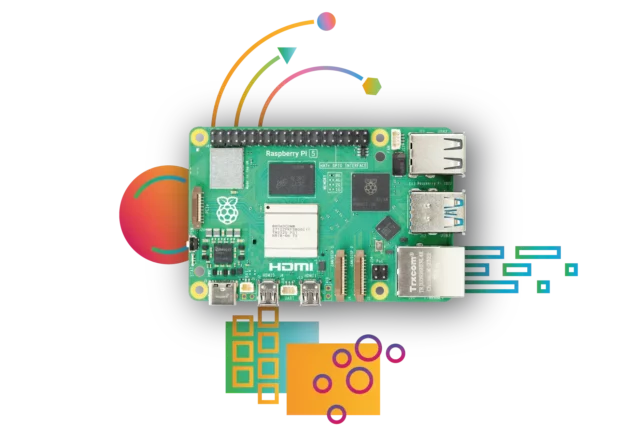
To determine whether your Raspberry Pi is running a 32-bit or 64-bit operating system, you can use various methods. Here are some steps:
1. Using the Command Line (Terminal):
Open the Terminal and enter the following command:
uname -mIf it displays armv7l, it’s a 32-bit system; if it shows aarch64, it’s a 64-bit system.
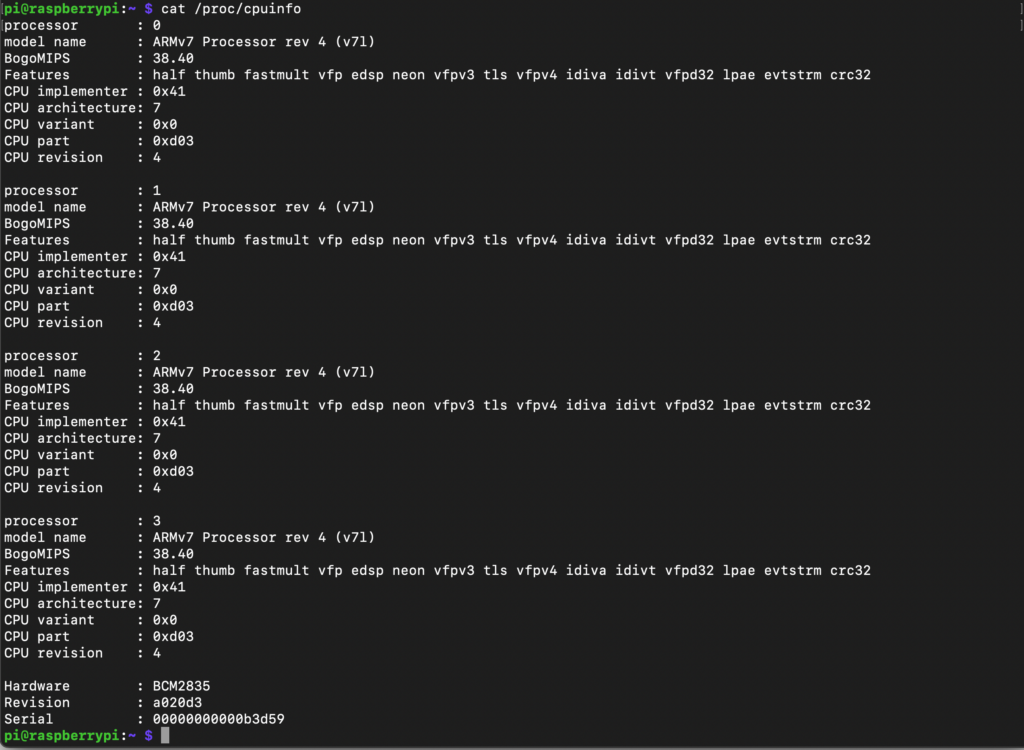
2. View the contents of the /proc/cpuinfo file by entering the following command:
cat /proc/cpuinfoLook for the model name or Features section. If it includes aarch64, it’s a 64-bit system.
3. Using the lscpu Tool:
Install the lscpu tool (if not already installed) and run:
sudo apt-get install lscpu
lscpu
Check the “Architecture” field in the output. If it shows aarch64, it’s a 64-bit system.
4. Using the dpkg Tool:
dpkg --print-architectureIf it shows armhf, it’s a 32-bit system; if it shows arm64, it’s a 64-bit system.
Choose any of these methods to determine whether your Raspberry Pi’s operating system is 32-bit or 64-bit.
English Version
To determine whether your Raspberry Pi is running a 32-bit or 64-bit operating system, you can use various methods. Here are some steps:
1. Using the Command Line (Terminal):
Open the Terminal and enter the following command:
uname -mIf it displays armv7l, it’s a 32-bit system; if it shows aarch64, it’s a 64-bit system.
2. View the contents of the /proc/cpuinfo file by entering the following command:
cat /proc/cpuinfoLook for the model name or Features section. If it includes aarch64, it’s a 64-bit system.
3. Using the lscpu Tool:
Install the lscpu tool (if not already installed) and run:
sudo apt-get install lscpu
lscpu
Check the “Architecture” field in the output. If it shows aarch64, it’s a 64-bit system.
4. Using the dpkg Tool:
dpkg --print-architectureIf it shows armhf, it’s a 32-bit system; if it shows arm64, it’s a 64-bit system.
Choose any of these methods to determine whether your Raspberry Pi’s operating system is 32-bit or 64-bit.
日本語版
Raspberry Piのオペレーティングシステムが32ビットか64ビットかを判別するには、さまざまな方法があります。以下に手順を示します:
1. コマンドライン(ターミナル)を使用する方法:
ターミナルを開き、以下のコマンドを入力します:
uname -marmv7lと表示された場合は32ビットシステム、aarch64と表示された場合は64ビットシステムです。
2. 以下のコマンドを入力して/proc/cpuinfoファイルの内容を確認します:
cat /proc/cpuinfomodel nameまたはFeaturesセクションを確認します。aarch64が含まれている場合は64ビットシステムです。
3. lscpuツールを使用する方法:
lscpuツールをインストールし(まだインストールされていない場合)、実行します:
sudo apt-get install lscpu
lscpu出力の「Architecture」フィールドを確認します。aarch64と表示されている場合は64ビットシステムです。
4. dpkgツールを使用する方法:
dpkg --print-architecturearmhfと表示された場合は32ビットシステム、arm64と表示された場合は64ビットシステムです。
これらの方法のいずれかを選んで、Raspberry Piのオペレーティングシステムが32ビットか64ビットかを判別してください。