您是否曾覺得閱讀複雜的設計文件就像面對一堵文字牆?作為開發者,我們知道視覺化圖表通常是理解系統中不同元件之間流程和互動的最佳方式。Mermaid 是一個出色的工具,它允許您使用簡單的、類似 Markdown 的文字來建立這些圖表——如時序圖、流程圖和甘特圖。
但問題是:如果您是 Eclipse 使用者,在 IDE 中直接查看這些簡潔美觀的圖表可能會很困難,因為預設的 Markdown 預覽器通常不支援它們。
好消息是?只需快速安裝一個外掛程式,就能將 Mermaid 視覺化的強大功能帶入您最愛的 Java IDE!
挑戰:Eclipse 中的原生 Mermaid 支援
Mermaid 圖表是在 Markdown 檔案(通常是 .md)中編寫的。雖然 Eclipse 有內建的 Markdown 編輯器,但它通常缺少將 Mermaid 語法(例如 sequenceDiagram ...)轉換為渲染圖形所需的解譯器。
這就是專用 Markdown 增強外掛程式派上用場的地方。
解決方案:安裝「Previewer」外掛程式
Sebastian Thomschke 開發的 「Previewer」外掛程式是一個輕量且強大的解決方案,它為您的 Eclipse 工作區添加更好的 Markdown 渲染功能,包括直接支援 Mermaid 時序圖。
以下是簡單的逐步安裝流程:
1. 啟動安裝管理員
在 Eclipse 選單列中,前往 Help > Install New Software…。
2. 添加更新站點
在「Work with:」欄位中,您需要添加外掛程式的更新站點 URL。
- 輸入以下 URL:
https://raw.githubusercontent.com/sebthom/previewer-eclipse-plugin/updatesite
3. 選擇並安裝
- 稍等片刻後,Previewer 選項應該會出現在下方列表中。
- 勾選 Previewer 旁邊的核取方塊。
- 點擊 Next。
- 檢視安裝詳情,接受授權協議,然後點擊 Finish。
4. 重新啟動 Eclipse
Eclipse 會提示您重新啟動以完成外掛程式的安裝。請繼續重新啟動 IDE。
視覺化您的邏輯!
重新啟動後,開啟任何包含 Mermaid 時序圖的 Markdown 檔案。您現在可以使用 Eclipse 的內建預覽功能,「Previewer」外掛程式將處理渲染,讓您即時視覺化邏輯。
Mermaid 程式碼範例:
程式碼片段
sequenceDiagram
    participant C as Client
    participant A as AuthenticationService
    participant D as Database

    C->>A: Login Request (User, Pass)
    A->>D: Verify Credentials
    D-->>A: Credentials Valid
    A-->>C: Authentication Token
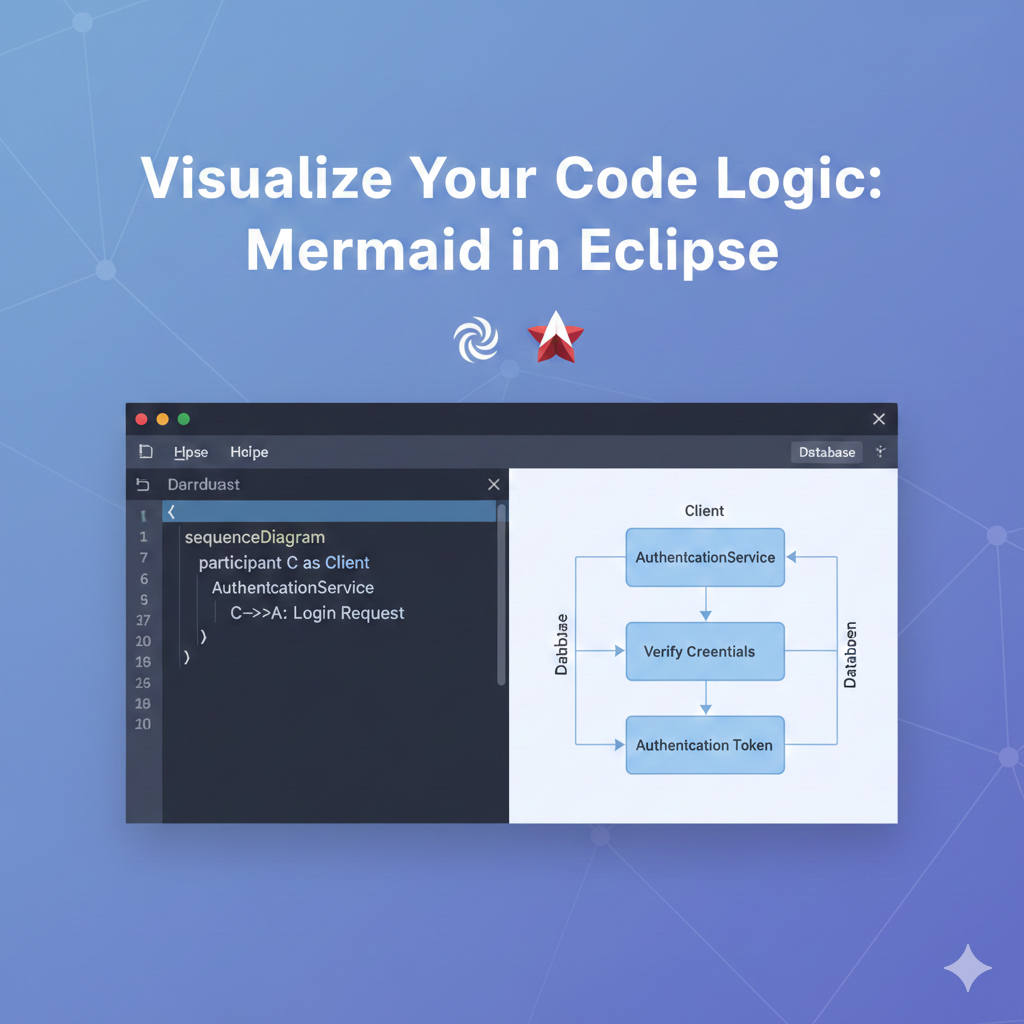
當您在安裝了 Previewer 外掛程式的 Eclipse 中開啟此檔案時,您將看到完整的渲染時序圖。
這個簡單的擴充功能將改善您的文件工作流程,使您在不離開 IDE 的情況下更輕鬆地建立和審查複雜的系統互動。
English Version
Ever felt like reading a complex design document is just a wall of text? As developers, we know that visual diagrams are often the best way to understand the flow and interaction between different components in a system. Mermaid is a fantastic tool that lets you create these diagrams—like Sequence, Flowchart, and Gantt charts—using simple, markdown-like text.
But here’s the rub: if you’re an Eclipse user, viewing these beautifully simple diagrams directly in your IDE can be a pain, as the default Markdown previewer often doesn’t support them.
The good news? A quick plugin install is all it takes to bring the power of Mermaid visualization right into your favorite Java IDE!
The Challenge: Native Mermaid Support in Eclipse
Mermaid diagrams are written in Markdown files (usually .md). While Eclipse has a built-in Markdown editor, it typically lacks the interpreter needed to convert the Mermaid syntax (e.g., sequenceDiagram ...) into the rendered graphic.
This is where a dedicated Markdown enhancement plugin comes in handy.
💡 Solution: Install the “Previewer” Plugin
The “Previewer” plugin by Sebastian Thomschke is a lightweight and powerful solution that adds better Markdown rendering, including support for Mermaid sequence diagrams, directly to your Eclipse workspace.
Here’s the simple step-by-step process to get it installed:
1. Launch the Installation Manager
Go to Help > Install New Software… in your Eclipse menu bar.
2. Add the Update Site
In the “Work with:” field, you need to add the plugin’s update site URL.
- Enter the following URL:
https://raw.githubusercontent.com/sebthom/previewer-eclipse-plugin/updatesite
3. Select and Install
- After a moment, the Previewer option should appear in the list below.
- Check the box next to Previewer.
- Click Next.
- Review the installation details, accept the license agreement, and click Finish.
4. Restart Eclipse
Eclipse will prompt you to restart to complete the plugin installation. Go ahead and restart the IDE.
🎉 Visualize Your Logic!
Once restarted, open any Markdown file containing a Mermaid Sequence Diagram. You can now use Eclipse’s built-in preview functionality, and the “Previewer” plugin will handle the rendering, allowing you to instantly visualize the logic.
Example Mermaid Code:
Code snippet
sequenceDiagram
    participant C as Client
    participant A as AuthenticationService
    participant D as Database

    C->>A: Login Request (User, Pass)
    A->>D: Verify Credentials
    D-->>A: Credentials Valid
    A-->>C: Authentication Token
When you open this in Eclipse with the Previewer plugin installed, you will see the full, rendered sequence diagram.
This simple addition transforms your documentation workflow, making it much easier to both create and review complex system interactions without ever leaving your IDE.
日本語版
複雑な設計ドキュメントを読むのが、まるでテキストの壁に向き合っているように感じたことはありませんか?開発者として、視覚的なダイアグラムがシステム内の異なるコンポーネント間のフローと相互作用を理解する最良の方法であることを知っています。Mermaid は、シンプルな Markdown ライクなテキストを使用して、シーケンス図、フローチャート、ガントチャートなどのダイアグラムを作成できる素晴らしいツールです。
しかし、問題があります。Eclipse ユーザーの場合、デフォルトの Markdown プレビューアーが Mermaid をサポートしていないことが多く、これらの美しくシンプルなダイアグラムを IDE 内で直接表示するのは困難です。
朗報です。プラグインを素早くインストールするだけで、お気に入りの Java IDE に Mermaid の視覚化機能を導入できます!
課題:Eclipse での Mermaid ネイティブサポート
Mermaid ダイアグラムは Markdown ファイル(通常は .md)に記述されます。Eclipse には組み込みの Markdown エディターがありますが、Mermaid 構文(例:sequenceDiagram ...)をレンダリングされたグラフィックに変換するインタープリターが通常不足しています。
ここで、専用の Markdown 拡張プラグインが役立ちます。
ソリューション:「Previewer」プラグインのインストール
Sebastian Thomschke による 「Previewer」プラグインは、Eclipse ワークスペースに優れた Markdown レンダリング機能を追加する、軽量で強力なソリューションです。Mermaid シーケンス図の直接サポートを含みます。
以下はインストールの簡単な手順です:
1. インストールマネージャーの起動
Eclipse メニューバーで Help > Install New Software… に移動します。
2. アップデートサイトの追加
「Work with:」フィールドに、プラグインのアップデートサイト URL を追加する必要があります。
- 次の URL を入力してください:
https://raw.githubusercontent.com/sebthom/previewer-eclipse-plugin/updatesite
3. 選択してインストール
- しばらくすると、下のリストに Previewer オプションが表示されます。
- Previewer の横にあるチェックボックスをオンにします。
- Next をクリックします。
- インストールの詳細を確認し、ライセンス契約に同意して、Finish をクリックします。
4. Eclipse の再起動
Eclipse がプラグインのインストールを完了するために再起動を促します。IDE を再起動してください。
ロジックを視覚化しましょう!
再起動後、Mermaid シーケンス図を含む任意の Markdown ファイルを開きます。Eclipse の組み込みプレビュー機能を使用でき、「Previewer」プラグインがレンダリングを処理して、ロジックを即座に視覚化できます。
Mermaid コードの例:
コードスニペット
sequenceDiagram
    participant C as Client
    participant A as AuthenticationService
    participant D as Database

    C->>A: Login Request (User, Pass)
    A->>D: Verify Credentials
    D-->>A: Credentials Valid
    A-->>C: Authentication Token
Previewer プラグインがインストールされた Eclipse でこのファイルを開くと、完全にレンダリングされたシーケンス図が表示されます。
このシンプルな追加機能により、ドキュメントワークフローが改善され、IDE を離れることなく複雑なシステムの相互作用を作成しレビューすることがはるかに容易になります。