Getting your new iDempiere ERP application server up and running is an exciting milestone. However, you might quickly run into a frustrating, yet common, issue right after the initial installation: time zone inconsistency.
Even if you correctly configure the time zone on the underlying operating system, the Java Application Server often seems to be stuck in a different time–usually the one active during its very first launch. This stubborn behavior can lead to incorrect timestamps on transactions, audit logs, and scheduled jobs, creating chaos in your ERP data.
The Root Cause: The JVM’s Default Time
The core of the problem lies in how the Java Virtual Machine (JVM) determines its default time zone.
When the Application Server first starts, the Java environment captures the operating system’s current time zone setting and caches it as the default for the entire VM process. Crucially, subsequent changes to the operating system’s time zone are often ignored by the running Java process. Even restarting the Application Server might not be enough if the startup scripts don’t explicitly force the correct setting.
The Simple, Elegant Solution: The Java System Property
Fortunately, there is a simple and reliable fix that overrides the JVM’s default behavior: the -Duser.timezone Java option.
To correctly set the time zone for your iDempiere Application Server, you must inject this specific system property directly into the Java startup command.
How to Implement the Fix (Example: Asia/Taipei)
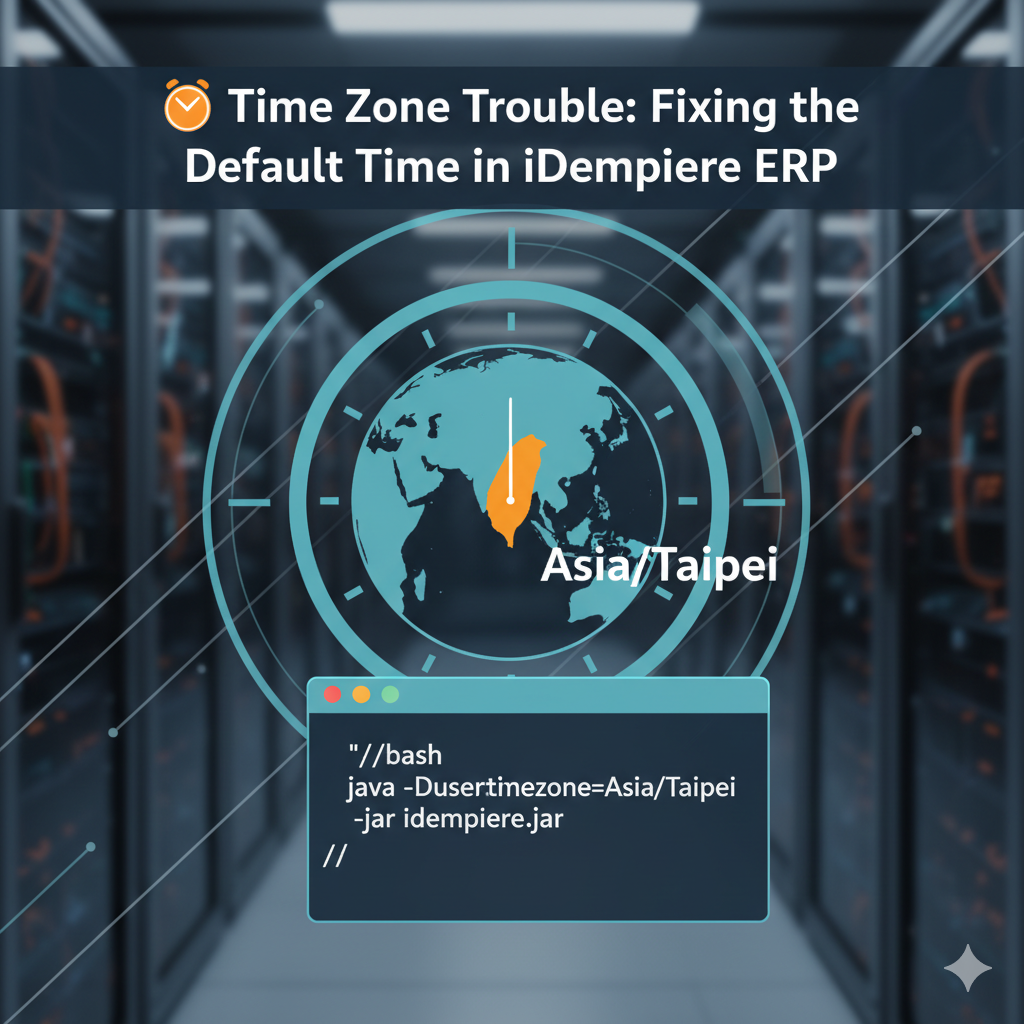
To enforce the Asia/Taipei time zone, you need to modify the startup script (usually idempiere-server.sh or idempiere-server.bat) or the configuration utility to include the following argument in the VM options:
Bash
-Duser.timezone=Asia/Taipei
By adding this flag, you are telling the JVM, “Forget what the operating system’s default is–for this process, the official timezone is Asia/Taipei.”
🛠️ Step-by-Step Action Plan
- Stop the iDempiere Server: Ensure the running Application Server process is completely shut down.
- Locate the Startup Configuration: Find the script or configuration file that launches your Java VM. This is often an environment variable file or a startup script within your
$IDEMPIERE_HOME/utilsdirectory. - Add the JVM Argument: Insert the
-Duser.timezone=Asia/Taipeiflag into the section that defines the$IDEMPIERE_JAVA_OPTIONSvariable in yourmyEnvironment.shfile. - Restart the Server: Start your iDempiere Application Server using the modified configuration.
#	Java
ADEMPIERE_JAVA="$JAVA_HOME/bin/java"
export ADEMPIERE_JAVA
IDEMPIERE_JAVA_OPTIONS="-Duser.timezone=Asia/Taipei -Xms24G -Xmx24G -DIDEMPIERE_HOME=$IDEMPIERE_HOME"
export IDEMPIERE_JAVA_OPTIONS
After the restart, your Application Server will correctly recognize and use the Asia/Taipei time zone for all its internal operations, ensuring accurate and consistent timestamps throughout your ERP system. This is a critical step for maintaining data integrity in global operations and ensuring compliance with local time requirements.
日本語版
新しいiDempiere ERPアプリケーションサーバーを起動・稼働させることは、エキサイティングなマイルストーンです。しかし、初期インストール直後に、よくある厄介な問題に遭遇するかもしれません:タイムゾーンの不整合です。
基盤となるオペレーティングシステムでタイムゾーンを正しく設定しても、Javaアプリケーションサーバーは異なる時刻のまま固定されているように見えることがよくあります。通常、最初の起動時にアクティブだったタイムゾーンが維持されます。この頑固な動作は、トランザクション、監査ログ、スケジュールジョブのタイムスタンプを不正確にし、ERPデータに混乱を引き起こす可能性があります。
根本原因:JVMのデフォルトタイムゾーン
問題の核心は、Java仮想マシン(JVM)がデフォルトのタイムゾーンを決定する方法にあります。
アプリケーションサーバーが最初に起動する際、Java環境はオペレーティングシステムの現在のタイムゾーン設定をキャプチャし、VMプロセス全体のデフォルトとしてキャッシュします。重要なのは、オペレーティングシステムのタイムゾーンへのその後の変更は、実行中のJavaプロセスによって無視されることが多いということです。起動スクリプトが正しい設定を明示的に強制しない場合、アプリケーションサーバーを再起動しても十分でない場合があります。
シンプルで優れた解決策:Javaシステムプロパティ
幸いなことに、JVMのデフォルト動作をオーバーライドするシンプルで信頼性の高い修正方法があります:-Duser.timezone Javaオプションです。
iDempiereアプリケーションサーバーのタイムゾーンを正しく設定するには、この特定のシステムプロパティをJava起動コマンドに直接注入する必要があります。
修正の実装方法(例:Asia/Taipei)
Asia/Taipeiタイムゾーンを強制するには、起動スクリプト(通常はidempiere-server.shまたはidempiere-server.bat)または設定ユーティリティを変更して、VMオプションに以下の引数を含める必要があります:
Bash
-Duser.timezone=Asia/Taipei
このフラグを追加することで、JVMに対して「オペレーティングシステムのデフォルトは忘れてください。このプロセスの公式タイムゾーンはAsia/Taipeiです。」と伝えることになります。
🛠️ ステップバイステップの実施手順
- iDempiereサーバーを停止: 実行中のアプリケーションサーバープロセスが完全にシャットダウンされていることを確認します。
- 起動設定の特定: Java VMを起動するスクリプトまたは設定ファイルを見つけます。これは通常、
$IDEMPIERE_HOME/utilsディレクトリ内の環境変数ファイルまたは起動スクリプトです。 - JVM引数の追加:
myEnvironment.shファイル内の$IDEMPIERE_JAVA_OPTIONS変数を定義するセクションに、-Duser.timezone=Asia/Taipeiフラグを挿入します。 - サーバーの再起動: 変更された設定を使用してiDempiereアプリケーションサーバーを起動します。
#	Java
ADEMPIERE_JAVA="$JAVA_HOME/bin/java"
export ADEMPIERE_JAVA
IDEMPIERE_JAVA_OPTIONS="-Duser.timezone=Asia/Taipei -Xms24G -Xmx24G -DIDEMPIERE_HOME=$IDEMPIERE_HOME"
export IDEMPIERE_JAVA_OPTIONS再起動後、アプリケーションサーバーはすべての内部操作でAsia/Taipeiタイムゾーンを正しく認識して使用するようになり、ERPシステム全体で正確で一貫したタイムスタンプが保証されます。これは、グローバルオペレーションにおけるデータ整合性の維持と、現地時間要件への準拠を確保するための重要なステップです。