
JasperReports is a powerful reporting engine that integrates seamlessly with iDempiere ERP, enabling you to create sophisticated and data-rich reports. This blog post delves into two essential aspects of JasperReports within iDempiere: utilizing subreports for detailed data presentation and dynamically incorporating images using parameters.
Dynamic Resource Location with Parameters
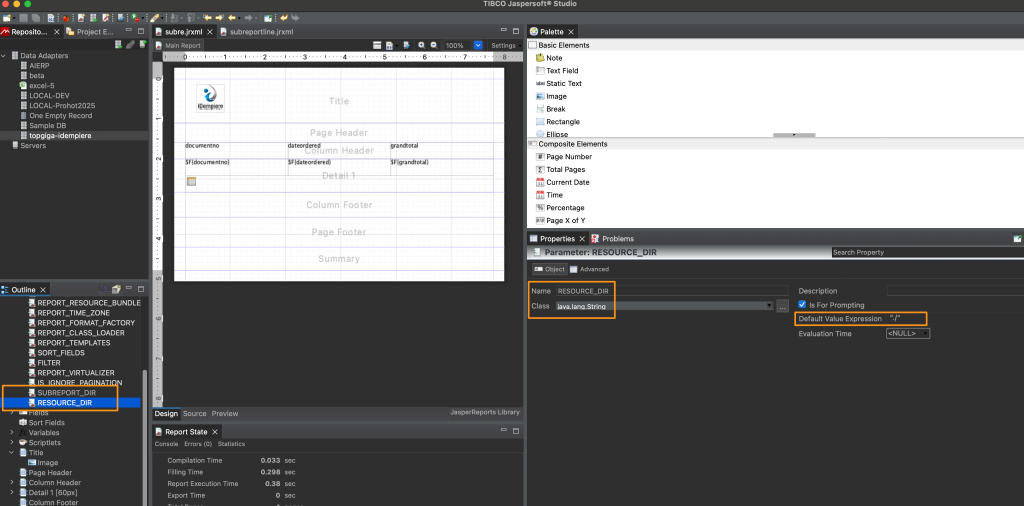
A key challenge in report development is managing resource paths (images, subreport files) across different environments. To address this, we leverage iDempiere’s parameter system, specifically “RESOURCE_DIR” and “SUBREPORT_DIR.” These parameters allow us to dynamically specify the locations of our report resources.
- “RESOURCE_DIR”: This parameter points to the directory containing images and other resources used in the main report. (See Image 1)
- “SUBREPORT_DIR”: This parameter specifies the directory where subreport
.jasperfiles are located. (See Image 1)
During development in JasperReports Studio, setting these parameters to “./” (the current directory) simplifies editing and testing. In iDempiere, you can then configure these parameters within the “Report & Process” window to point to the appropriate locations.
Embedding Images from iDempiere Attachments
This approach provides a robust way to include images in your reports. By utilizing “RESOURCE_DIR,” you can attach image files directly to the “Report & Process” record in iDempiere.
Here’s how it works:
- Attach Image: Upload your image file (e.g., the iDempiere logo) as an attachment to the relevant “Report & Process” record.
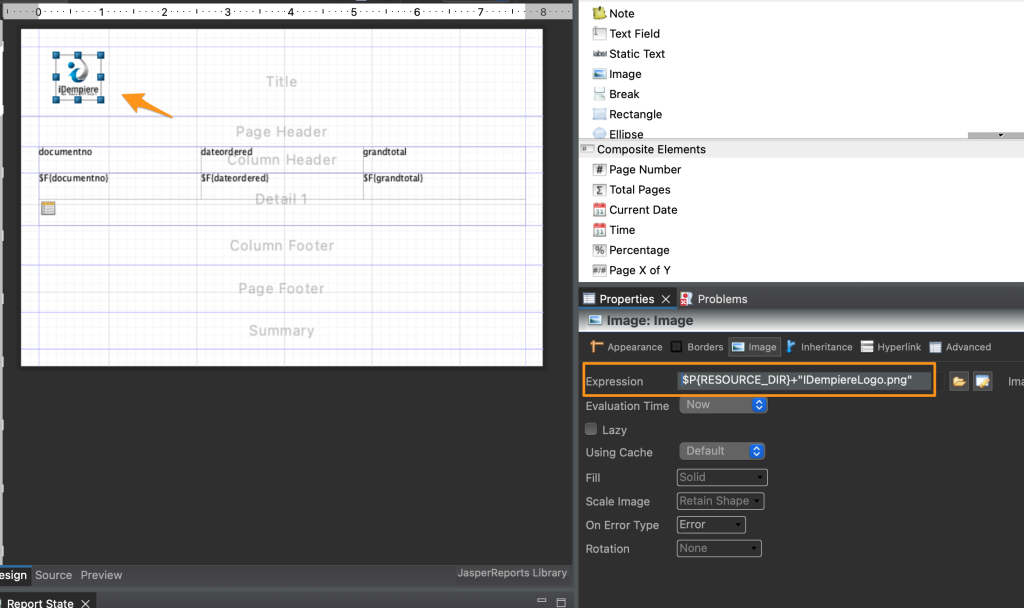
- Reference in Report: Within your JasperReport design, use an image element and set its “Image Expression” to reference the file using the “RESOURCE_DIR” parameter. For example:
$P{RESOURCE_DIR} + "idempiere_logo.png"(See Image 2)
This method ensures that your images are managed within iDempiere and readily accessible during report generation.
Implementing Subreports for Detailed Order Information
Subreports are invaluable for displaying related data within a report. In this example, we’ll demonstrate how to use a subreport to display order line details within a main report that lists orders.
- Main Report (Order List):
- Create a main report that queries the
C_Ordertable to retrieve a list of orders (e.g., from the Garden World example data).
- Create a main report that queries the
- Subreport (Order Lines):
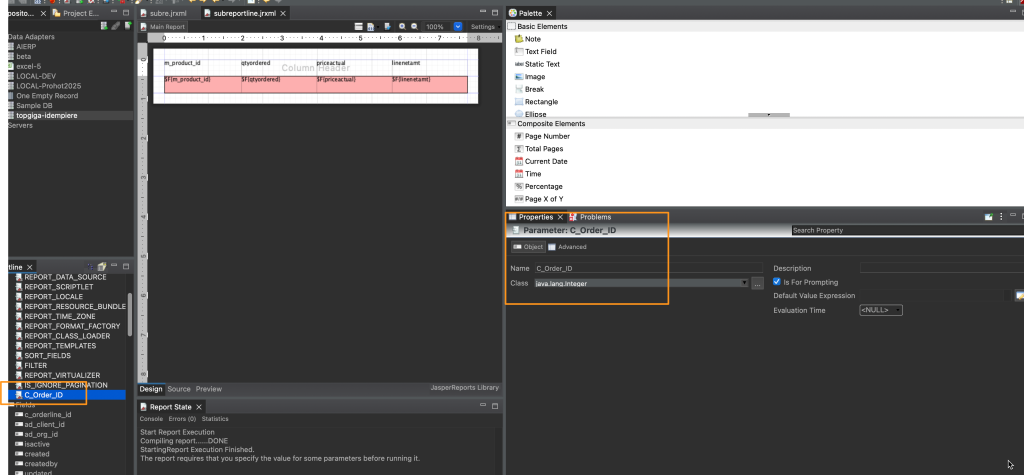
- Create a subreport that queries the
C_OrderLinetable to retrieve the line items for a specific order. - Add a parameter to the subreport (e.g., C_
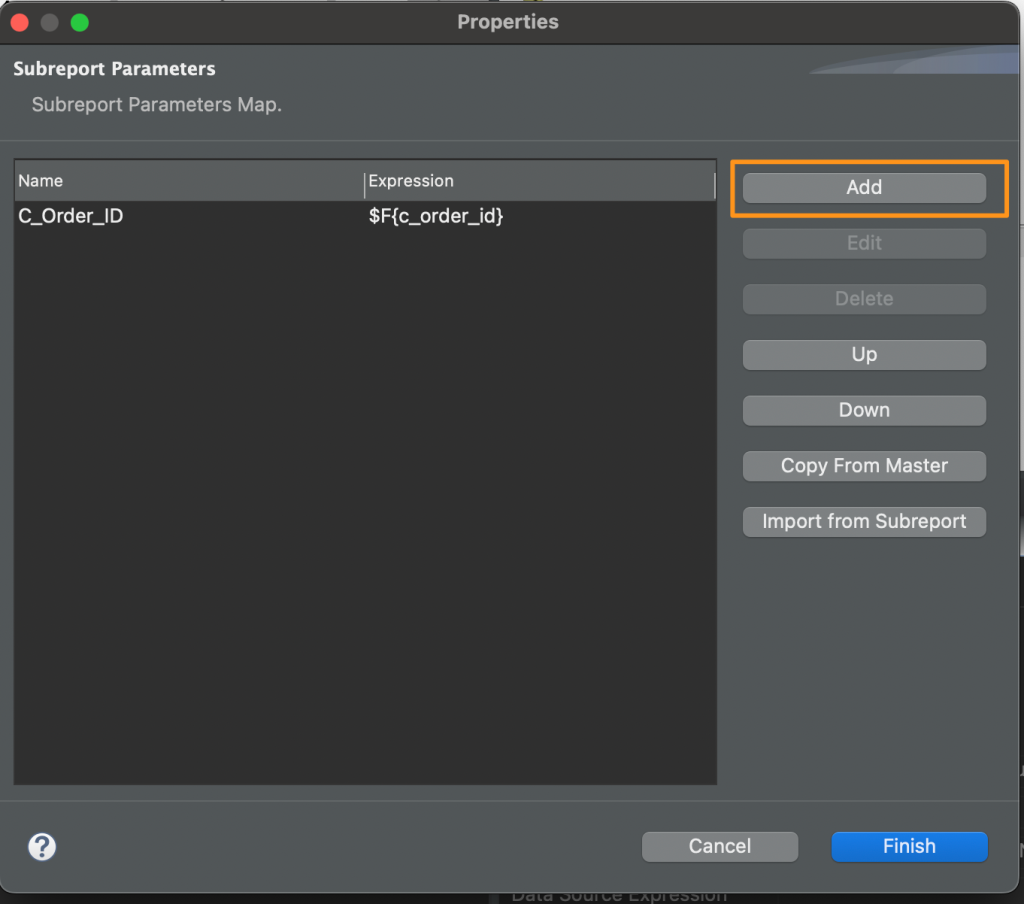
ORDER_ID) to receive theC_Order_IDfrom the main report.
- Create a subreport that queries the
- Integrate Subreport:
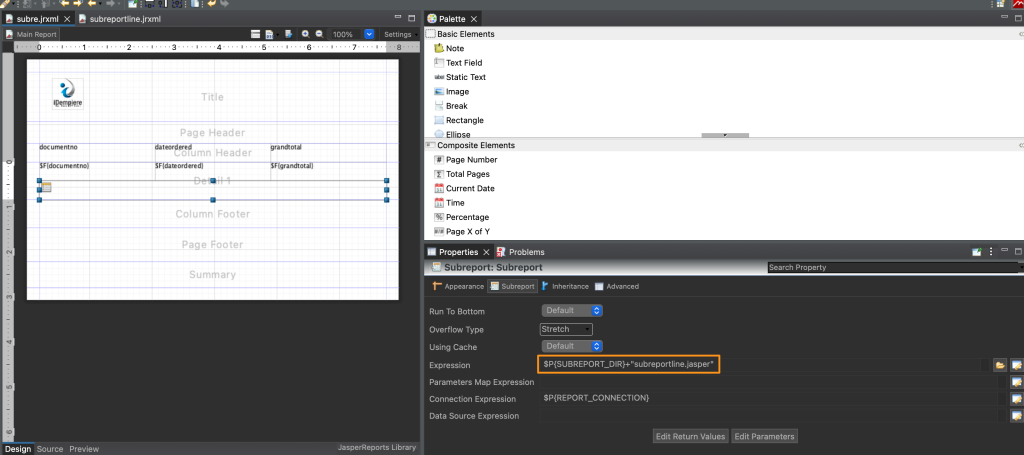
- In the main report’s detail band, add a subreport element.
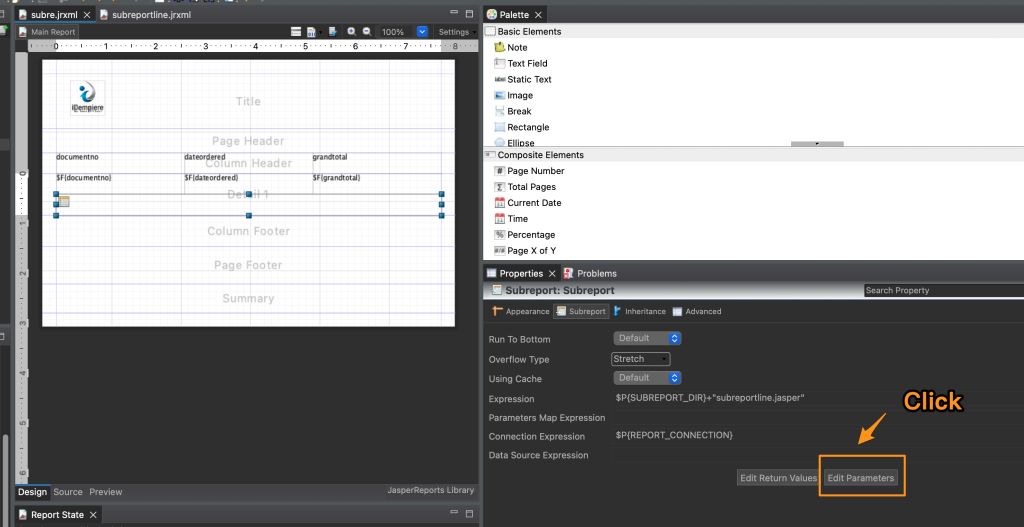
- Set the subreport Expression to the location of the subreport .jasper file, by using the SUBREPORT_DIR parameter. (See Image 3)
- Please be aware that iDempiere subreports exclusively support jasper file names, and do not support jrxml file name. (See Image 3)
- Pass the
C_Order_IDfrom the main report to the subreport’sORDER_IDparameter.
- Subreport query:
- In the subreport query, use the parameter $P{C_ORDER_ID} in the where clause, to select the correct orderlines. (See Image 5, Image 6)
This design allows you to generate a main report listing orders, with each order’s details displayed neatly within the corresponding subreport.
Importing the Report Design (.jrxml or .jasper files)
- First, design your report in JasperReports Studio. Once designed, compile it to generate a
.jasperfile. - Then, in iDempiere, navigate to the “Report & Process” window.
- Click the “New” button to create a new report record.
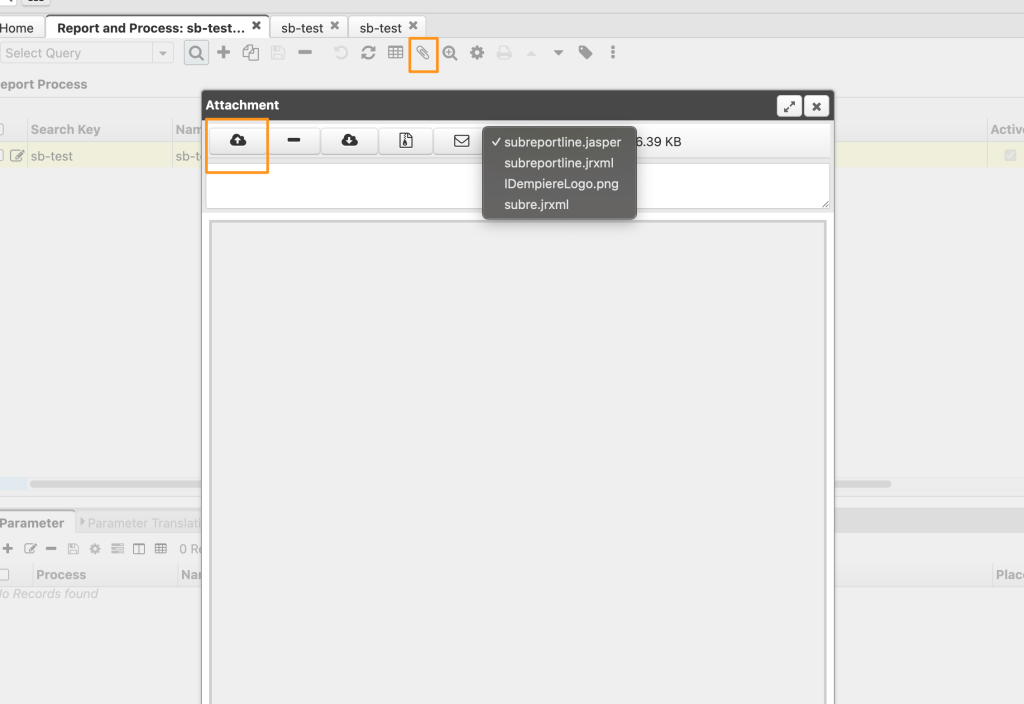
- Click Attachment in the Toolbar, and upload your
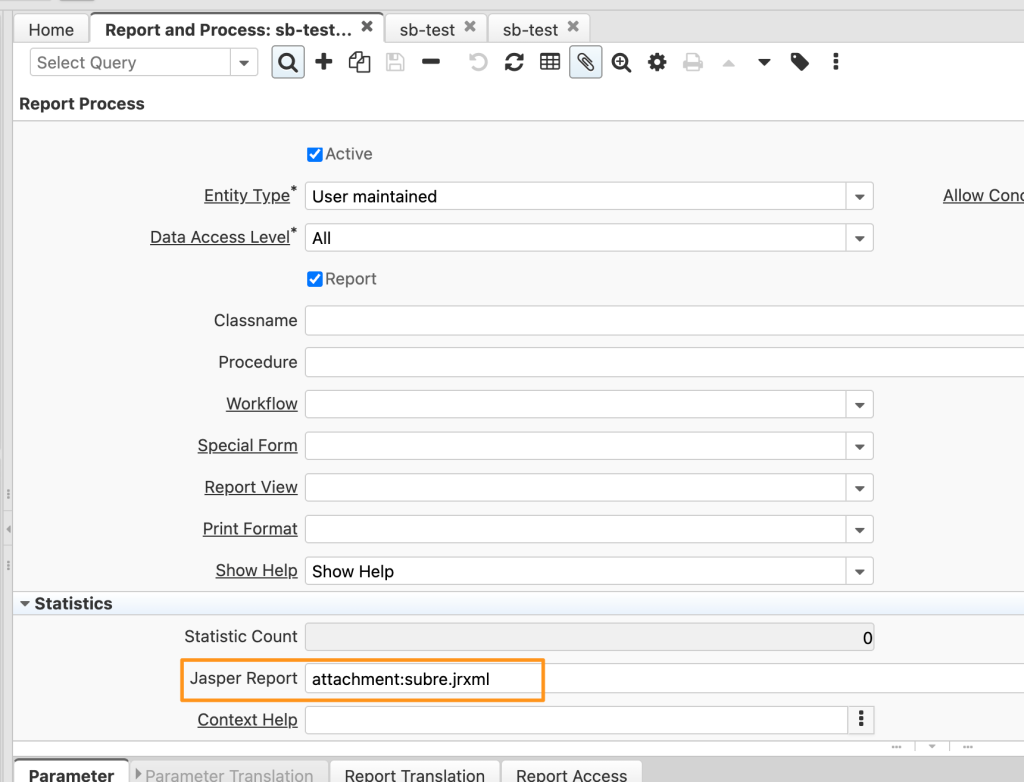
jasper.jrxml,imagefile. (See Image 7) - Specify the attachment prefix and main report file name within JasperReports fields. (See Image 8)
- Add the report to the menu.
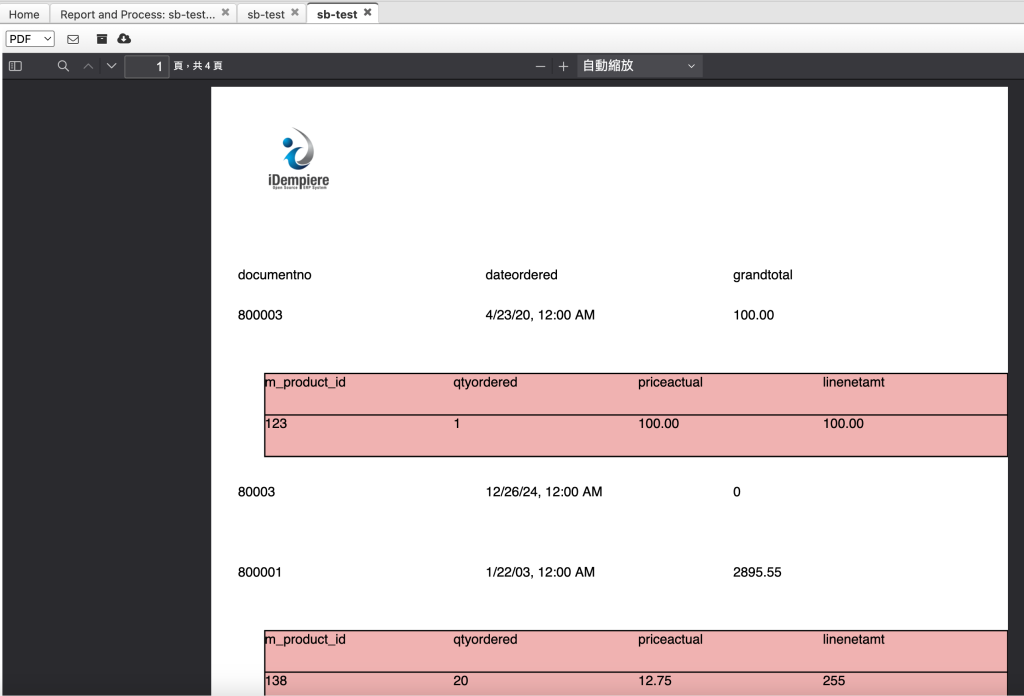
The final report demonstration in iDempiere ERP.
Benefits of This Approach
- Modular Reporting: Subreports promote modularity, making report design and maintenance easier.
- Data Organization: Subreports enable you to present complex, related data in a clear and structured manner.
- Dynamic Resource Management: Using parameters for resource paths enhances flexibility and portability.
- iDempiere Integration: Leveraging iDempiere attachments for images streamlines resource management.
By mastering subreports and dynamic image inclusion, you can unlock the full potential of JasperReports in iDempiere, creating reports that are both informative and visually appealing.
Reference
Feature: Jasper Report Deployment Refactoring and Improvement
English Version
JasperReports is a powerful reporting engine that integrates seamlessly with iDempiere ERP, enabling you to create sophisticated and data-rich reports. This blog post delves into two essential aspects of JasperReports within iDempiere: utilizing subreports for detailed data presentation and dynamically incorporating images using parameters.
Dynamic Resource Location with Parameters
A key challenge in report development is managing resource paths (images, subreport files) across different environments. To address this, we leverage iDempiere’s parameter system, specifically “RESOURCE_DIR” and “SUBREPORT_DIR.” These parameters allow us to dynamically specify the locations of our report resources.
- “RESOURCE_DIR”: This parameter points to the directory containing images and other resources used in the main report. (See Image 1)
- “SUBREPORT_DIR”: This parameter specifies the directory where subreport
.jasperfiles are located. (See Image 1)
During development in JasperReports Studio, setting these parameters to “./” (the current directory) simplifies editing and testing. In iDempiere, you can then configure these parameters within the “Report & Process” window to point to the appropriate locations.
Embedding Images from iDempiere Attachments
This approach provides a robust way to include images in your reports. By utilizing “RESOURCE_DIR,” you can attach image files directly to the “Report & Process” record in iDempiere.
Here’s how it works:
- Attach Image: Upload your image file (e.g., the iDempiere logo) as an attachment to the relevant “Report & Process” record.
- Reference in Report: Within your JasperReport design, use an image element and set its “Image Expression” to reference the file using the “RESOURCE_DIR” parameter. For example:
$P{RESOURCE_DIR} + "idempiere_logo.png"(See Image 2)
This method ensures that your images are managed within iDempiere and readily accessible during report generation.
Implementing Subreports for Detailed Order Information
Subreports are invaluable for displaying related data within a report. In this example, we’ll demonstrate how to use a subreport to display order line details within a main report that lists orders.
- Main Report (Order List):
- Create a main report that queries the
C_Ordertable to retrieve a list of orders (e.g., from the Garden World example data).
- Create a main report that queries the
- Subreport (Order Lines):
- Create a subreport that queries the
C_OrderLinetable to retrieve the line items for a specific order. - Add a parameter to the subreport (e.g., C_
ORDER_ID) to receive theC_Order_IDfrom the main report.
- Create a subreport that queries the
- Integrate Subreport:
- In the main report’s detail band, add a subreport element.
- Set the subreport Expression to the location of the subreport .jasper file, by using the SUBREPORT_DIR parameter. (See Image 3)
- Please be aware that iDempiere subreports exclusively support jasper file names, and do not support jrxml file name. (See Image 3)
- Pass the
C_Order_IDfrom the main report to the subreport’sORDER_IDparameter.
- Subreport query:
- In the subreport query, use the parameter $P{C_ORDER_ID} in the where clause, to select the correct orderlines. (See Image 5, Image 6)
This design allows you to generate a main report listing orders, with each order’s details displayed neatly within the corresponding subreport.
Importing the Report Design (.jrxml or .jasper files)
- First, design your report in JasperReports Studio. Once designed, compile it to generate a
.jasperfile. - Then, in iDempiere, navigate to the “Report & Process” window.
- Click the “New” button to create a new report record.
- Click Attachment in the Toolbar, and upload your
jasper.jrxml,imagefile. (See Image 7) - Specify the attachment prefix and main report file name within JasperReports fields. (See Image 8)
- Add the report to the menu.
The final report demonstration in iDempiere ERP.
Benefits of This Approach
- Modular Reporting: Subreports promote modularity, making report design and maintenance easier.
- Data Organization: Subreports enable you to present complex, related data in a clear and structured manner.
- Dynamic Resource Management: Using parameters for resource paths enhances flexibility and portability.
- iDempiere Integration: Leveraging iDempiere attachments for images streamlines resource management.
By mastering subreports and dynamic image inclusion, you can unlock the full potential of JasperReports in iDempiere, creating reports that are both informative and visually appealing.
Reference
Feature: Jasper Report Deployment Refactoring and Improvement
日本語版
JasperReportsは、iDempiere ERPとシームレスに統合される強力なレポートエンジンであり、洗練されたデータ豊富なレポートを作成することができます。このブログ記事では、iDempiere内のJasperReportsの2つの重要な側面について掘り下げます:詳細なデータ表示のためのサブレポートの活用と、パラメータを使用した画像の動的な組み込みです。
パラメータによる動的リソースロケーション
レポート開発における主要な課題は、異なる環境間でリソースパス(画像、サブレポートファイル)を管理することです。これに対処するため、iDempiereのパラメータシステム、特に「RESOURCE_DIR」と「SUBREPORT_DIR」を活用します。これらのパラメータにより、レポートリソースの場所を動的に指定できます。
- 「RESOURCE_DIR」: このパラメータは、メインレポートで使用される画像やその他のリソースを含むディレクトリを指します。(画像1を参照)
- 「SUBREPORT_DIR」: このパラメータは、サブレポートの
.jasperファイルが配置されているディレクトリを指定します。(画像1を参照)
JasperReports Studioでの開発中は、これらのパラメータを「./」(カレントディレクトリ)に設定することで、編集とテストが簡単になります。iDempiereでは、「Report & Process」ウィンドウ内でこれらのパラメータを適切な場所を指すように構成できます。
iDempiereの添付ファイルからの画像の埋め込み
このアプローチは、レポートに画像を含めるための堅牢な方法を提供します。「RESOURCE_DIR」を活用することで、iDempiereの「Report & Process」レコードに画像ファイルを直接添付できます。
仕組みは以下の通りです:
- 画像を添付: 画像ファイル(例:iDempiereロゴ)を、関連する「Report & Process」レコードの添付ファイルとしてアップロードします。
- レポートで参照: JasperReportデザイン内で、画像要素を使用し、「Image Expression」を「RESOURCE_DIR」パラメータを使用してファイルを参照するように設定します。例:
$P{RESOURCE_DIR} + "idempiere_logo.png"(画像2を参照)
この方法により、画像がiDempiere内で管理され、レポート生成時にすぐにアクセスできるようになります。
詳細な注文情報のためのサブレポートの実装
サブレポートは、レポート内で関連データを表示するために非常に有用です。この例では、注文一覧を表示するメインレポート内で、注文明細の詳細を表示するためにサブレポートを使用する方法を説明します。
- メインレポート(注文一覧):
C_Orderテーブルをクエリして注文一覧を取得するメインレポートを作成します(例:Garden Worldのサンプルデータから)。
- サブレポート(注文明細):
C_OrderLineテーブルをクエリして、特定の注文の明細項目を取得するサブレポートを作成します。- メインレポートから
C_Order_IDを受け取るためのパラメータ(例:C_ORDER_ID)をサブレポートに追加します。
- サブレポートの統合:
- メインレポートのDetailバンドにサブレポート要素を追加します。
- SUBREPORT_DIRパラメータを使用して、サブレポートExpressionをサブレポートの.jasperファイルの場所に設定します。(画像3を参照)
- iDempiereのサブレポートはjasperファイル名のみをサポートし、jrxmlファイル名はサポートしていないことにご注意ください。(画像3を参照)
- メインレポートからサブレポートの
ORDER_IDパラメータにC_Order_IDを渡します。
- サブレポートクエリ:
- サブレポートクエリでは、WHERE句でパラメータ$P{C_ORDER_ID}を使用して、正しい注文明細を選択します。(画像5、画像6を参照)
この設計により、注文を一覧表示するメインレポートを生成し、各注文の詳細を対応するサブレポート内にきれいに表示できます。
レポートデザインのインポート(.jrxmlまたは.jasperファイル)
- まず、JasperReports Studioでレポートをデザインします。デザインが完了したら、コンパイルして
.jasperファイルを生成します。 - 次に、iDempiereで「Report & Process」ウィンドウに移動します。
- 「New」ボタンをクリックして、新しいレポートレコードを作成します。
- ツールバーのAttachmentをクリックし、
jasper、jrxml、imageファイルをアップロードします。(画像7を参照) - JasperReportsフィールド内で添付ファイルのプレフィックスとメインレポートのファイル名を指定します。(画像8を参照)
- レポートをメニューに追加します。
iDempiere ERPでの最終レポートのデモンストレーションです。
このアプローチの利点
- モジュラーレポーティング: サブレポートはモジュール性を促進し、レポートの設計とメンテナンスを容易にします。
- データの整理: サブレポートにより、複雑で関連するデータを明確で構造化された方法で提示できます。
- 動的リソース管理: リソースパスにパラメータを使用することで、柔軟性と移植性が向上します。
- iDempiere統合: 画像にiDempiereの添付ファイルを活用することで、リソース管理が効率化されます。
サブレポートと動的な画像の組み込みをマスターすることで、iDempiereにおけるJasperReportsの可能性を最大限に引き出し、情報量が多く視覚的に魅力的なレポートを作成できます。
参考資料
機能: Jasper Reportデプロイメントのリファクタリングと改善