
In iDempiere, keeping track of changes made to data is crucial for maintaining data integrity and auditing purposes. The change history feature allows you to see who made a change, what was changed, and when the change occurred. However, by default, not all users have access to view this information. This blog post will guide you through granting users the necessary permissions to view change history in iDempiere.
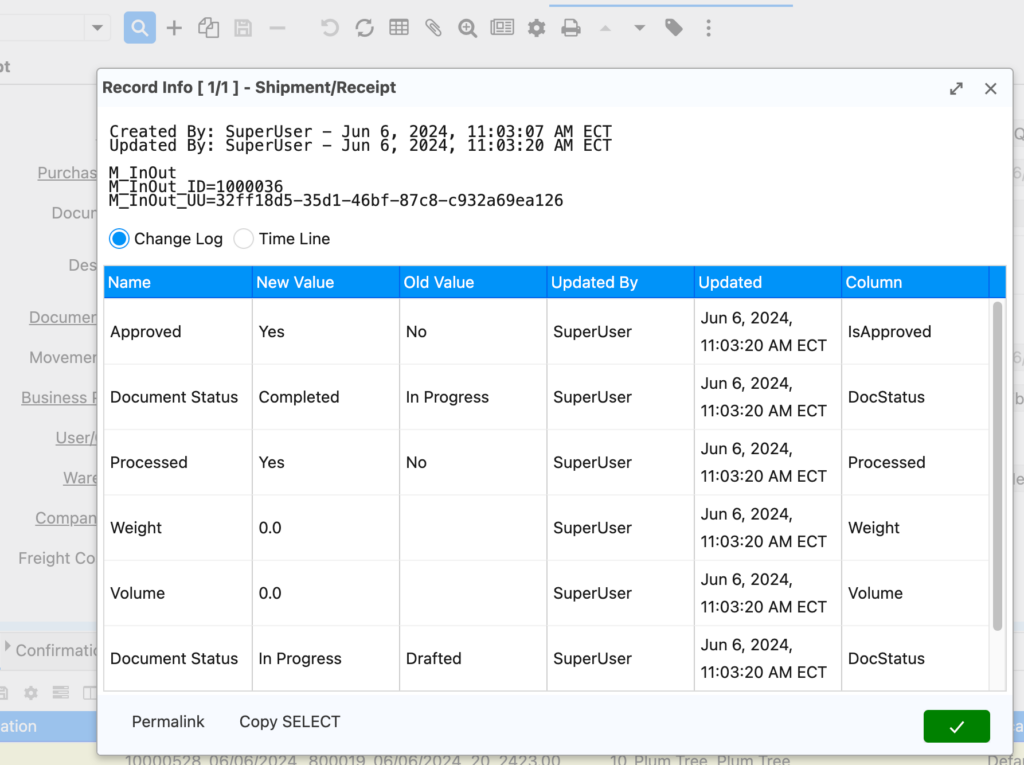
Granting View Access to Change History
- Access Role Data Access Window:
- Log in to iDempiere with an account that has administrative privileges.
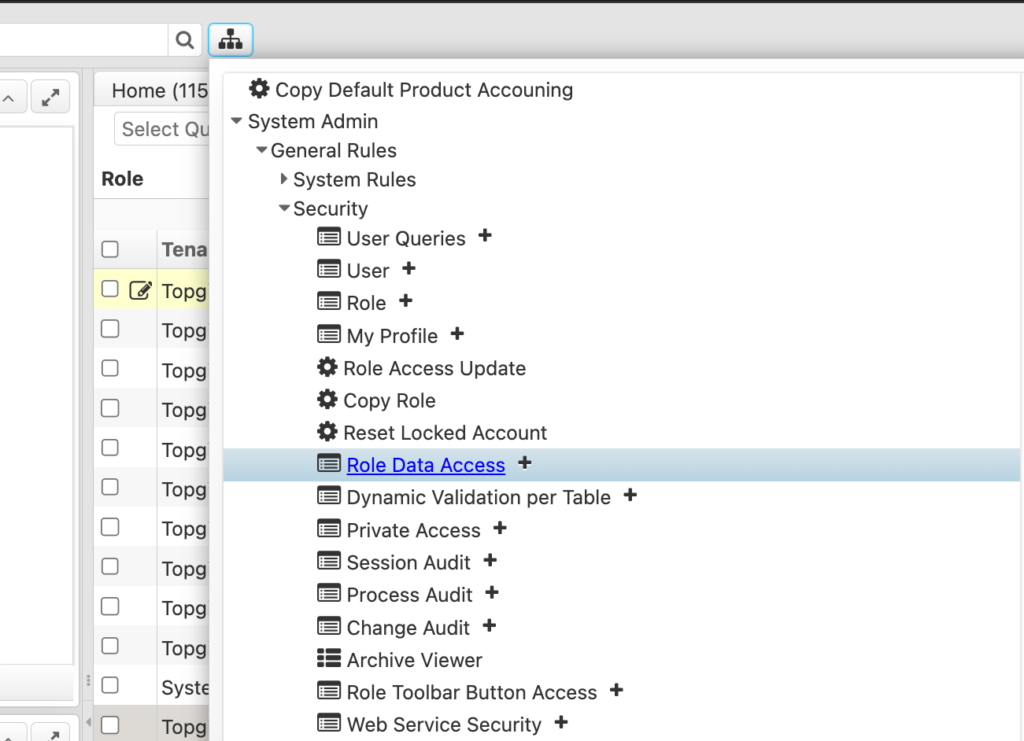
- Navigate to the System Administration menu and select Security -> Role Data Access.
- From the list of roles, select the role for which you want to grant access to view the change history. (Figure 1)
- Set Preference Level:
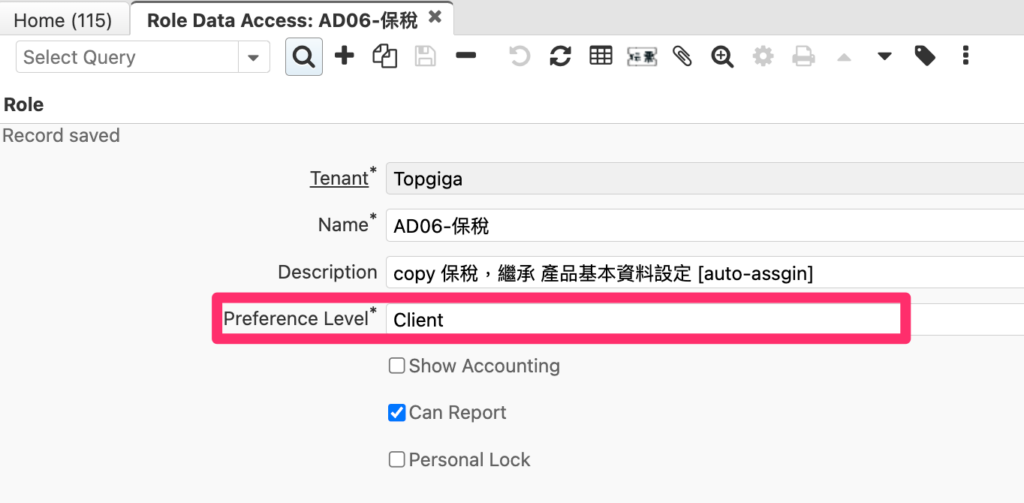
- In the Role Data Access window, locate the Preference Level section.
- From the dropdown menu, select Client. This grants the user access to view change history for records they have access to within their client. (Figure 2)
In Conclusion
Granting users access to view change history in iDempiere is essential for maintaining data integrity and ensuring a transparent audit trail. By following the steps outlined in this blog post, you can easily configure user permissions to meet your specific security requirements.
English Version
In iDempiere, keeping track of changes made to data is crucial for maintaining data integrity and auditing purposes. The change history feature allows you to see who made a change, what was changed, and when the change occurred. However, by default, not all users have access to view this information. This blog post will guide you through granting users the necessary permissions to view change history in iDempiere.
Granting View Access to Change History
- Access Role Data Access Window:
- Log in to iDempiere with an account that has administrative privileges.
- Navigate to the System Administration menu and select Security -> Role Data Access.
- From the list of roles, select the role for which you want to grant access to view the change history. (Figure 1)
- Set Preference Level:
- In the Role Data Access window, locate the Preference Level section.
- From the dropdown menu, select Client. This grants the user access to view change history for records they have access to within their client. (Figure 2)
In Conclusion
Granting users access to view change history in iDempiere is essential for maintaining data integrity and ensuring a transparent audit trail. By following the steps outlined in this blog post, you can easily configure user permissions to meet your specific security requirements.
日本語版
iDempiereにおいて、データの変更履歴を追跡することは、データの整合性の維持と監査目的のために極めて重要です。変更履歴機能により、誰が変更を行ったか、何が変更されたか、いつ変更が行われたかを確認できます。ただし、デフォルトではすべてのユーザーがこの情報を閲覧できるわけではありません。このブログ記事では、iDempiereでユーザーに変更履歴の閲覧に必要な権限を付与する方法を説明します。
変更履歴の閲覧権限の付与
- ロールデータアクセスウィンドウにアクセス:
- 管理者権限を持つアカウントでiDempiereにログインします。
- システム管理メニューに移動し、セキュリティ -> ロールデータアクセスを選択します。
- ロールの一覧から、変更履歴の閲覧権限を付与したいロールを選択します。(図1)
- プリファレンスレベルの設定:
- ロールデータアクセスウィンドウで、プリファレンスレベルセクションを探します。
- ドロップダウンメニューからクライアントを選択します。これにより、ユーザーはクライアント内でアクセス権を持つレコードの変更履歴を閲覧できるようになります。(図2)
まとめ
iDempiereでユーザーに変更履歴の閲覧権限を付与することは、データの整合性を維持し、透明性のある監査証跡を確保するために不可欠です。このブログ記事で説明した手順に従うことで、特定のセキュリティ要件に合わせてユーザー権限を簡単に設定できます。