Managing page breaks in reports is crucial for readability and professionalism. In JasperReports, you often need a page break when a certain group of data ends—for instance, when the value of a key field changes. This blog post will show you how to implement a conditional page break in the Detail band of your JasperReport, triggered when the current product value is different from the previous (last) one. This technique uses a clever combination of variables and the printWhenExpression.
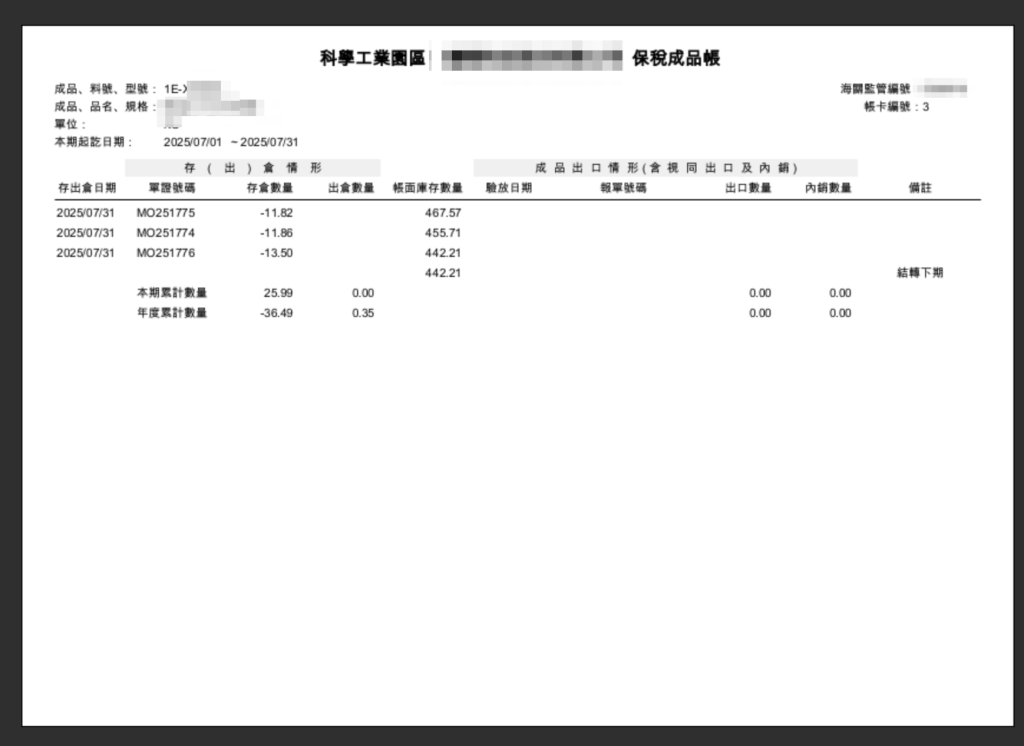
The Problem: Grouping and Page Breaks in the Detail Band
Normally, you’d use a Group to define a break based on a field change, and the page break setting on the Group Footer would handle the separation. However, sometimes you want the logic directly in the Detail band, perhaps for finer control or when traditional grouping doesn’t fit your report layout.
The challenge is: how do you access the previous record’s value while processing the current record in the Detail band? The solution lies in using a Variable to store the value of the field from the last processed record.
Step 1: Define the Variable to Store the Previous Value
First, you need a variable that will hold the value of your key field (e.g., `$F{PRODUCT_VALUE}$) after the current record has been processed.
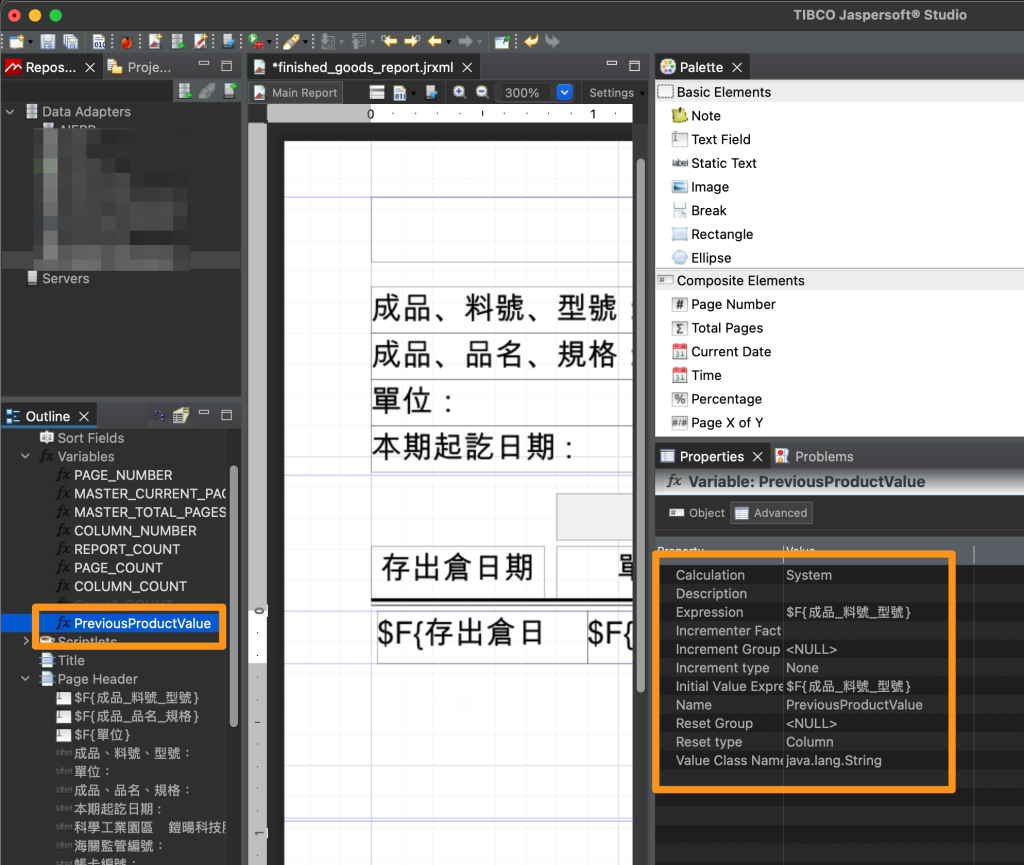
- In the Report Inspector, right-click on Variables and select Create Variable.
- Set the properties as follows:
- Name:
PreviousProductValue(or similar) - Variable Class: Match the data type of your field (e.g.,
java.lang.Stringorjava.lang.Integer). - Calculation: No Caluclation Function or System (It’s not an aggregate calculation).
- Reset Type:
Column(It should only update per record, not reset on group/report). - Variable Expression:
$F{PRODUCT_VALUE}(This is the crucial step: it tells the variable what value to take). - Initial Value Expression:
$F{PRODUCT_VALUE}(Optional, often left blank or set to a default/null value).
- Name:
💡 How it works: Because of JasperReports’ processing flow, when you use
$F{PRODUCT_VALUE}in the Variable Expression, the variable’s value will update to the current field value after the detail band has been evaluated for the current record. Thus, in the next record’s Detail band evaluation, the variablePreviousProductValueholds the value from the last record.
Step 2: Implement the Conditional Page Break
Now, you will place a Page Break element in the Detail band and define its printWhenExpression using your new variable.
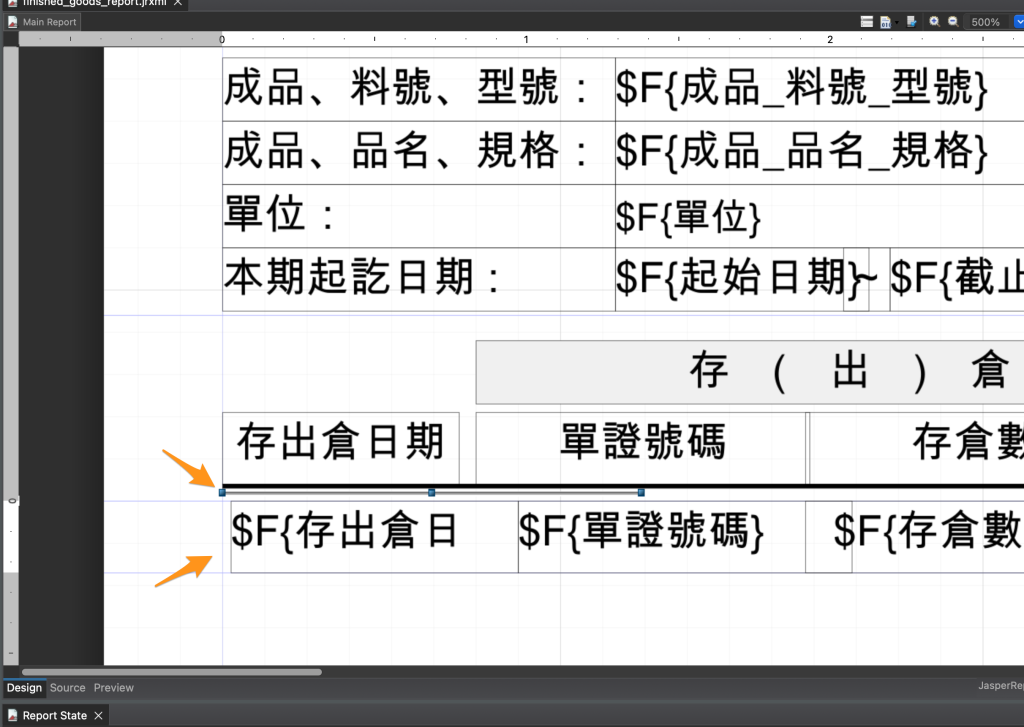
- Drag a Page Break element from the Palette onto the Detail band. It should be placed at the very top of the band, before any other elements. (Important: Image-3)
- Select the Page Break element and go to its properties.
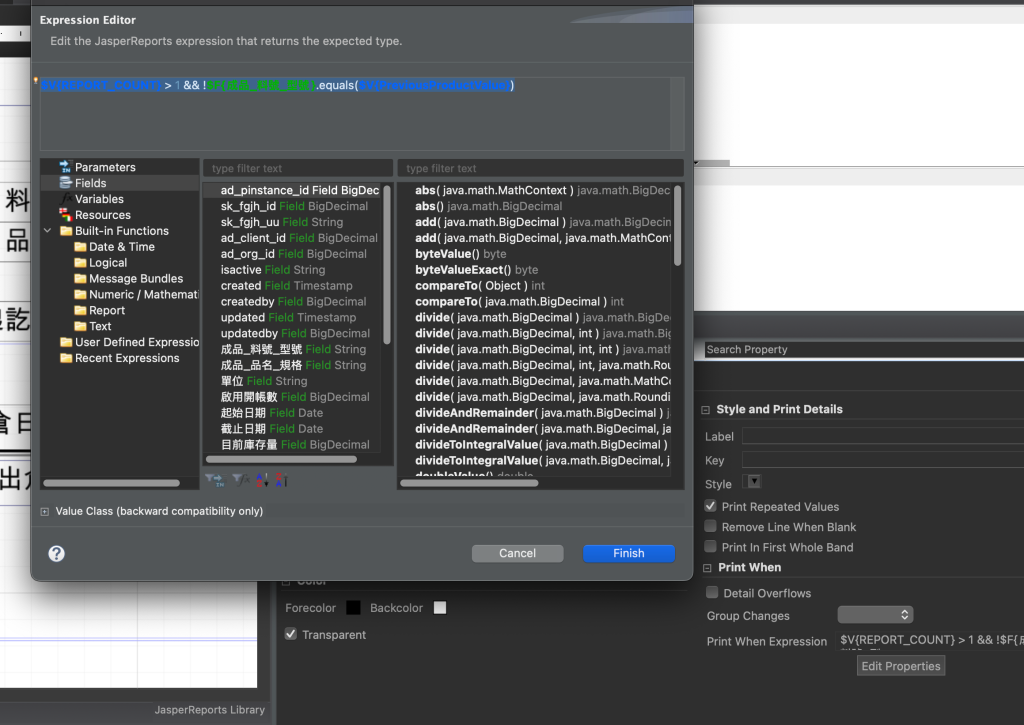
- Find the Print When Expression property and set it to the following logical condition (assuming your field is
$V{REPORT_COUNT} > 1 && !$F{PRODUCT_VALUE}.equals($V{PreviousProductValue})- Explanation:
$F{PRODUCT_VALUE}: The value of the current product.$V{PreviousProductValue}: The value of the product from the last processed record.- The expression evaluates to
true(and thus prints the page break) only if the current product value is not equal to the previous product value.
- Explanation:
Conclusion: Smart, Data-Driven Paging
By using a simple variable to ‘remember’ the previous record’s state, you can effectively create a custom, data-driven page break directly within the Detail band, giving you precise control over your report’s output structure based on data changes. This method is a powerful tool in your JasperReports arsenal for creating clear, segmented, and professional documents.
English Version
Managing page breaks in reports is crucial for readability and professionalism. In JasperReports, you often need a page break when a certain group of data ends—for instance, when the value of a key field changes. This blog post will show you how to implement a conditional page break in the Detail band of your JasperReport, triggered when the current product value is different from the previous (last) one. This technique uses a clever combination of variables and the printWhenExpression.
The Problem: Grouping and Page Breaks in the Detail Band
Normally, you’d use a Group to define a break based on a field change, and the page break setting on the Group Footer would handle the separation. However, sometimes you want the logic directly in the Detail band, perhaps for finer control or when traditional grouping doesn’t fit your report layout.
The challenge is: how do you access the previous record’s value while processing the current record in the Detail band? The solution lies in using a Variable to store the value of the field from the last processed record.
Step 1: Define the Variable to Store the Previous Value
First, you need a variable that will hold the value of your key field (e.g., `$F{PRODUCT_VALUE}$) after the current record has been processed.
- In the Report Inspector, right-click on Variables and select Create Variable.
- Set the properties as follows:
- Name:
PreviousProductValue(or similar) - Variable Class: Match the data type of your field (e.g.,
java.lang.Stringorjava.lang.Integer). - Calculation: No Caluclation Function or System (It’s not an aggregate calculation).
- Reset Type:
Column(It should only update per record, not reset on group/report). - Variable Expression:
$F{PRODUCT_VALUE}(This is the crucial step: it tells the variable what value to take). - Initial Value Expression:
$F{PRODUCT_VALUE}(Optional, often left blank or set to a default/null value).
- Name:
💡 How it works: Because of JasperReports’ processing flow, when you use
$F{PRODUCT_VALUE}in the Variable Expression, the variable’s value will update to the current field value after the detail band has been evaluated for the current record. Thus, in the next record’s Detail band evaluation, the variablePreviousProductValueholds the value from the last record.
Step 2: Implement the Conditional Page Break
Now, you will place a Page Break element in the Detail band and define its printWhenExpression using your new variable.
- Drag a Page Break element from the Palette onto the Detail band. It should be placed at the very top of the band, before any other elements. (Important: Image-3)
- Select the Page Break element and go to its properties.
- Find the Print When Expression property and set it to the following logical condition (assuming your field is
$V{REPORT_COUNT} > 1 && !$F{PRODUCT_VALUE}.equals($V{PreviousProductValue})- Explanation:
$F{PRODUCT_VALUE}: The value of the current product.$V{PreviousProductValue}: The value of the product from the last processed record.- The expression evaluates to
true(and thus prints the page break) only if the current product value is not equal to the previous product value.
- Explanation:
Conclusion: Smart, Data-Driven Paging
By using a simple variable to ‘remember’ the previous record’s state, you can effectively create a custom, data-driven page break directly within the Detail band, giving you precise control over your report’s output structure based on data changes. This method is a powerful tool in your JasperReports arsenal for creating clear, segmented, and professional documents.
日本語版
レポートにおける改ページの管理は、可読性とプロフェッショナルな見栄えにとって重要です。JasperReportsでは、特定のデータグループが終了するとき、例えばキーフィールドの値が変わるときに改ページが必要になることがよくあります。このブログ記事では、現在の製品値が前回(最後)の値と異なる場合にトリガーされる、JasperReportのDetailバンドにおける条件付き改ページの実装方法を紹介します。このテクニックは、変数とprintWhenExpressionの巧みな組み合わせを使用します。
問題:Detailバンドでのグルーピングと改ページ
通常、フィールドの変更に基づいてブレークを定義するにはグループを使用し、グループフッターの改ページ設定が区切りを処理します。しかし、より細かい制御が必要な場合や、従来のグルーピングがレポートレイアウトに適合しない場合など、Detailバンドに直接ロジックを配置したいことがあります。
課題は、Detailバンドで現在のレコードを処理中に前回のレコードの値にどうアクセスするかです。解決策は、最後に処理されたレコードのフィールド値を保存する変数を使用することにあります。
ステップ1:前回の値を保存する変数の定義
まず、キーフィールドの値(例:`$F{PRODUCT_VALUE}$)を、現在のレコードが処理された後に保持する変数が必要です。
- レポートインスペクターでVariablesを右クリックし、Create Variableを選択します。
- 以下のようにプロパティを設定します:
- Name:
PreviousProductValue(または類似の名前) - Variable Class: フィールドのデータ型に合わせます(例:
java.lang.Stringまたはjava.lang.Integer)。 - Calculation: No Caluclation FunctionまたはSystem(集計計算ではありません)。
- Reset Type:
Column(レコードごとにのみ更新され、グループ/レポートでリセットされないようにします)。 - Variable Expression:
$F{PRODUCT_VALUE}(これが重要なステップです:変数がどの値を取るかを指定します)。 - Initial Value Expression:
$F{PRODUCT_VALUE}(オプション。空白のままにするか、デフォルト/null値を設定することが多いです)。
- Name:
💡 仕組み: JasperReportsの処理フローにより、Variable Expressionで
$F{PRODUCT_VALUE}を使用すると、現在のレコードに対してDetailバンドが評価された後に、変数の値が現在のフィールド値に更新されます。したがって、次のレコードのDetailバンド評価時には、変数PreviousProductValueは前回のレコードの値を保持しています。
ステップ2:条件付き改ページの実装
次に、DetailバンドにPage Break要素を配置し、新しい変数を使用してprintWhenExpressionを定義します。
- パレットからPage Break要素をDetailバンドにドラッグします。バンドの最上部、他の要素の前に配置する必要があります。(重要:Image-3)
- Page Break要素を選択し、プロパティに移動します。
- Print When Expressionプロパティを見つけ、以下の論理条件を設定します(フィールドが以下であると仮定)
$V{REPORT_COUNT} > 1 && !$F{PRODUCT_VALUE}.equals($V{PreviousProductValue})- 説明:
$F{PRODUCT_VALUE}:現在の製品の値。$V{PreviousProductValue}:前回処理されたレコードの製品の値。- この式は、現在の製品値が前回の製品値と等しくない場合にのみ
trueと評価され(改ページが印刷され)ます。
- 説明:
まとめ:スマートなデータ駆動型ページング
シンプルな変数を使用して前回のレコードの状態を「記憶」することで、Detailバンド内で直接カスタムのデータ駆動型改ページを効果的に作成でき、データの変更に基づいてレポートの出力構造を正確に制御できます。この方法は、明確で区分された、プロフェッショナルなドキュメントを作成するためのJasperReportsの強力なツールです。