iDempiere is a powerful open-source ERP and CRM software that allows businesses to manage their operations more efficiently. However, over time, draft order documents can accumulate and slow down system performance. In this tutorial, we will show you how to automate the cleanup of old draft order documents in iDempiere using the built-in Scheduler feature and a custom Java process.
Prerequisites
Before we begin, make sure that you have the following:
- A working installation of iDempiere
- Basic knowledge of Java programming
- Access to the iDempiere source code
Creating the Java Process
The first step is to create a custom Java process that will delete old draft order documents. Here’s how to do it:
- Create a new Java class in your iDempiere project. You can name it something like “CleanDraftOrderDocumentsProcess”.
- In your class, implement the
org.compiere.process.SvrProcessinterface. This interface requires you to implement theexecutemethod, which is the main entry point for your process.
package com.yourcompany;

import org.compiere.process.SvrProcess;
import org.compiere.process.ProcessInfoParameter;
import org.compiere.util.DB;

public class CleanDraftOrderDocumentsProcess implements SvrProcess {

    private int daysOld;

    @Override
    protected void prepare() {
        ProcessInfoParameter[] para = getParameter();
        for (int i = 0; i < para.length; i++) {
            String name = para[i].getParameterName();
            if (para[i].getParameter() == null)
                ;
            else if (name.equals("DaysOld"))
                daysOld = para[i].getParameterAsInt();
        }
    }

    @Override
    protected String doIt() throws Exception {
        String sql = "DELETE FROM C_OrderLine WHERE C_Order_ID IN (SELECT C_Order_ID FROM C_Order WHERE IsSOTrx='Y' AND DocStatus='DR' AND Created < (CURRENT_DATE - ?))";
        int orderLineRowsDeleted = DB.executeUpdate(sql, new Object[] { daysOld }, false, null);

        sql = "DELETE FROM C_Order WHERE IsSOTrx='Y' AND DocStatus='DR' AND Created < (CURRENT_DATE - ?)";
        int orderRowsDeleted = DB.executeUpdate(sql, new Object[] { daysOld }, false, null);

        return orderLineRowsDeleted + " order line(s) and " + orderRowsDeleted + " order(s) have been deleted.";
    }
}
- In the
setParametermethod, retrieve the value of the “DaysOld” parameter and store it in a variable. - In the
doItmethod, use a SQL query to delete all draft order documents that are older than the specified number of days. TheDB.executeUpdatemethod is used to execute the SQL query. - Save your Java class and compile it.
Creating the Process in iDempiere
Next, you need to create a new process in iDempiere that will run your custom Java process. Here’s how to do it:
- In the iDempiere web interface, navigate to the “Processes” window.
- Click on the “New” button to create a new process.
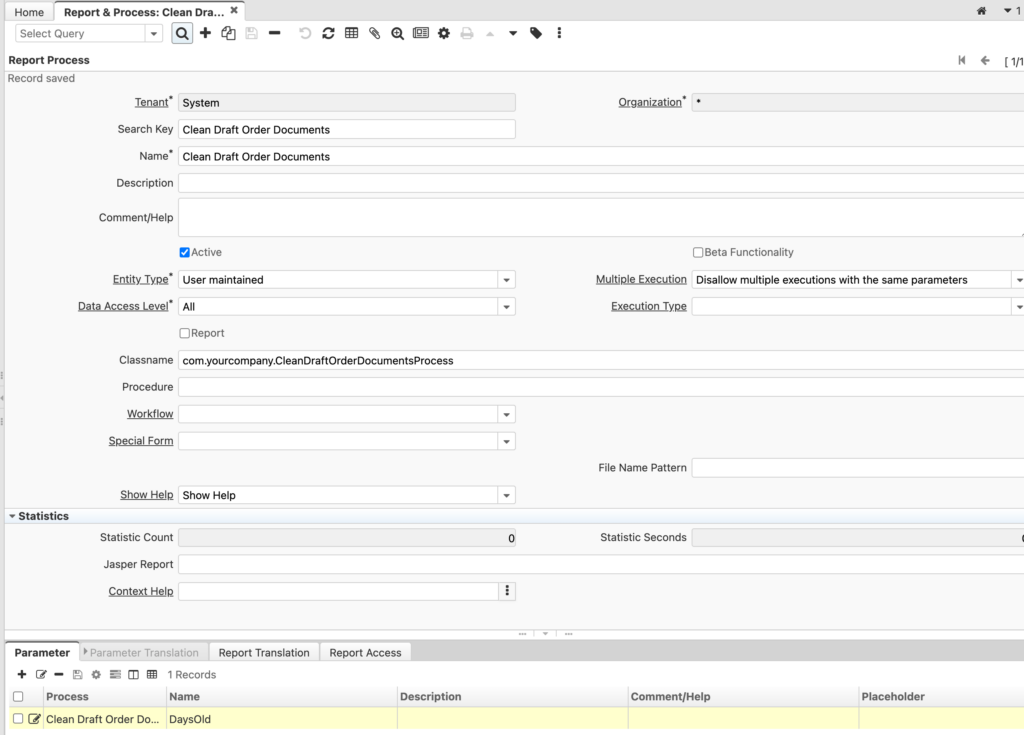
- Give your process a name, such as “Clean Draft Order Documents”.
- In the “Classname” field, enter the fully qualified name of your Java class (e.g. “com.yourcompany.CleanDraftOrderDocumentsProcess”).
- Click on the “Save” button to save your process.
Configuring the Process Parameters
Now that your process has been created, you need to configure its parameters. Here’s how to do it:
- In the “Processes” window, locate the process you just created and click on its name to open it.
- Click on the “Parameters” tab.
- Click on the “New” button to create a new parameter.
- Give your parameter a name, such as “DaysOld”.
- Set the parameter type to “Integer”.
Configuring the Scheduler
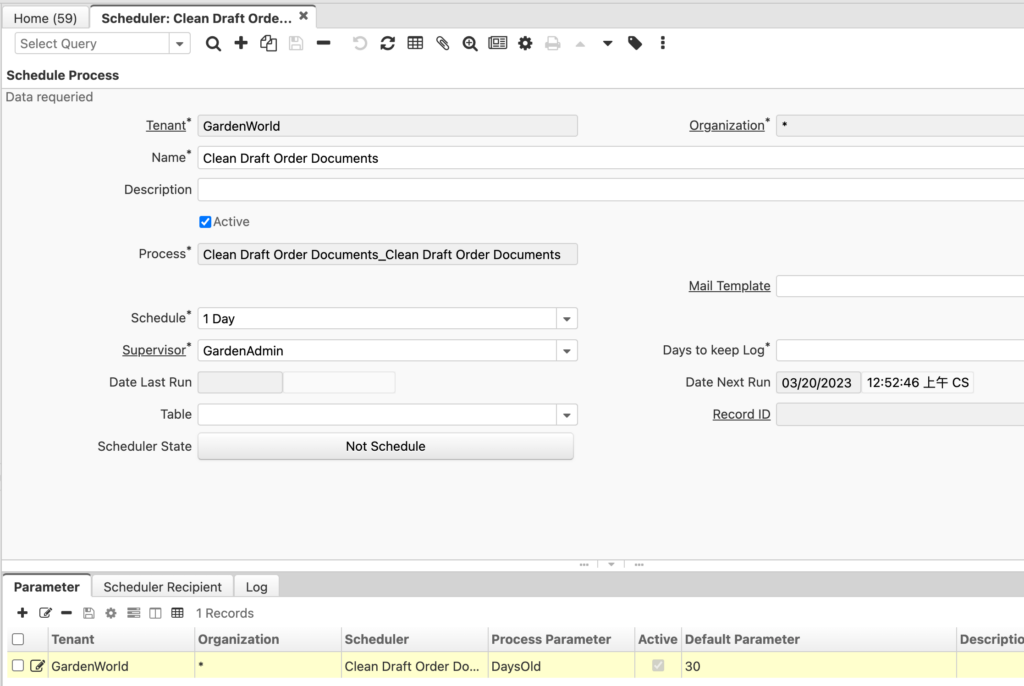
Now that you have created the Java process and configured its parameters, it’s time to schedule it to run automatically using the Scheduler. Here’s how to do it:
- In the iDempiere web interface, navigate to the “Scheduler” window.
- Click on the “New” button to create a new schedule.
- Name your schedule, such as “Clean Draft Order Documents”.
- In the “Process” field, select the process you created earlier.
- In the “Schedule Type” field, select how often you want the process to run. For example, you can choose “Daily” to run the process once a day.
- In the “Parameter” field, enter the value for the “DaysOld” parameter that you want to use. For example, if you want to delete draft order documents that are older than 30 days, you would enter “30” in this field.
- Click on the “Save” button to save your schedule.
Testing the Process
At this point, you have successfully created a Java process to clean up old draft order documents and configured the Scheduler to run it automatically every day. To test your process, simply wait for the scheduled time to arrive and check if the old draft order documents have been deleted.
Conclusion
In this tutorial, we have shown you how to automate the cleanup of old draft order documents in iDempiere using a custom Java process and the built-in Scheduler feature. By scheduling the process to run automatically, you can save time and improve the performance of your iDempiere installation.
English Version
iDempiere is a powerful open-source ERP and CRM software that allows businesses to manage their operations more efficiently. However, over time, draft order documents can accumulate and slow down system performance. In this tutorial, we will show you how to automate the cleanup of old draft order documents in iDempiere using the built-in Scheduler feature and a custom Java process.
Prerequisites
Before we begin, make sure that you have the following:
- A working installation of iDempiere
- Basic knowledge of Java programming
- Access to the iDempiere source code
Creating the Java Process
The first step is to create a custom Java process that will delete old draft order documents. Here’s how to do it:
- Create a new Java class in your iDempiere project. You can name it something like “CleanDraftOrderDocumentsProcess”.
- In your class, implement the
org.compiere.process.SvrProcessinterface. This interface requires you to implement theexecutemethod, which is the main entry point for your process.
package com.yourcompany;

import org.compiere.process.SvrProcess;
import org.compiere.process.ProcessInfoParameter;
import org.compiere.util.DB;

public class CleanDraftOrderDocumentsProcess implements SvrProcess {

    private int daysOld;

    @Override
    protected void prepare() {
        ProcessInfoParameter[] para = getParameter();
        for (int i = 0; i < para.length; i++) {
            String name = para[i].getParameterName();
            if (para[i].getParameter() == null)
                ;
            else if (name.equals("DaysOld"))
                daysOld = para[i].getParameterAsInt();
        }
    }

    @Override
    protected String doIt() throws Exception {
        String sql = "DELETE FROM C_OrderLine WHERE C_Order_ID IN (SELECT C_Order_ID FROM C_Order WHERE IsSOTrx='Y' AND DocStatus='DR' AND Created < (CURRENT_DATE - ?))";
        int orderLineRowsDeleted = DB.executeUpdate(sql, new Object[] { daysOld }, false, null);

        sql = "DELETE FROM C_Order WHERE IsSOTrx='Y' AND DocStatus='DR' AND Created < (CURRENT_DATE - ?)";
        int orderRowsDeleted = DB.executeUpdate(sql, new Object[] { daysOld }, false, null);

        return orderLineRowsDeleted + " order line(s) and " + orderRowsDeleted + " order(s) have been deleted.";
    }
}
- In the
setParametermethod, retrieve the value of the “DaysOld” parameter and store it in a variable. - In the
doItmethod, use a SQL query to delete all draft order documents that are older than the specified number of days. TheDB.executeUpdatemethod is used to execute the SQL query. - Save your Java class and compile it.
Creating the Process in iDempiere
Next, you need to create a new process in iDempiere that will run your custom Java process. Here’s how to do it:
- In the iDempiere web interface, navigate to the “Processes” window.
- Click on the “New” button to create a new process.
- Give your process a name, such as “Clean Draft Order Documents”.
- In the “Classname” field, enter the fully qualified name of your Java class (e.g. “com.yourcompany.CleanDraftOrderDocumentsProcess”).
- Click on the “Save” button to save your process.
Configuring the Process Parameters
Now that your process has been created, you need to configure its parameters. Here’s how to do it:
- In the “Processes” window, locate the process you just created and click on its name to open it.
- Click on the “Parameters” tab.
- Click on the “New” button to create a new parameter.
- Give your parameter a name, such as “DaysOld”.
- Set the parameter type to “Integer”.
Configuring the Scheduler
Now that you have created the Java process and configured its parameters, it’s time to schedule it to run automatically using the Scheduler. Here’s how to do it:
- In the iDempiere web interface, navigate to the “Scheduler” window.
- Click on the “New” button to create a new schedule.
- Name your schedule, such as “Clean Draft Order Documents”.
- In the “Process” field, select the process you created earlier.
- In the “Schedule Type” field, select how often you want the process to run. For example, you can choose “Daily” to run the process once a day.
- In the “Parameter” field, enter the value for the “DaysOld” parameter that you want to use. For example, if you want to delete draft order documents that are older than 30 days, you would enter “30” in this field.
- Click on the “Save” button to save your schedule.
Testing the Process
At this point, you have successfully created a Java process to clean up old draft order documents and configured the Scheduler to run it automatically every day. To test your process, simply wait for the scheduled time to arrive and check if the old draft order documents have been deleted.
Conclusion
In this tutorial, we have shown you how to automate the cleanup of old draft order documents in iDempiere using a custom Java process and the built-in Scheduler feature. By scheduling the process to run automatically, you can save time and improve the performance of your iDempiere installation.
日本語版
iDempiereは、企業がより効率的に業務を管理できる強力なオープンソースのERPおよびCRMソフトウェアです。しかし、時間の経過とともに下書き状態の注文伝票が蓄積し、システムパフォーマンスが低下する可能性があります。このチュートリアルでは、組み込みのスケジューラ機能とカスタムJavaプロセスを使用して、iDempiereで古い下書き注文伝票のクリーンアップを自動化する方法を紹介します。
前提条件
始める前に、以下の準備が整っていることを確認してください:
- iDempiereの動作するインストール環境
- Javaプログラミングの基本的な知識
- iDempiereのソースコードへのアクセス
Javaプロセスの作成
最初のステップは、古い下書き注文伝票を削除するカスタムJavaプロセスを作成することです。以下がその方法です:
- iDempiereプロジェクトに新しいJavaクラスを作成します。「CleanDraftOrderDocumentsProcess」のような名前を付けることができます。
- クラスで
org.compiere.process.SvrProcessインターフェースを実装します。このインターフェースでは、プロセスのメインエントリーポイントであるexecuteメソッドを実装する必要があります。
package com.yourcompany;

import org.compiere.process.SvrProcess;
import org.compiere.process.ProcessInfoParameter;
import org.compiere.util.DB;

public class CleanDraftOrderDocumentsProcess implements SvrProcess {

    private int daysOld;

    @Override
    protected void prepare() {
        ProcessInfoParameter[] para = getParameter();
        for (int i = 0; i < para.length; i++) {
            String name = para[i].getParameterName();
            if (para[i].getParameter() == null)
                ;
            else if (name.equals("DaysOld"))
                daysOld = para[i].getParameterAsInt();
        }
    }

    @Override
    protected String doIt() throws Exception {
        String sql = "DELETE FROM C_OrderLine WHERE C_Order_ID IN (SELECT C_Order_ID FROM C_Order WHERE IsSOTrx='Y' AND DocStatus='DR' AND Created < (CURRENT_DATE - ?))";
        int orderLineRowsDeleted = DB.executeUpdate(sql, new Object[] { daysOld }, false, null);

        sql = "DELETE FROM C_Order WHERE IsSOTrx='Y' AND DocStatus='DR' AND Created < (CURRENT_DATE - ?)";
        int orderRowsDeleted = DB.executeUpdate(sql, new Object[] { daysOld }, false, null);

        return orderLineRowsDeleted + " order line(s) and " + orderRowsDeleted + " order(s) have been deleted.";
    }
}
setParameterメソッドで、「DaysOld」パラメータの値を取得し、変数に格納します。doItメソッドで、SQLクエリを使用して指定された日数より古いすべての下書き注文伝票を削除します。DB.executeUpdateメソッドを使用してSQLクエリを実行します。- Javaクラスを保存してコンパイルします。
iDempiereでのプロセス作成
次に、カスタムJavaプロセスを実行する新しいプロセスをiDempiereに作成する必要があります。以下がその方法です:
- iDempiereのWebインターフェースで、「プロセス」ウィンドウに移動します。
- 「新規」ボタンをクリックして新しいプロセスを作成します。
- プロセスに「Clean Draft Order Documents」のような名前を付けます。
- 「クラス名」フィールドに、Javaクラスの完全修飾名(例:「com.yourcompany.CleanDraftOrderDocumentsProcess」)を入力します。
- 「保存」ボタンをクリックしてプロセスを保存します。
プロセスパラメータの設定
プロセスが作成されたので、パラメータを設定する必要があります。以下がその方法です:
- 「プロセス」ウィンドウで、作成したプロセスを見つけ、その名前をクリックして開きます。
- 「パラメータ」タブをクリックします。
- 「新規」ボタンをクリックして新しいパラメータを作成します。
- パラメータに「DaysOld」のような名前を付けます。
- パラメータタイプを「Integer」に設定します。
スケジューラの設定
Javaプロセスを作成しパラメータを設定したので、スケジューラを使用して自動実行をスケジュールする時間です。以下がその方法です:
- iDempiereのWebインターフェースで、「スケジューラ」ウィンドウに移動します。
- 「新規」ボタンをクリックして新しいスケジュールを作成します。
- スケジュールに「Clean Draft Order Documents」のような名前を付けます。
- 「プロセス」フィールドで、先ほど作成したプロセスを選択します。
- 「スケジュールタイプ」フィールドで、プロセスの実行頻度を選択します。例えば、1日1回プロセスを実行する場合は「毎日」を選択できます。
- 「パラメータ」フィールドに、使用したい「DaysOld」パラメータの値を入力します。例えば、30日以上前の下書き注文伝票を削除したい場合は、このフィールドに「30」と入力します。
- 「保存」ボタンをクリックしてスケジュールを保存します。
プロセスのテスト
この時点で、古い下書き注文伝票をクリーンアップするJavaプロセスの作成と、毎日自動実行するスケジューラの設定が正常に完了しました。プロセスをテストするには、スケジュールされた時刻が来るのを待ち、古い下書き注文伝票が削除されたかどうかを確認するだけです。
結論
このチュートリアルでは、カスタムJavaプロセスと組み込みのスケジューラ機能を使用して、iDempiereで古い下書き注文伝票のクリーンアップを自動化する方法を紹介しました。プロセスを自動実行するようにスケジュールすることで、時間を節約し、iDempiereインストールのパフォーマンスを向上させることができます。